The student page, its tabs and enrollments
Every student has a page that brings together their details, guardian, groups, attendance, marks and payments. Open it from “Students” → “Students”: search for the student by name, mobile or code, then press their name.
1. The top of the page
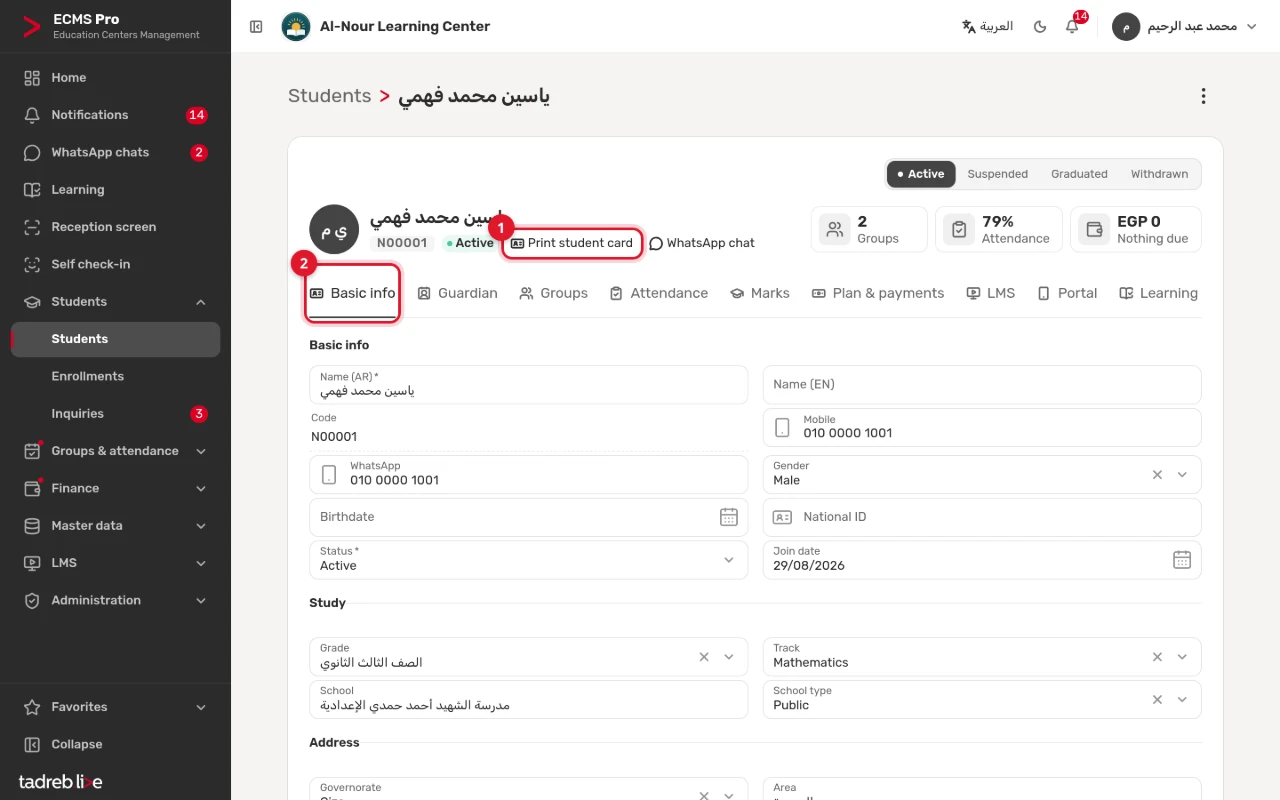
The top of the page shows the student’s name, code and status, and next to them:
- Quick boxes: how many groups they are in, their attendance rate and what they owe. Press any of them to open its tab.
- “Print student card”: opens their card, with its barcode and QR code, for printing.
- “WhatsApp chat”: shown when WhatsApp chats are on at your center (see WhatsApp chats).
- The status bar: “Active”, “Suspended”, “Graduated” or “Withdrawn”. Press the new status, then “Save”.
2. “Basic info”
The student’s name, which is required, their English name, mobile and WhatsApp, gender, birthdate and national ID, and join date. Then “Study”: grade, track, school and school type, then “Address” and “Other”.
- When you type a valid national ID, the system fills in the birthdate and gender if they are empty.
- If you leave the student code empty when adding a student, it is created for you. You change the code’s prefix with “Student code prefix” in “Center settings” → “Academic”.
After any change, press “Save”.
3. “Guardian”
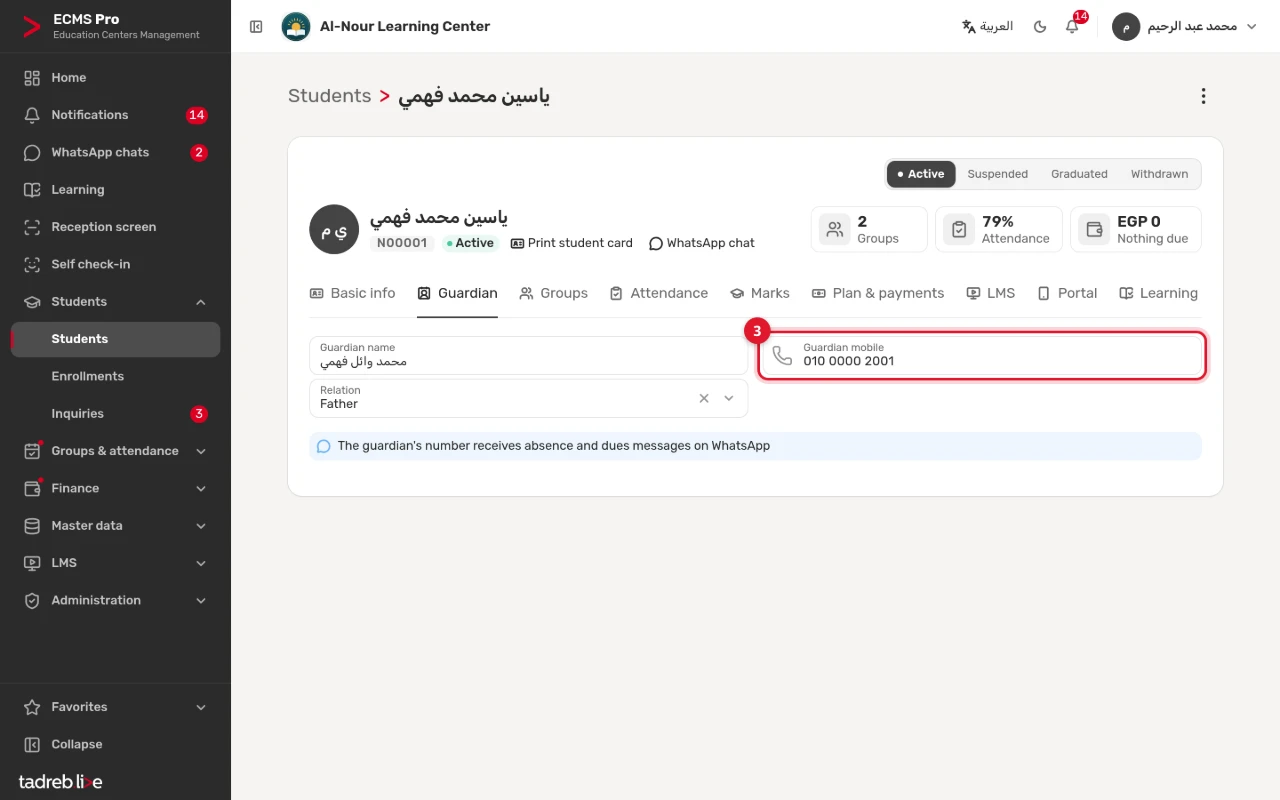
The guardian’s name, mobile and relation. Absence and dues messages go to this number on WhatsApp, and the guardian signs in to the portal with it.
4. “Groups”: enrolling and withdrawing
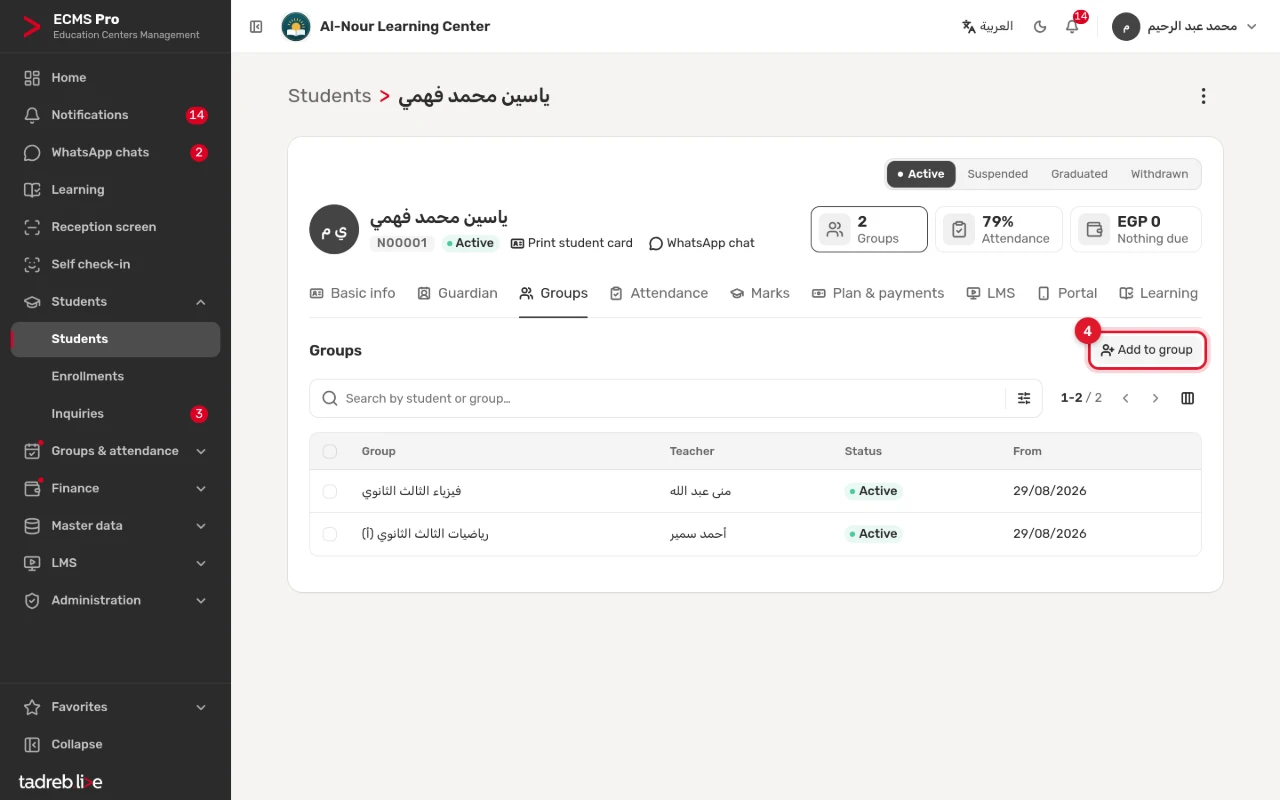
The tab lists every enrollment of the student: the group, the teacher, the status and the start date. To enroll them in another group, press “Add to group”.
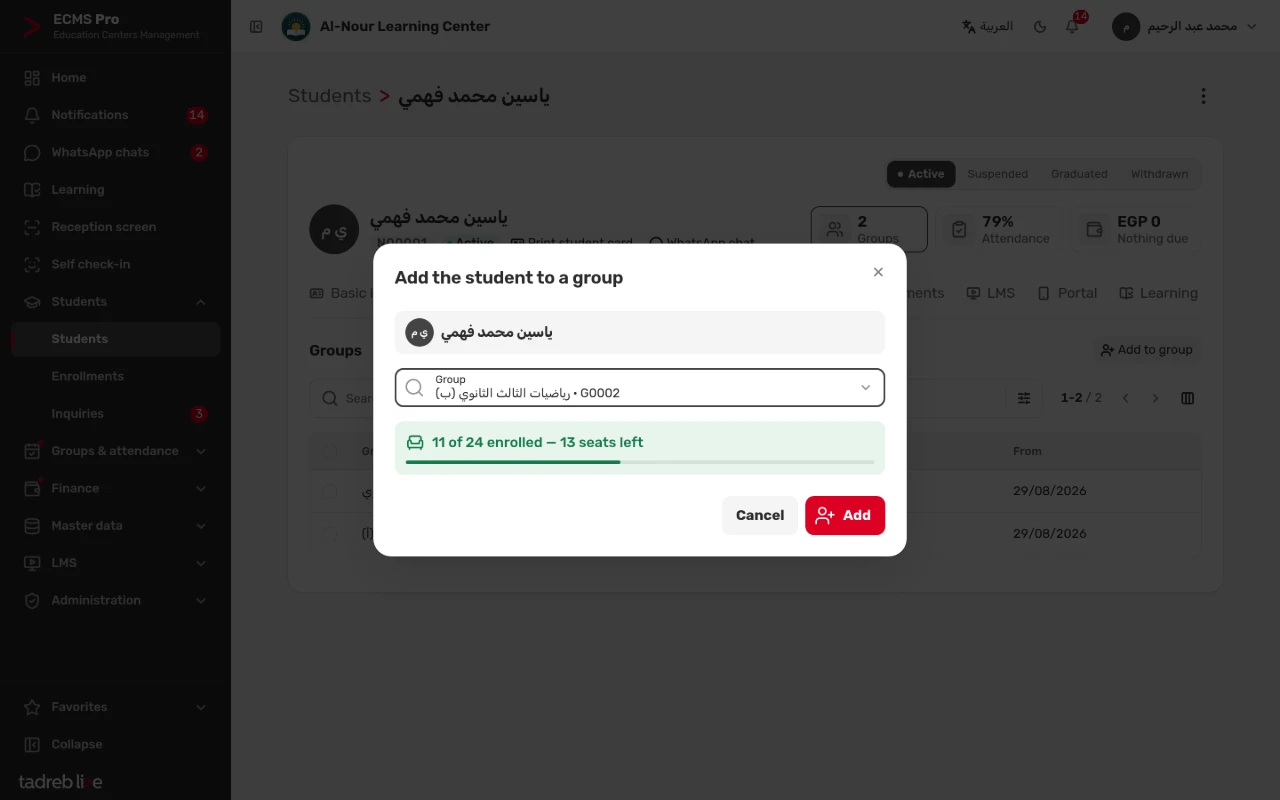
In the “Add the student to a group” window, choose the “Group”: how many are enrolled and the seats left appear. If the group is full, choose “Add to the waitlist”. Then press “Add”.
- The system warns you when the student is not active, or when their grade differs from the group’s, and enrolls them anyway.
- The enrollment takes the group’s payment plan. To enroll several students at once with a start date, a payment plan and a discount, use “Enroll students” on the group’s page (see Set up groups and schedules).
- To withdraw from a group: press the enrollment in the tab, choose the status “Withdrawn”, fill in “To” and “Withdraw reason” if you like, then press “Save”. That enrollment’s dues stop from today.
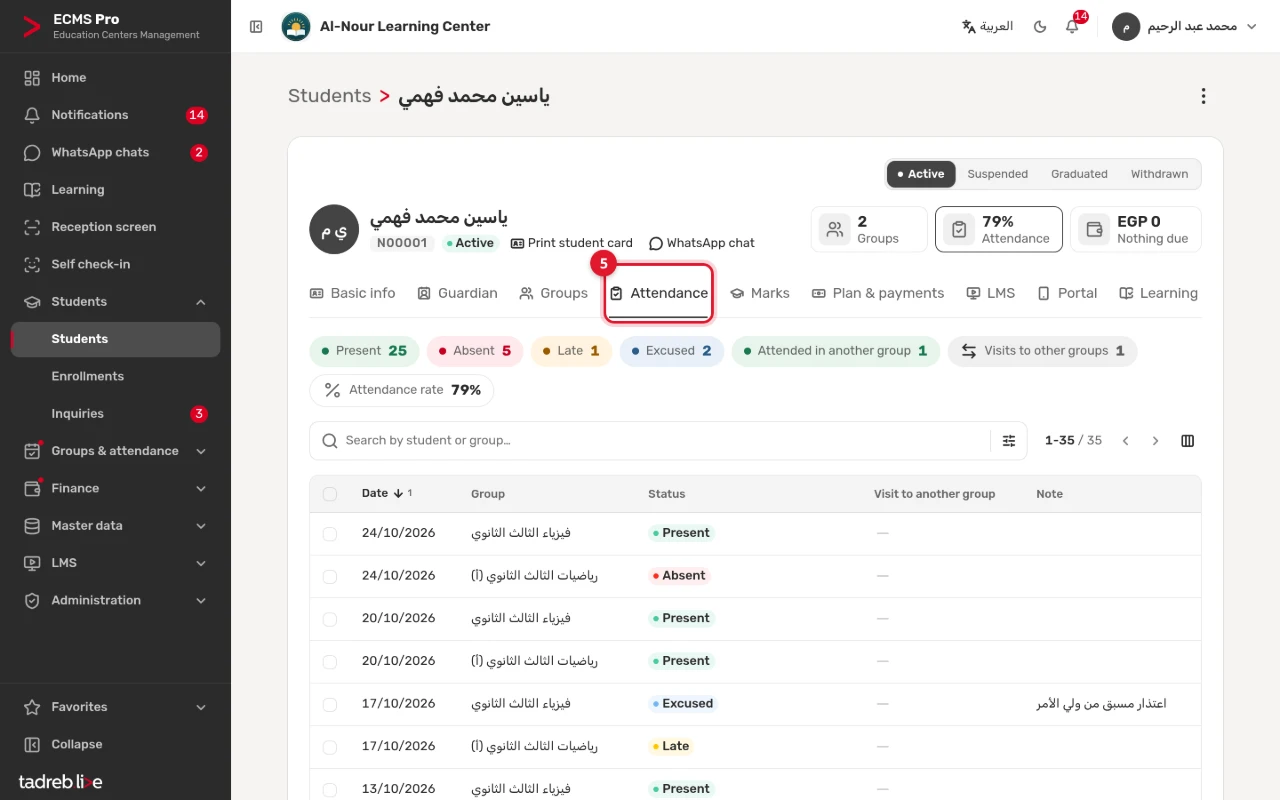
5. “Attendance”
How many times the student was present, absent, late or excused, or attended in another group, their attendance rate, then every session with its date, group, status and note.
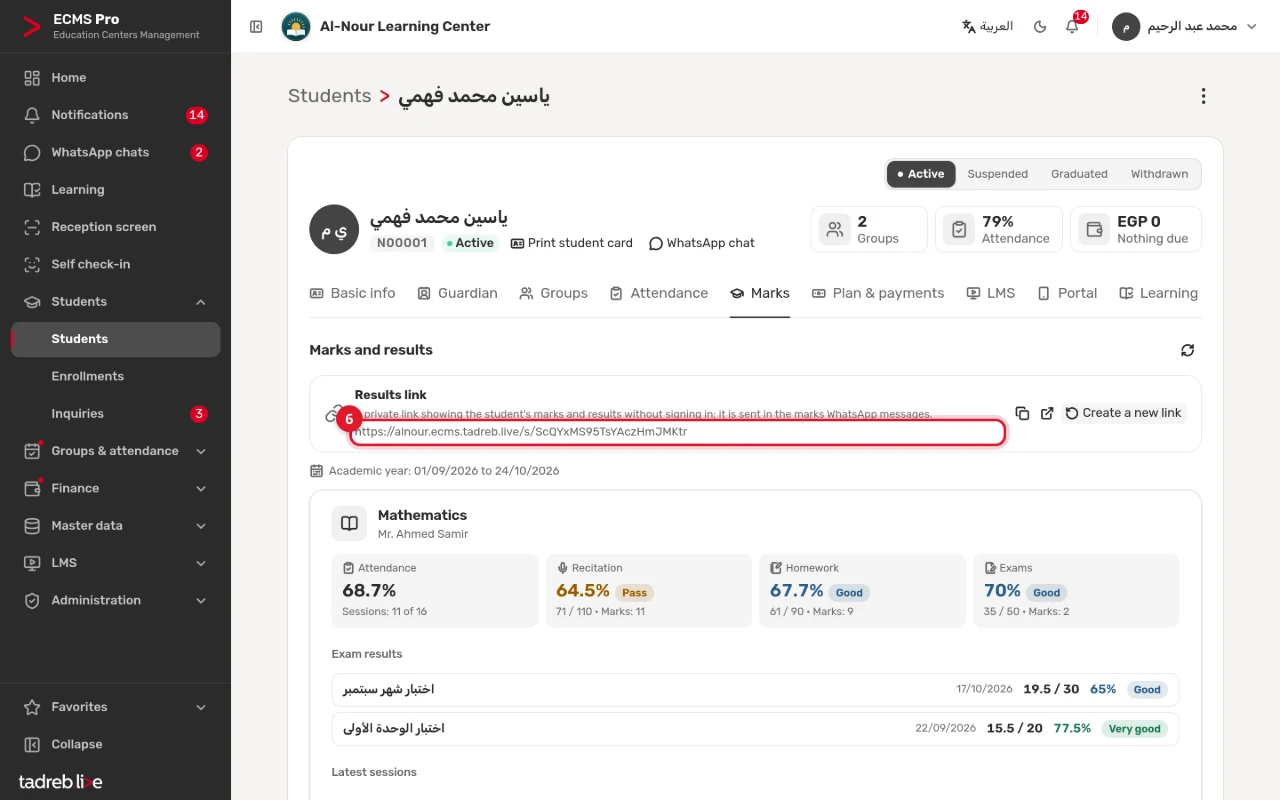
6. “Marks”
The student’s own “Results link”, with copy, “Open the link” and “Create a new link”, then their results in each subject: attendance, recitation, homework and exams, with their ratings. The details are in Recitation, homework, exams and the results link.
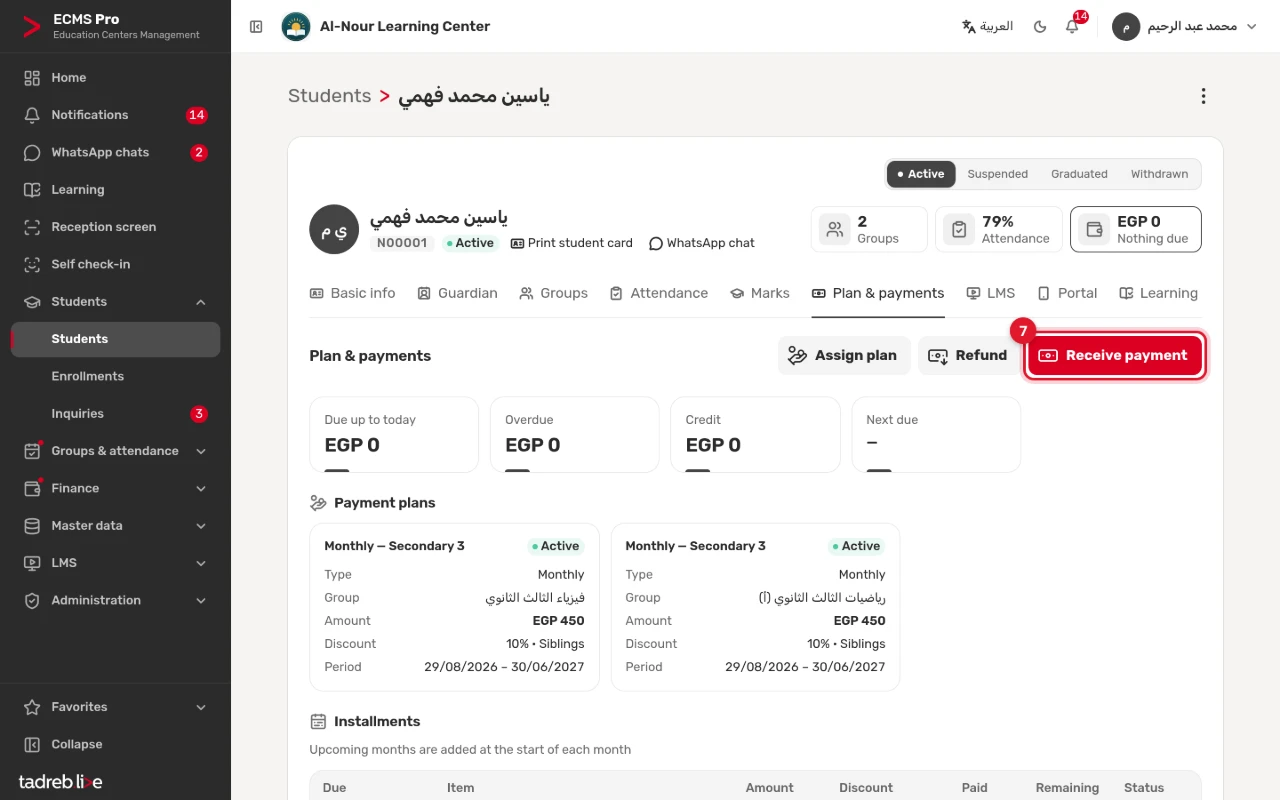
7. “Plan & payments”
What is due to date, the overdue amount, the credit and the next due date, then the payment plans, installments, payments and refunds. From here you also “Assign plan”, “Receive payment” and “Refund”. This tab shows to users with the money permissions, never to teachers. The details are in Payment plans, dues, credit and refunds.
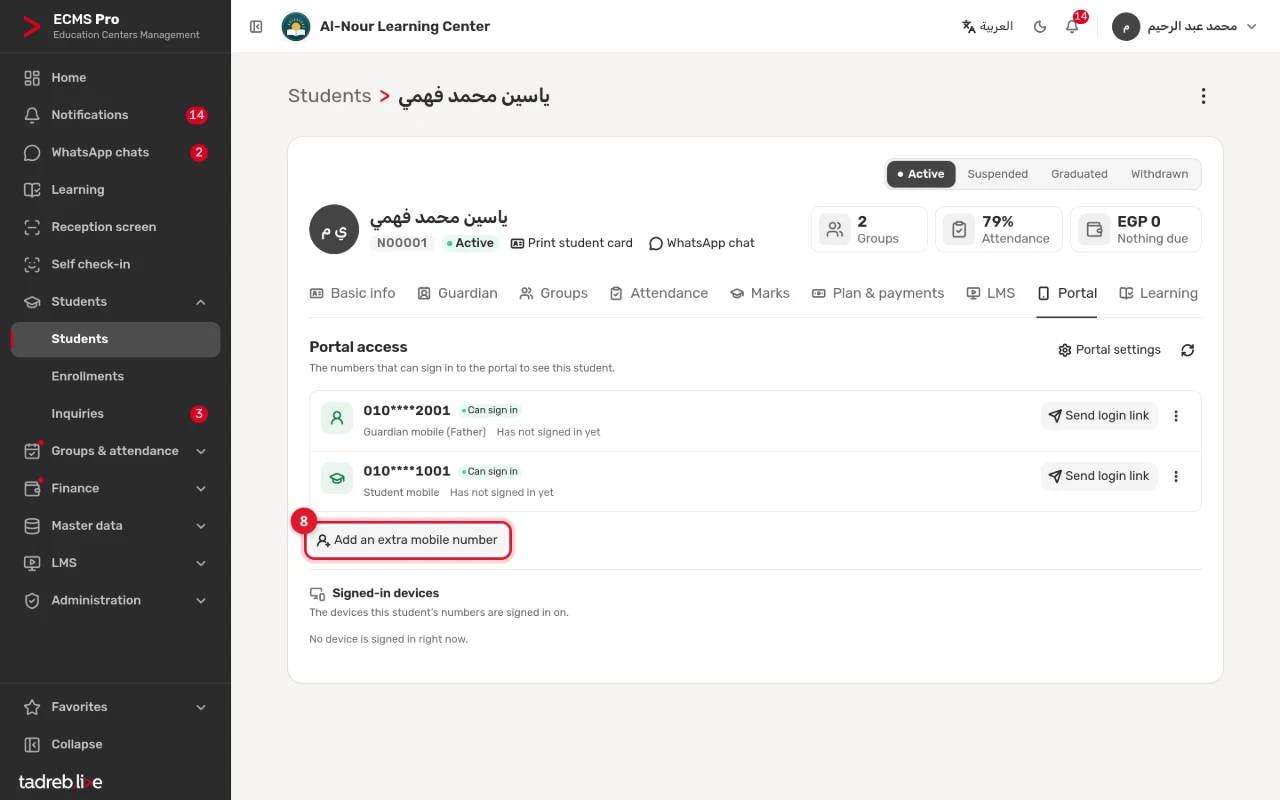
8. “Portal”
Shown when the student and guardian portal is on. It lists the numbers that sign in to the portal for this student: the guardian’s mobile, the student’s mobile, and those you add with “Add an extra mobile number” (up to 4, such as the mother’s). Each number has “Send login link”. The details are in Turn on the student and guardian portal.
Other tabs
- “LMS”: when your center is connected to the learning platform. See Connecting your learning platform.
- “Learning”: when “Learning” is available to your center: the student’s PIN, courses, online quizzes and devices. See Learning: online courses and quizzes.
A new student
Open “Students” → “Students” and press “New”. Only the “Basic info” and “Guardian” tabs show; the others appear after “Save”. To add many students at once, see Import students from Excel.