The home page and its figures
The home page is the first thing you see after signing in: your center today at a glance, and any task one tap away. Every user sees only what their permissions allow; a teacher, for example, sees their sessions and students and no amounts.
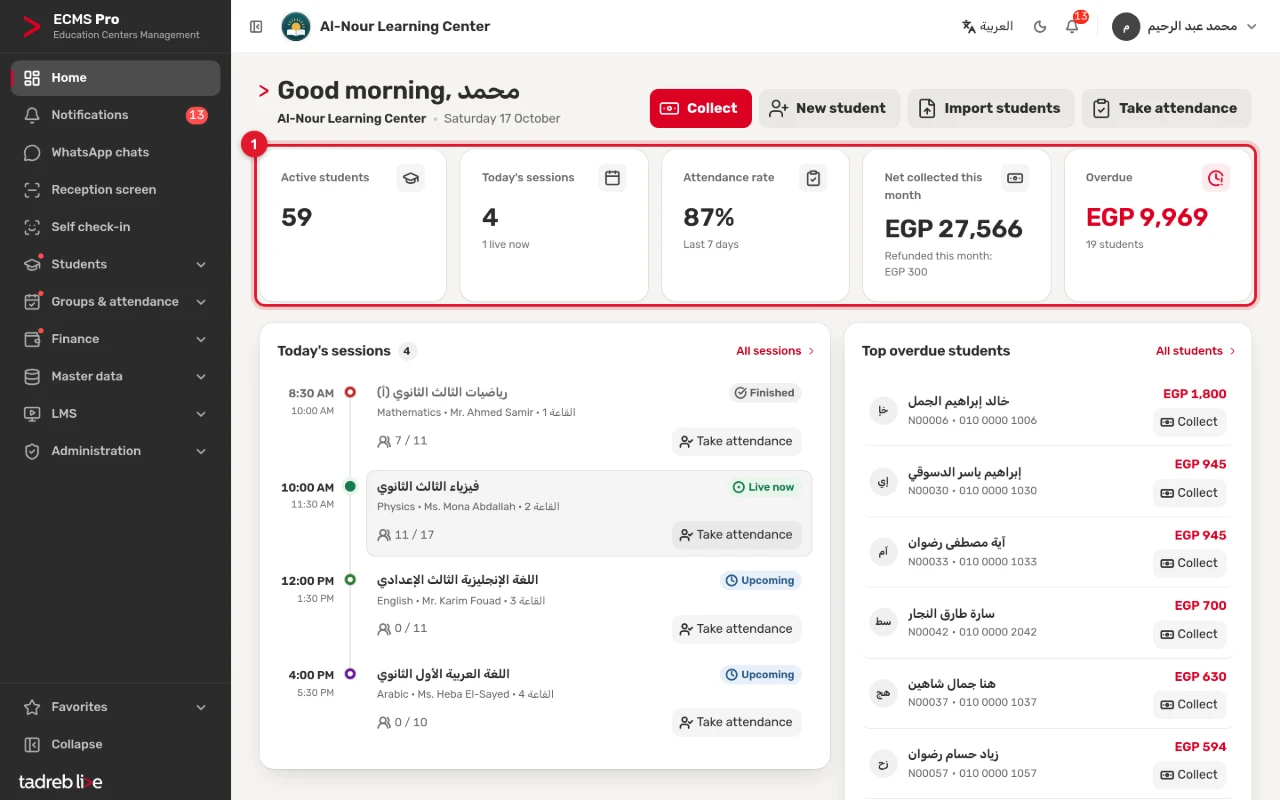
1. The figures
- “Active students”: the students whose status is active.
- “Today’s sessions”: how many sessions there are today, with how many are live now under it.
- “Attendance rate”: attendance over the “Last 7 days”.
- “Net collected this month”: what was collected this month less refunds, with the month’s refunds under it.
- “Overdue”: the total overdue amount, with how many students are behind on fees under it.
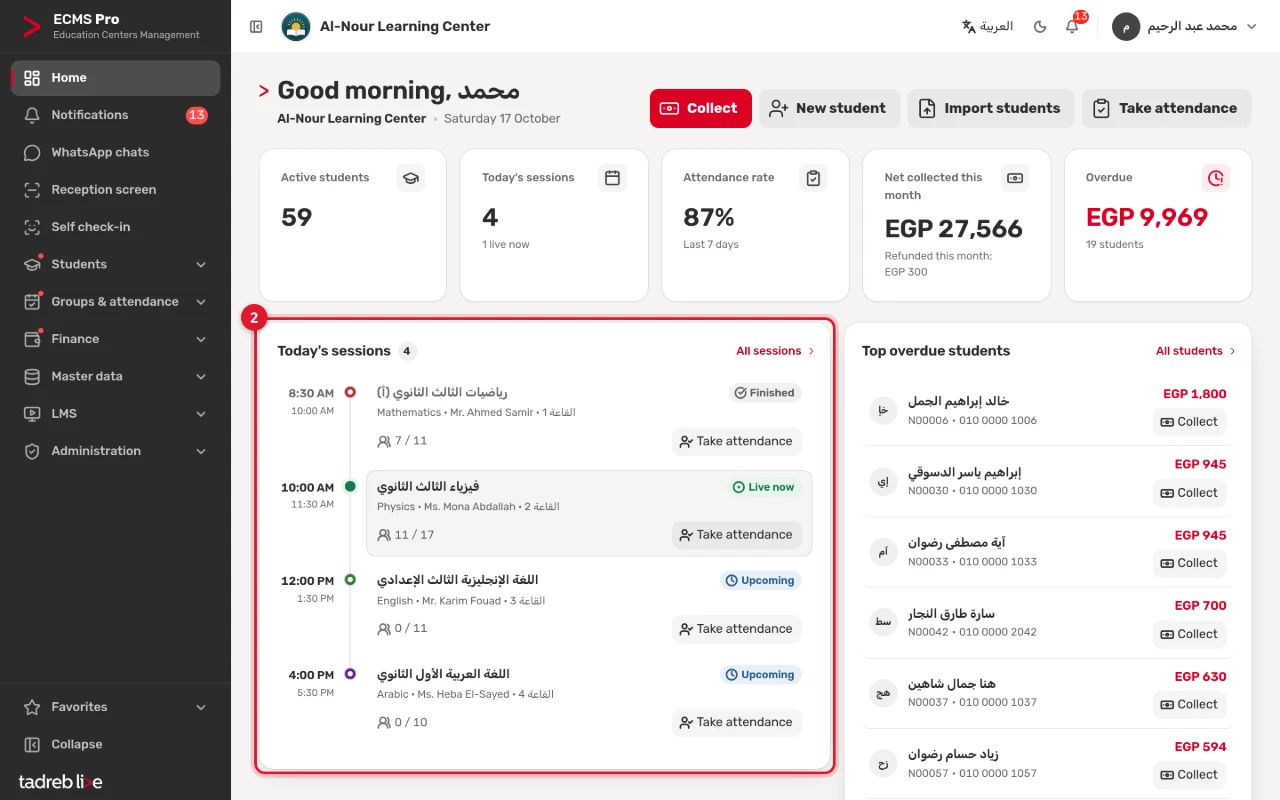
2. Today’s sessions
“Today’s sessions” lists every session with its time, subject, teacher and room, its state — “Finished”, “Live now” or “Upcoming” — and how many of the enrolled students are present. Each session has a “Take attendance” button, and “All sessions” opens “Take attendance”.
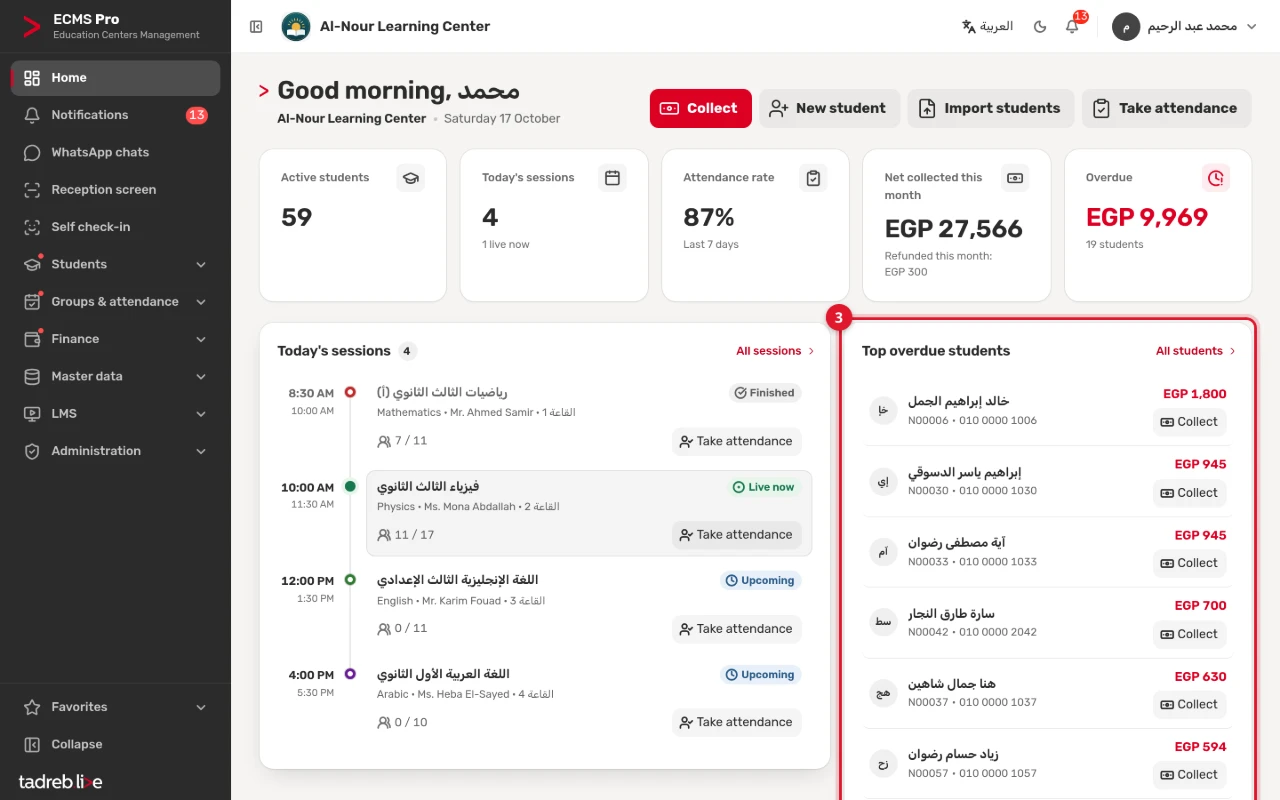
3. The students most behind on fees
A list of the students most behind on their fees, with each one’s overdue amount, mobile number and code, and a “Collect” button beside each. “All students” opens the full list.
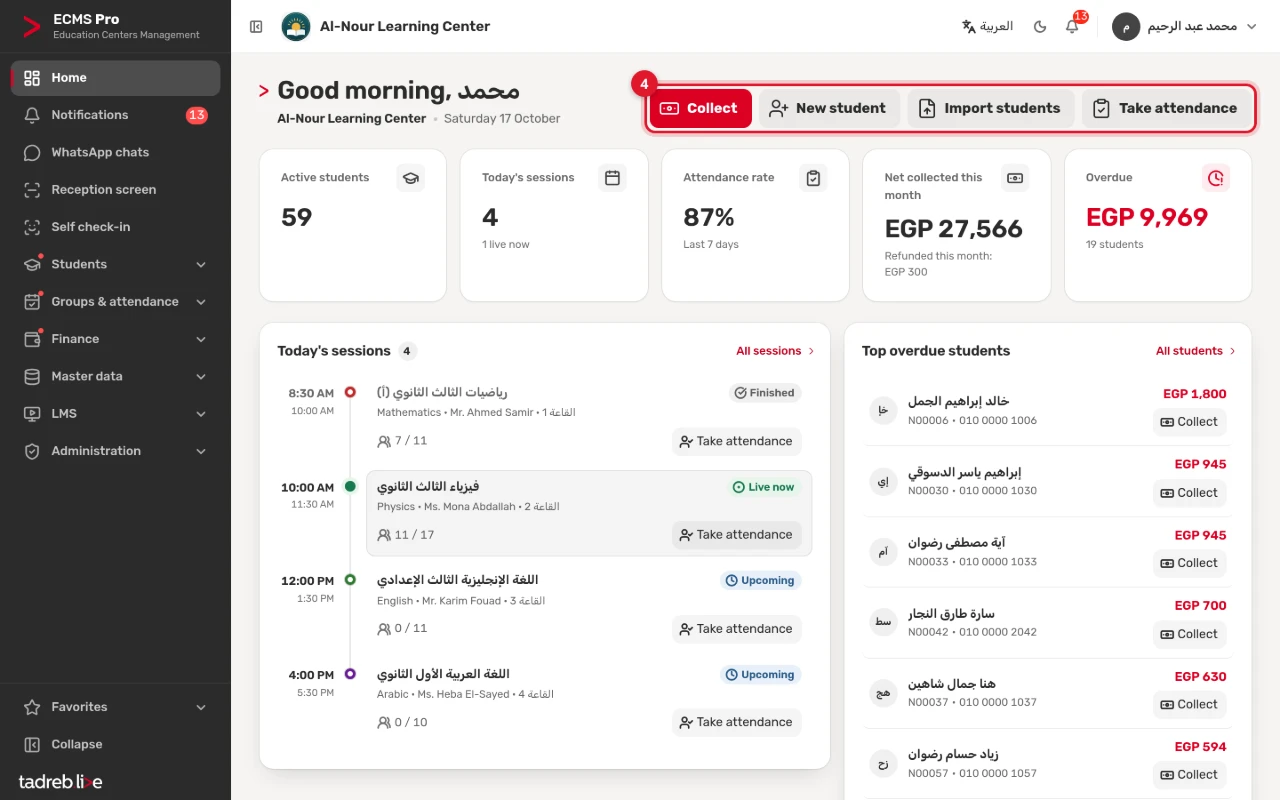
4. The shortcuts
At the top of the page: “Collect”, “New student”, “Import students” and “Take attendance”. Further down, the “Net collections, last 6 months” chart.
The landing page
“Home” opens by default after signing in. A front-desk employee or a teacher can choose another page, such as “Take attendance” or “Reception screen”, under “My settings” → “Landing page after sign-in”.