Set up groups and schedules
A group in ECMS Pro is a subject, a teacher, a grade, a weekly schedule and a payment plan. Its sessions are created from its schedule, so they show under “Take attendance” and on the home page, and the students’ dues follow the payment plan.
Before you start: add the subjects, grades, teachers and rooms under “Master data”, and the payment plans under “Finance” → “Payment plans”.
1. Create the group
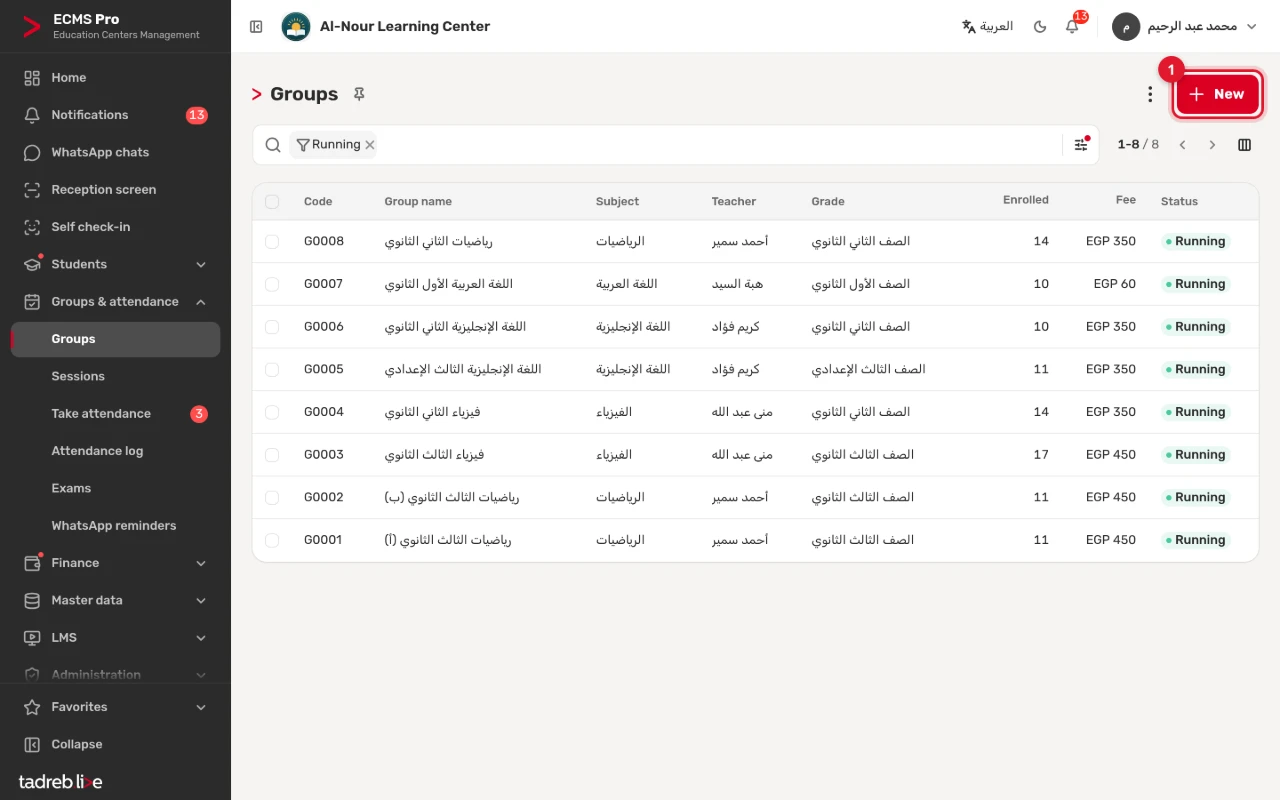
Open “Groups & attendance” → “Groups” and press “New”. The list shows each group’s code, subject, teacher, grade, fee, how many are enrolled and its status.
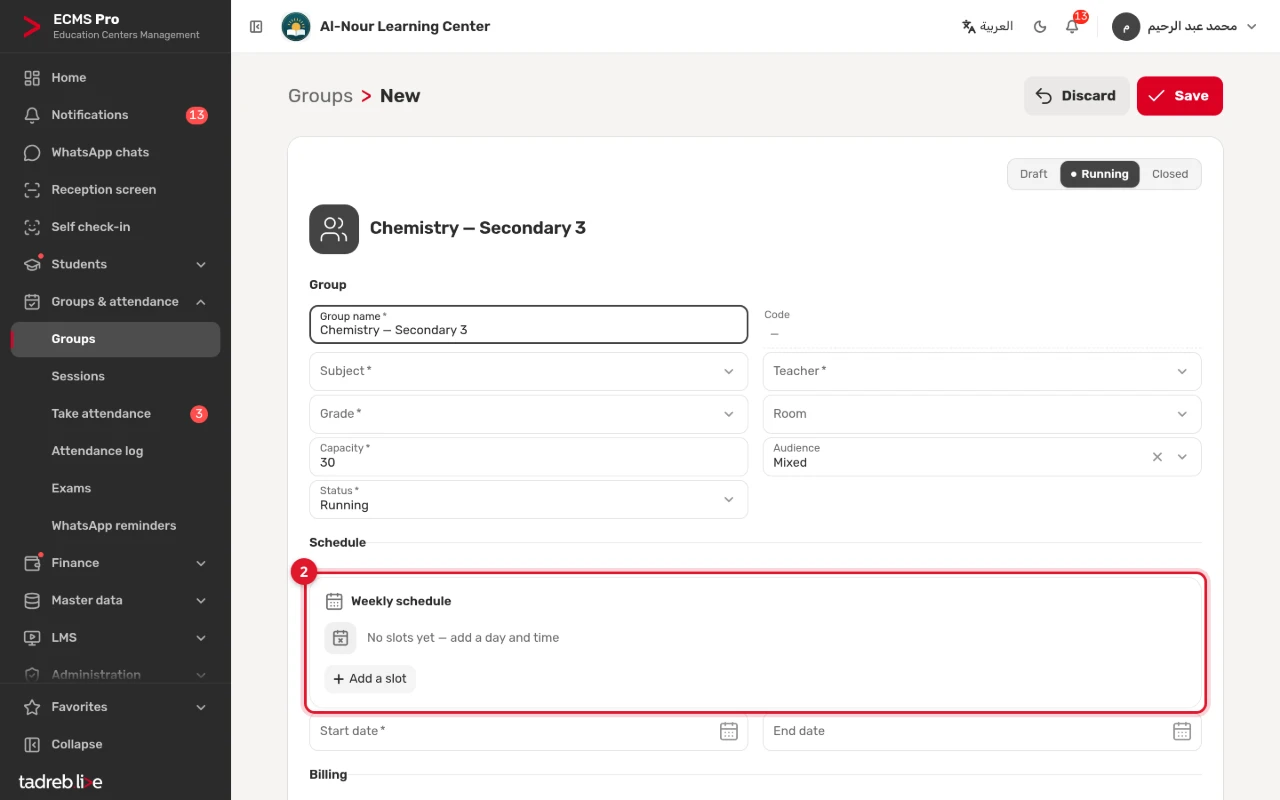
Under the group’s details, enter its name, subject, teacher, grade and capacity, and the room if you like. Leave its status active so that its sessions are created.
2. Add the weekly schedule
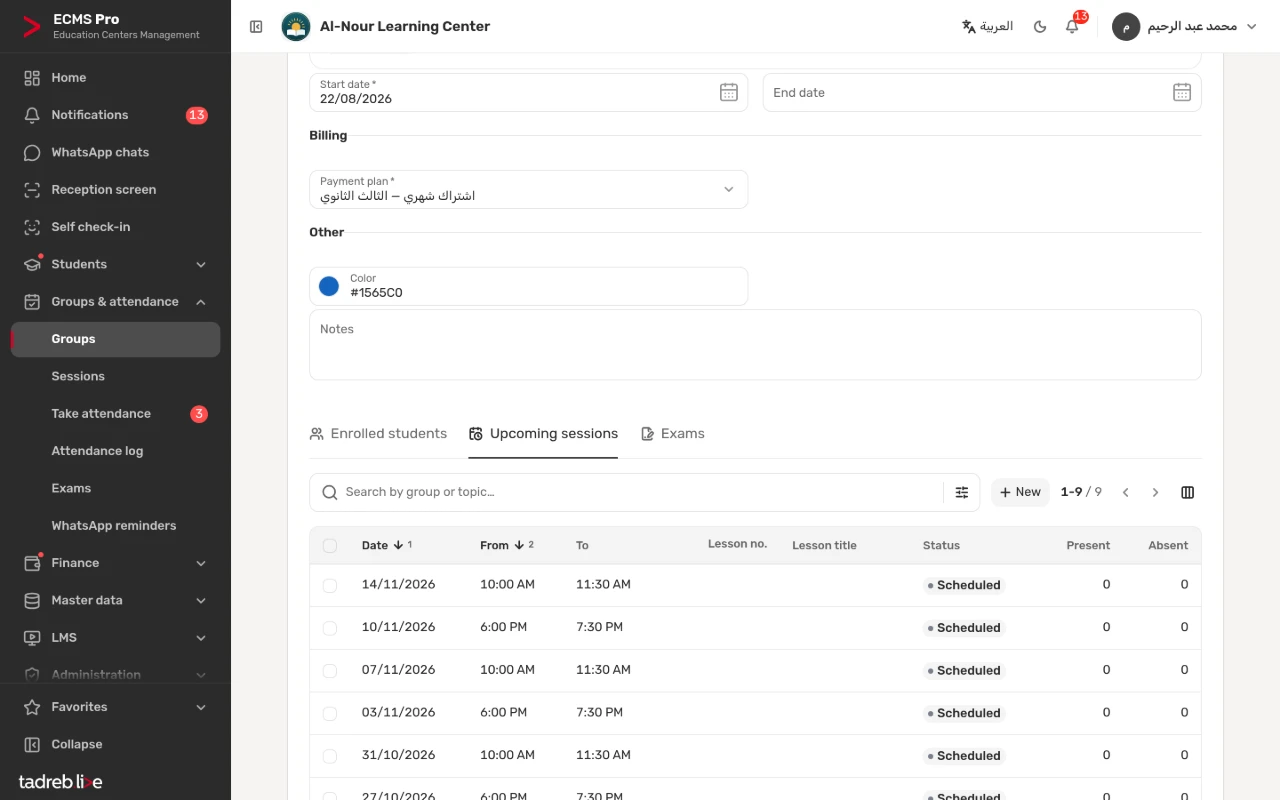
Under “Weekly schedule”, press “Add a slot” and pick the day and the start and end times; repeat for every day the group meets. Then set the start date, and an end date if the group has a known end, choose the “Payment plan” under the finance part, and press “Save”.
- The system checks that the end time is after the start time, and warns you when two slots overlap on the same day.
- When an active group with a schedule is saved, its coming sessions are created automatically.
3. Enroll students
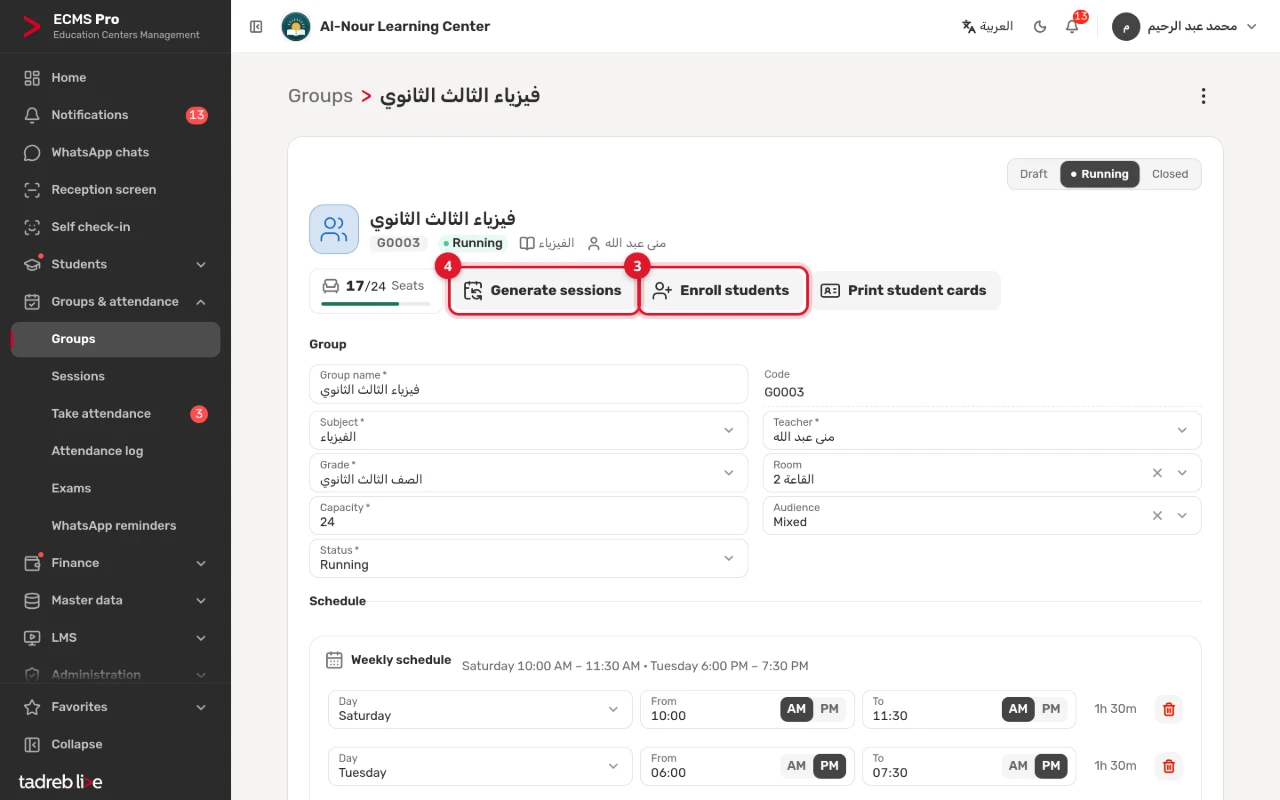
Open the group’s page and press “Enroll students”. The seats taken out of the capacity show beside it.
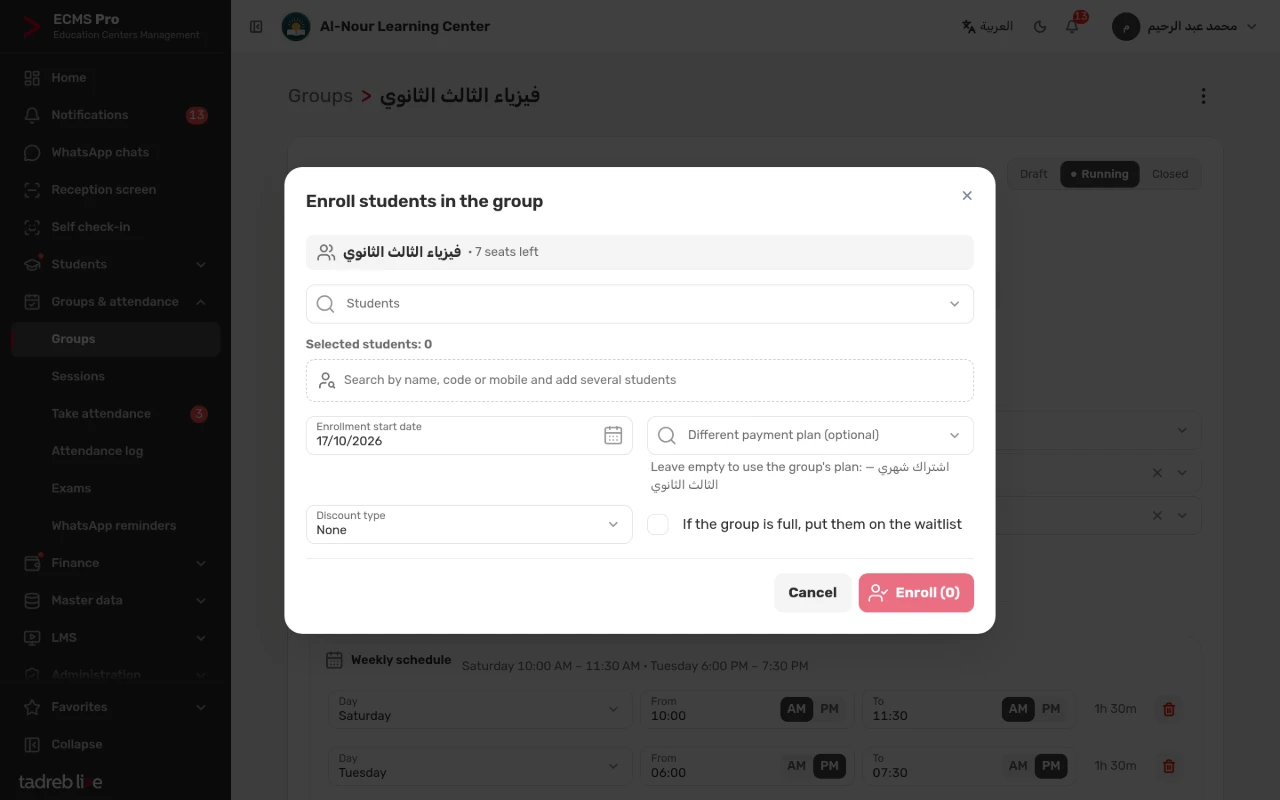
In the “Enroll students in the group” window:
- Search for students by name, code or mobile, and add several at once.
- Set the “Enrollment start date”.
- “Different payment plan (optional)”: leave it empty to use the group’s plan.
- Choose a discount type if the student has one.
- “If the group is full, put them on the waitlist”: when there are more students than free seats, the extra ones are rejected unless you allow the waitlist.
Then press “Enroll”.
4. The group’s sessions
When an active group with a schedule is saved, its sessions are created automatically from the schedule for the number of days ahead set in “Generate sessions for” (“Center settings” → “Academic”, 28 days by default), never past the end date. To extend them later, press “Generate sessions”; a session that already exists is not created twice.
The sessions show on the “Upcoming sessions” tab with their date, time and status, and under “Take attendance” on their day.
When the schedule changes
Change the weekly schedule or the dates and save: the coming scheduled sessions with no attendance taken are rebuilt from the new schedule, and sessions with attendance stay as they are. To move or cancel a single session, open it under “Groups & attendance” → “Sessions”.
Next
- Print the group’s student cards with “Print student cards” on its page. See “The self check-in device and student cards”.
- Take your first session’s attendance. See “Take attendance on the session register”.