Dashboard
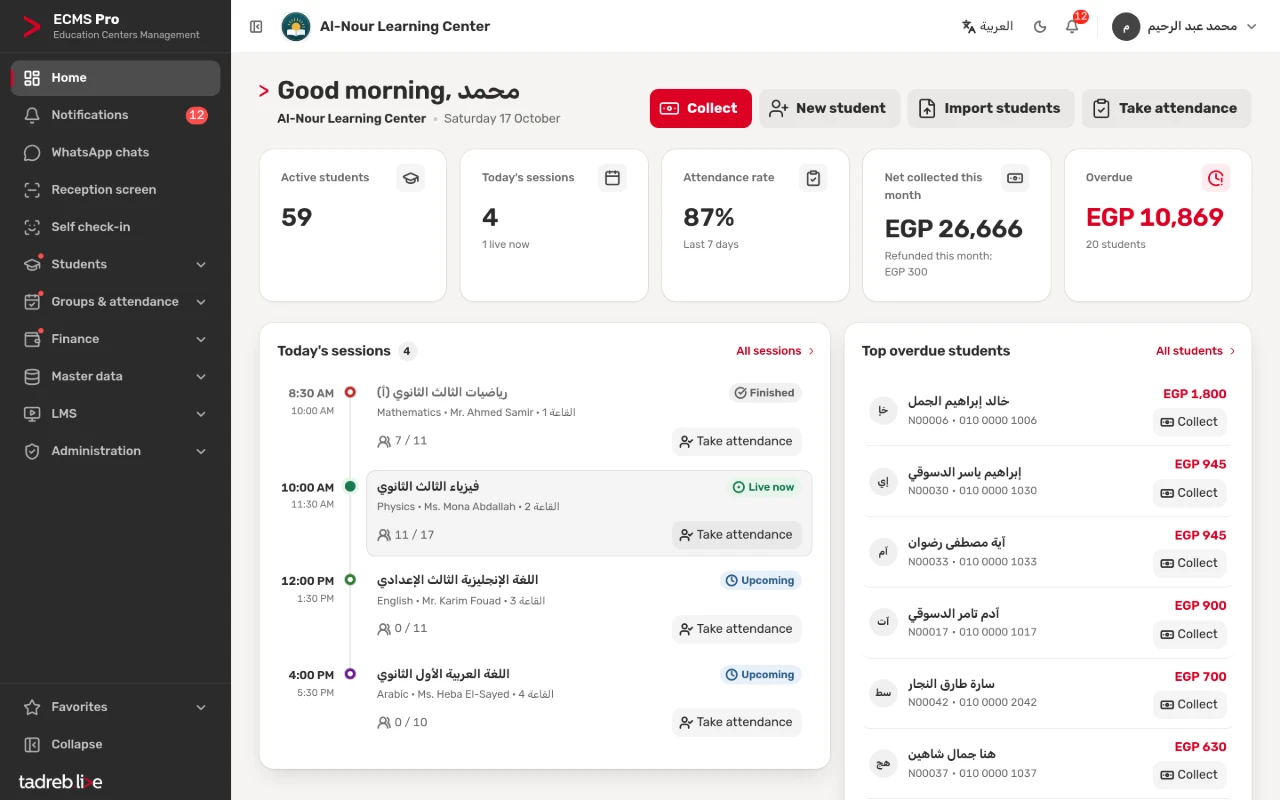
The first thing your team sees after signing in: today’s figures, the day’s sessions and their status, the students most behind on fees and shortcuts to the most frequent tasks, with live notifications of what happens at the center.
Today’s figures
Active students, today’s sessions and how many are live now, the attendance rate over the last 7 days, what was collected this month (net of refunds when there are any), and the overdue amount with how many students are behind on fees.
Today’s sessions and their status
Every session with its time, subject, teacher and room, its status — upcoming, live now, finished or cancelled — and how many of those enrolled are present, with a “Take attendance” button. Today’s sessions are created from the groups’ schedules automatically.
Who is behind on fees, and collecting in one tap
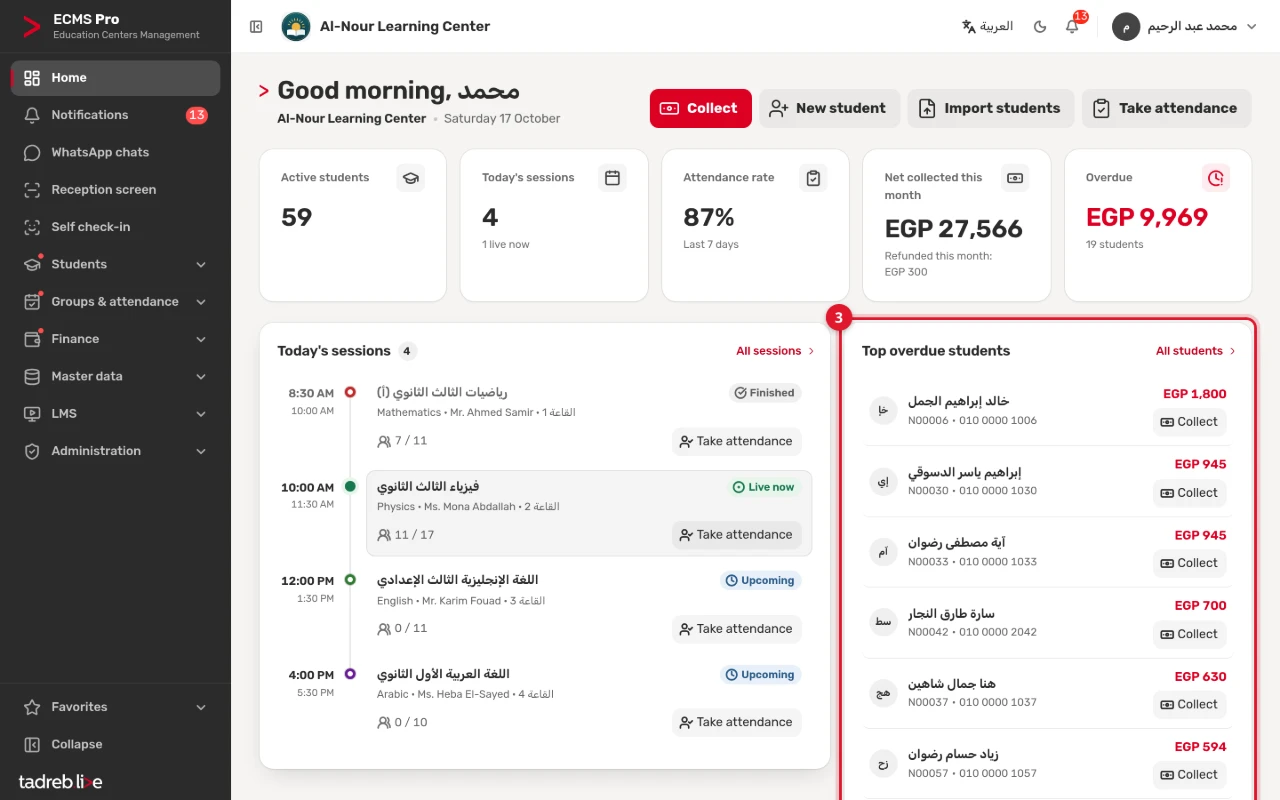
The students most behind on fees, each with the overdue amount, mobile number and code, and a “Collect” button that opens the payment with the overdue amount filled in. Further down, a chart of net collections over the last 6 months.
Each user sees their own
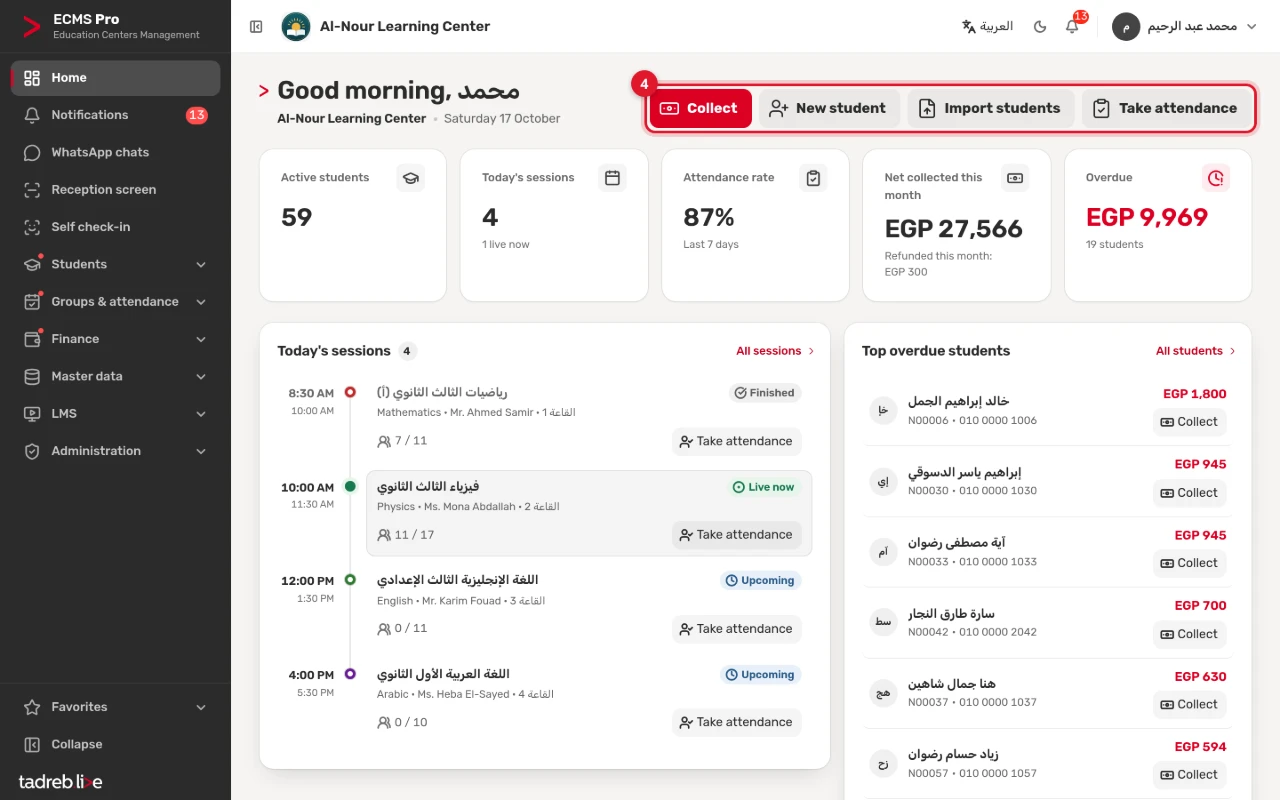
The shortcuts (“Collect”, “New student”, “Import students” and “Take attendance”) follow each user’s permissions. A teacher sees the figures and sessions of their own groups only, and no amounts. Each user picks the page that opens after signing in under “My settings”.
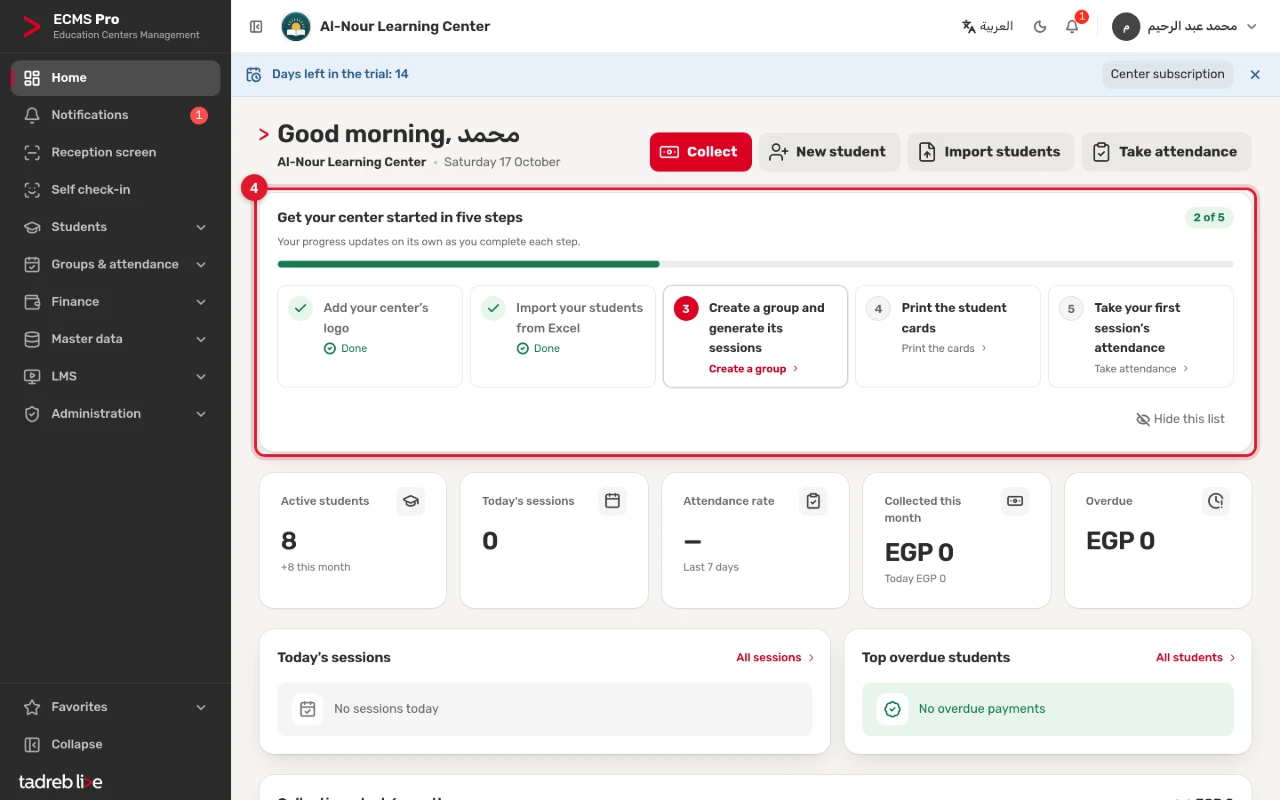
Start your center in five steps
A new center’s owner finds a five-step list on the home page: “Add your center’s logo”, “Import your students from Excel”, “Create a group and generate its sessions”, “Print the student cards” and “Take your first session’s attendance”. Each step has a button that opens its screen, and the progress updates on its own as you complete each step.
Notifications and announcements
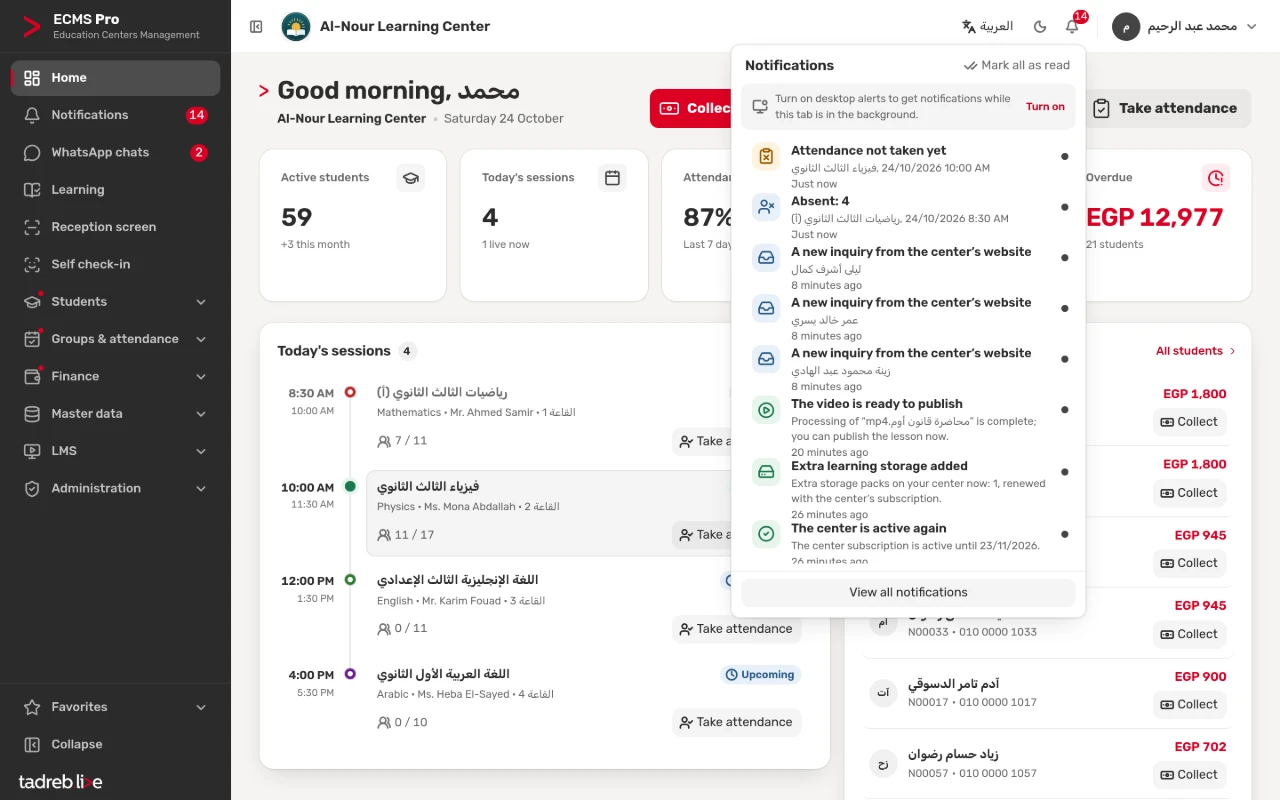
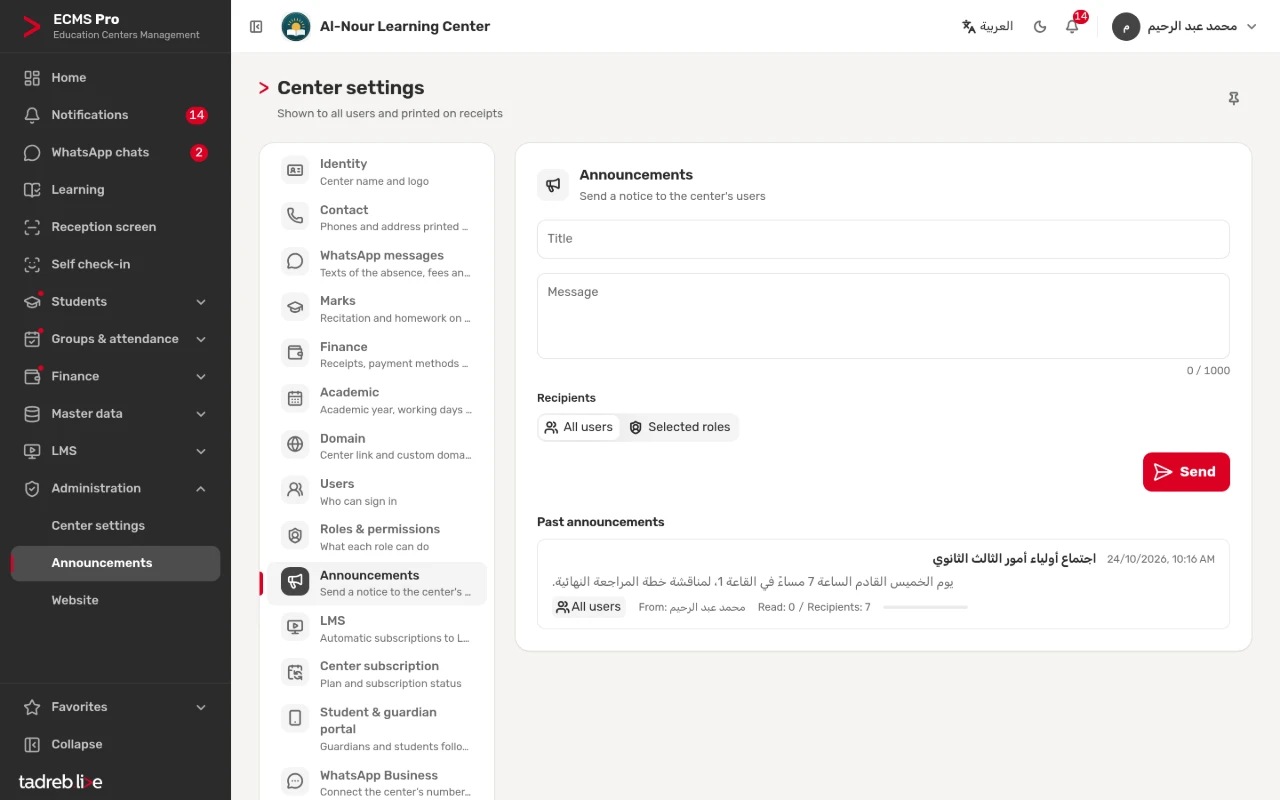
The bell shows payments and refunds, session changes, full groups, new website inquiries and finished imports as they happen, with desktop alerts if you turn them on. After each session comes a summary of the absent students, or a reminder when attendance was not taken, and every day a summary of the students behind on fees. The administration sends announcements to every user or to chosen roles.
Inside the system
The home page on a computer and a phone, the five-step start list, notifications and announcements, and what a teacher sees, as they look in ECMS Pro.
Your center today
The figures at the top, then today’s sessions with their status and how many are present in each, and the students most behind on fees. From the session running now to its register in one click.
- “Take attendance” beside every session.
- “Collect” beside every student behind on fees.
Start your center in five steps
On a new center’s home page: the logo, the students, a group and its sessions, the cards and the first attendance. Each step ticks itself once the system finds its data.
Notifications as they happen
The bell with the unread count: the absence summary after a session, new website inquiries and news about the center’s subscription, with “Mark all as read” and “View all notifications”.
An announcement to your team
A title and a message, then “All users” or “Selected roles”, and “Send”. Under the form, the earlier announcements with their sender and how many read them.
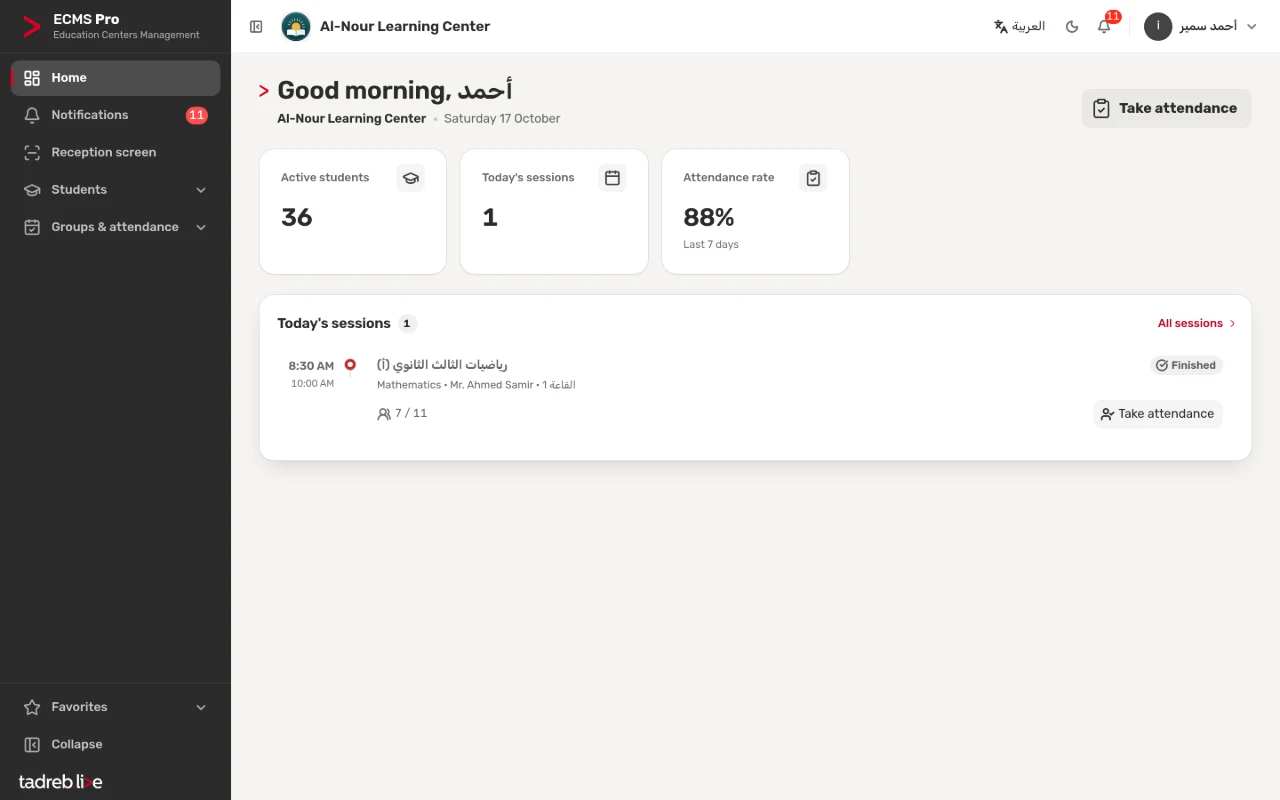
A teacher’s home page
Only their own groups’ sessions and figures, a short side menu, and no amounts.
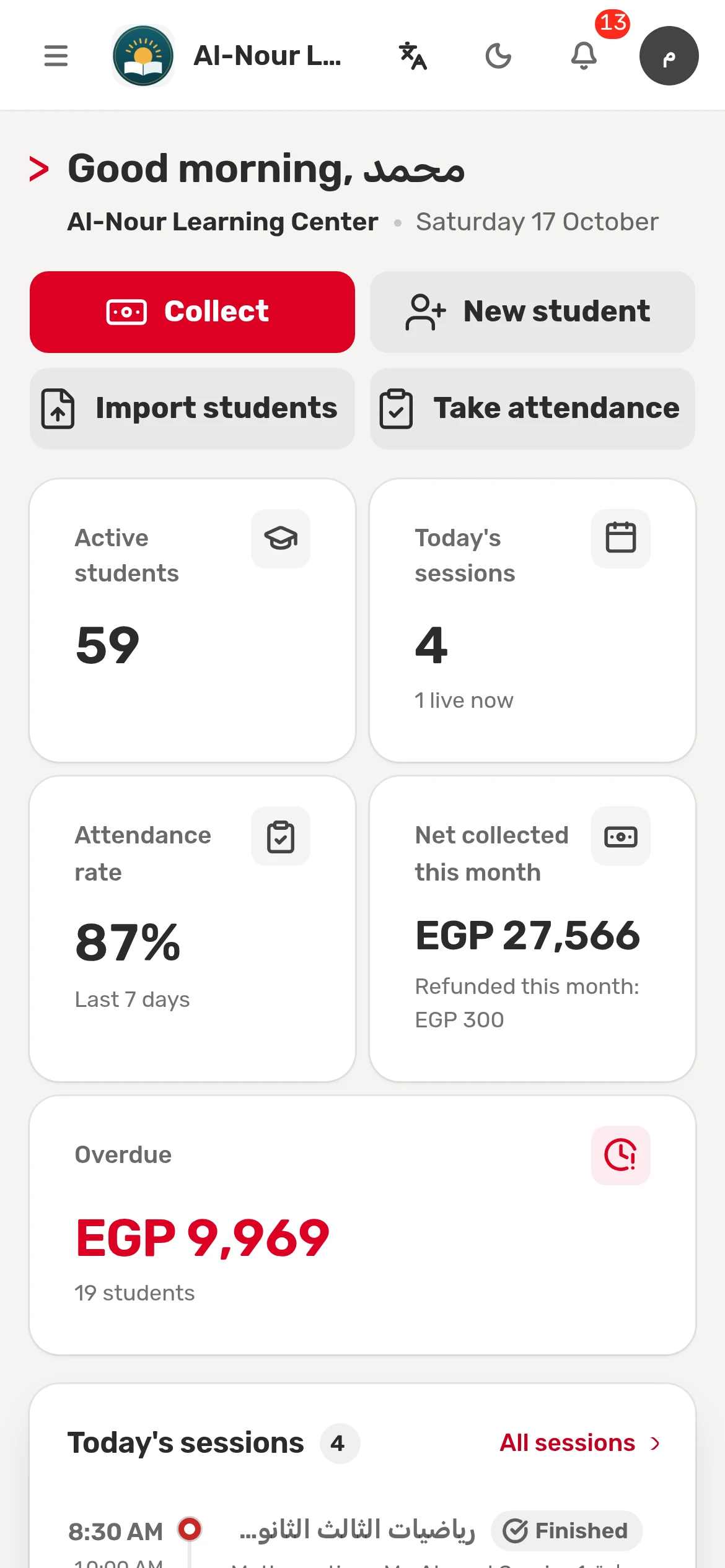
On a phone
The same home page on a phone, with its figures and today’s sessions.
How it works, step by step
The first steps of the “The home page and its figures” guide in the help center, numbered as in the pictures.
1. Students, sessions, attendance, collections
Active students, today’s sessions, the attendance rate over the last 7 days, net collected this month, and the overdue amount.
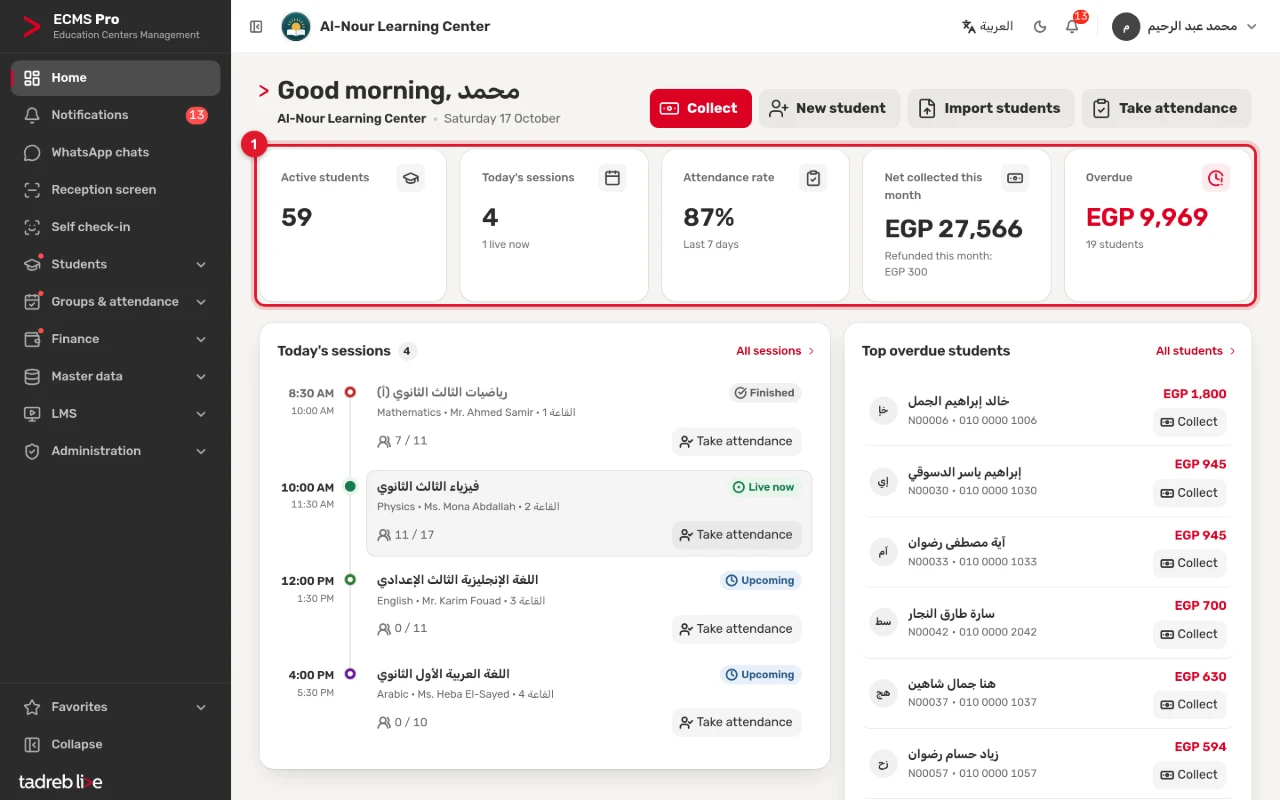
2. Finished, live now, upcoming
Each session with how many of those enrolled are present, and a “Take attendance” button.
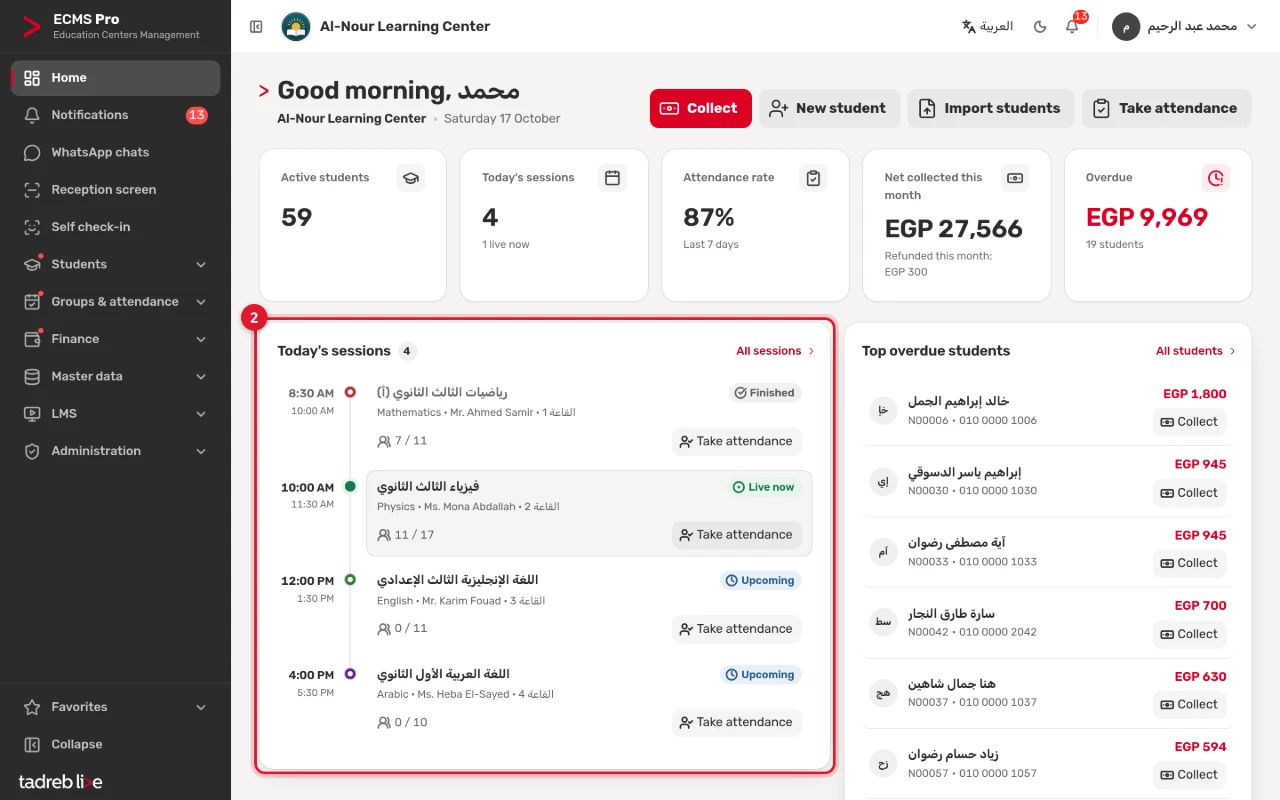
3. The students most behind on fees
With the overdue amount, mobile number and code, and a “Collect” button beside each.
4. The most frequent tasks in one tap
“Collect”, “New student”, “Import students” and “Take attendance”.
Frequently asked questions
Do all staff see the amounts?
No. The collection and overdue figures show only to users whose permissions cover finance, and never to a teacher.
Can I turn some notifications off?
Yes. Each user chooses under “My settings” which kinds reach them: money, attendance, groups and sessions, and system. Account notifications and announcements always arrive.
When does the five-step list go away?
Once its five steps are done, or when you press “Hide this list”; it does not come back. Every step stays in the side menu.
Try the dashboard at your center
A 14-day free trial with every feature, no payment details.
Or talk to our sales team on WhatsApp.