Students
A page for every student with their details, guardian, groups, attendance, marks and payments; a students list you search, filter and export; and an Excel import to bring all your students in within minutes.
Everything about a student on one page
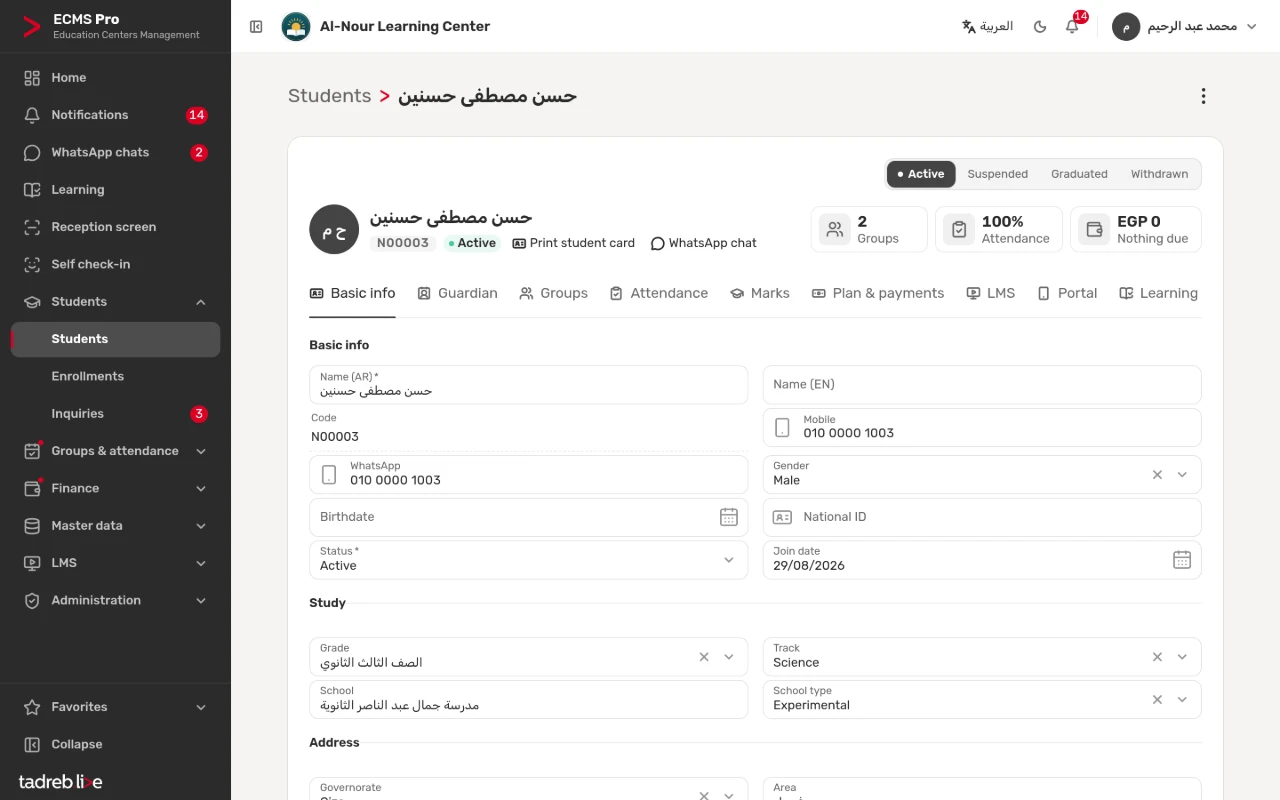
At the top: the student’s code and status (active, suspended, graduated or withdrawn), their number of groups, attendance rate and amount due, “Print student card”, and “WhatsApp chat” when WhatsApp chats are on. Then the tabs: Basic info, Guardian, Groups, Attendance, Marks, Plan & payments, and the Portal, Learning and learning-platform tabs when they are turned on.
Basic info and the guardian
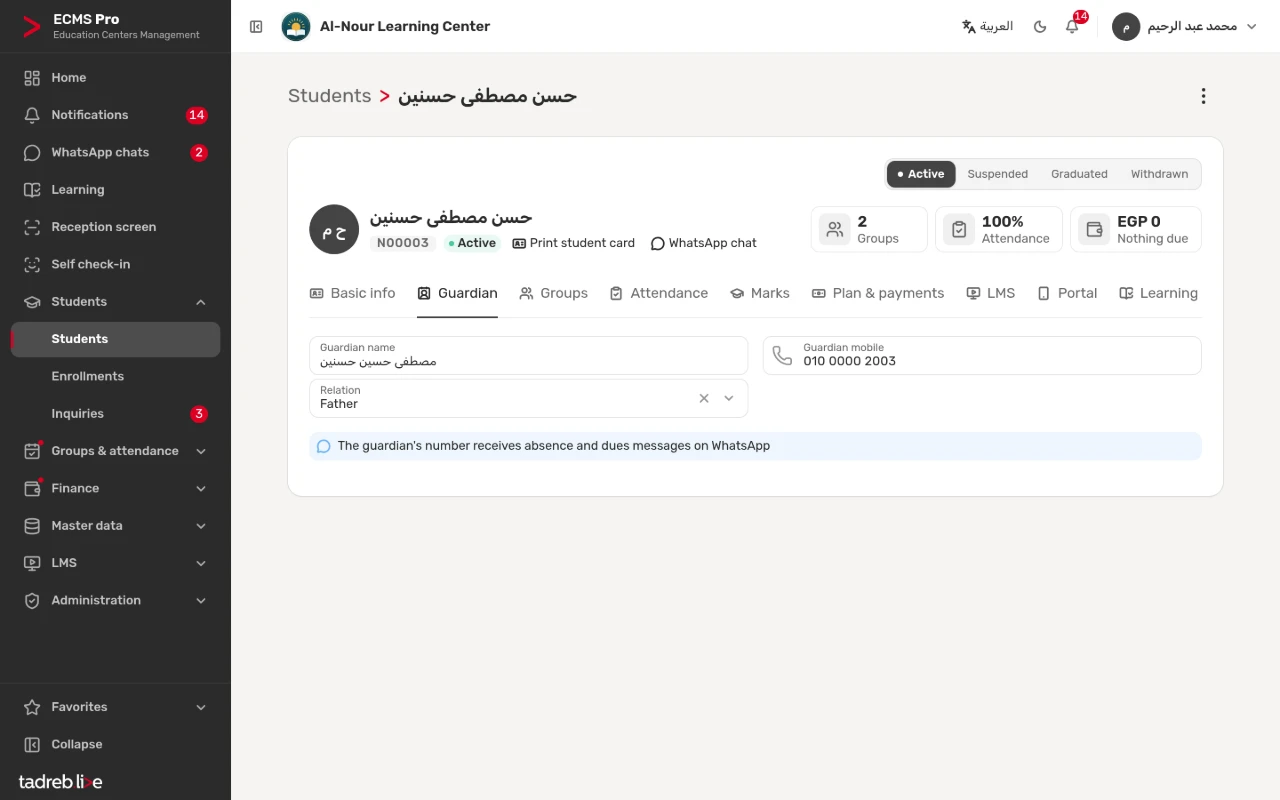
Name in Arabic and English, the student’s mobile and WhatsApp numbers, the national ID (which fills in the birth date, gender and governorate when they are empty), grade, track, school and address. The Guardian tab holds the guardian’s name, mobile number and relation, and absence and dues messages go to that number on WhatsApp.
The student’s groups
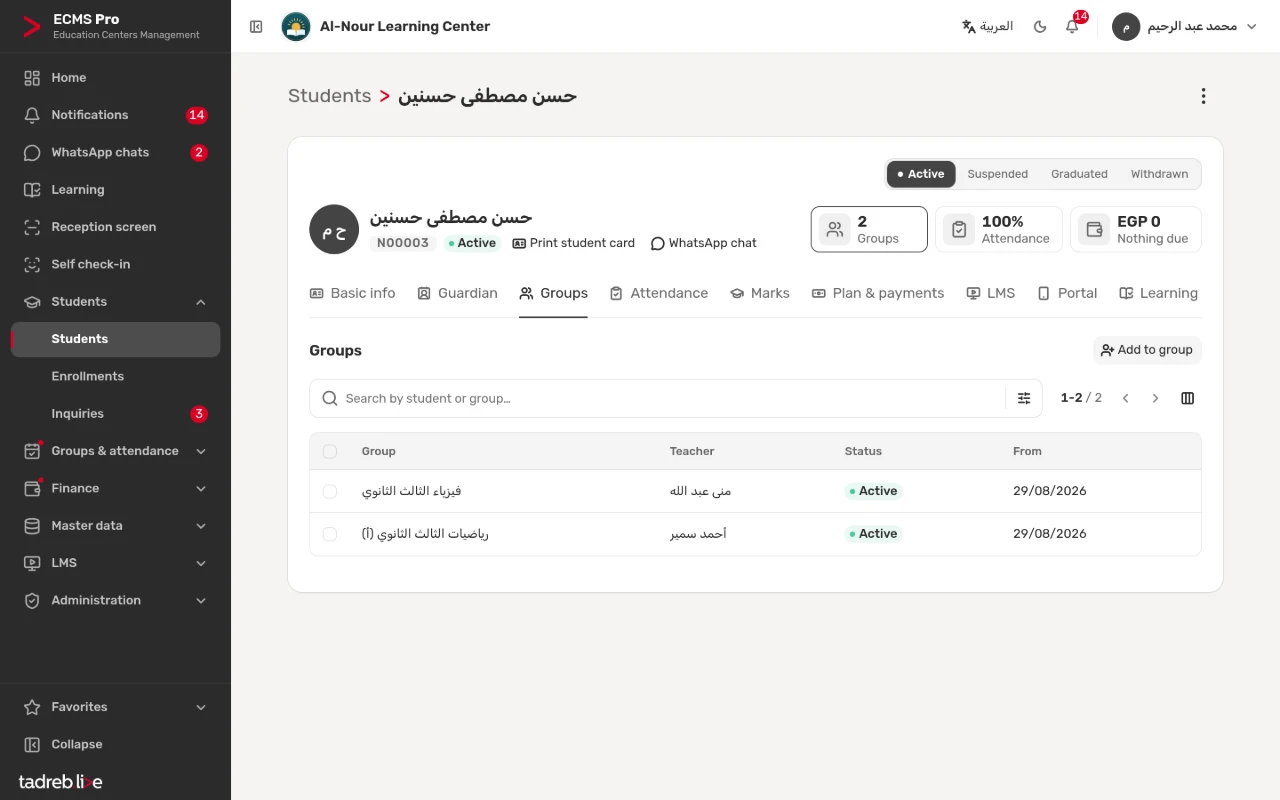
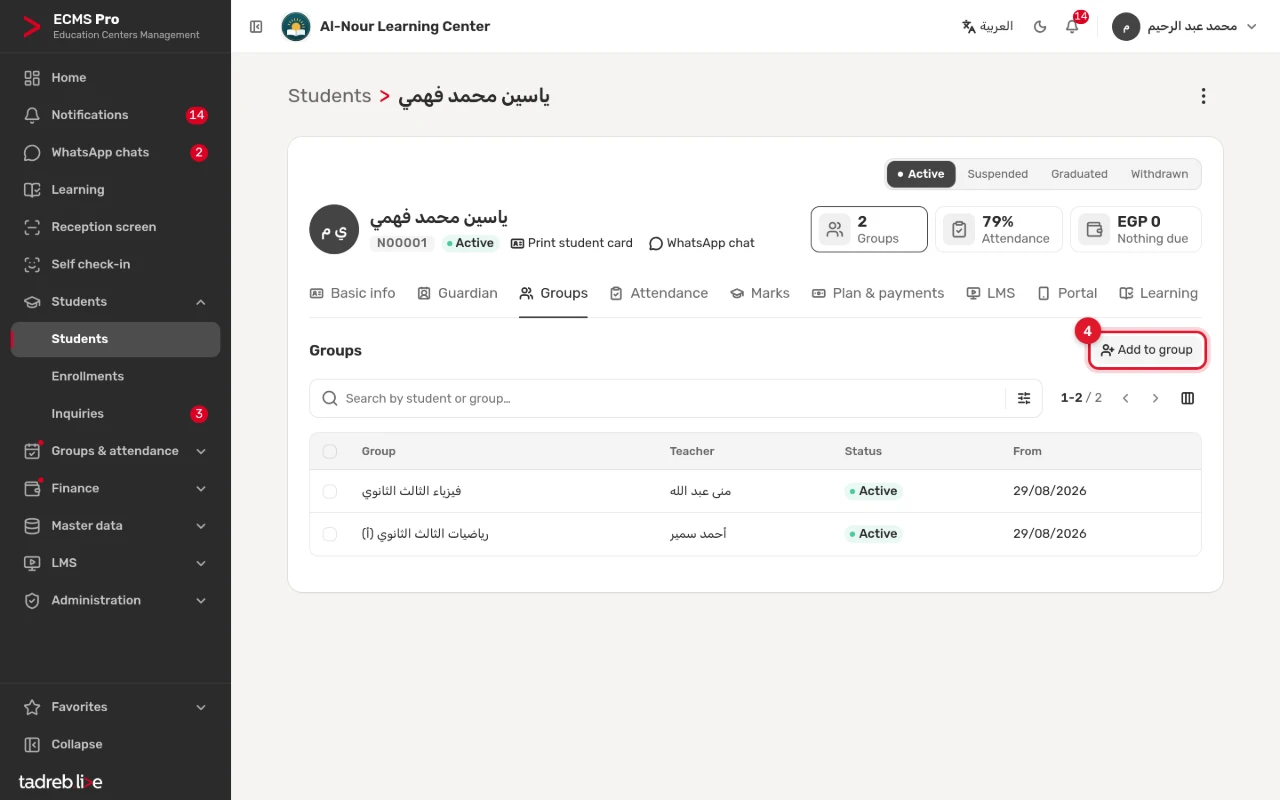
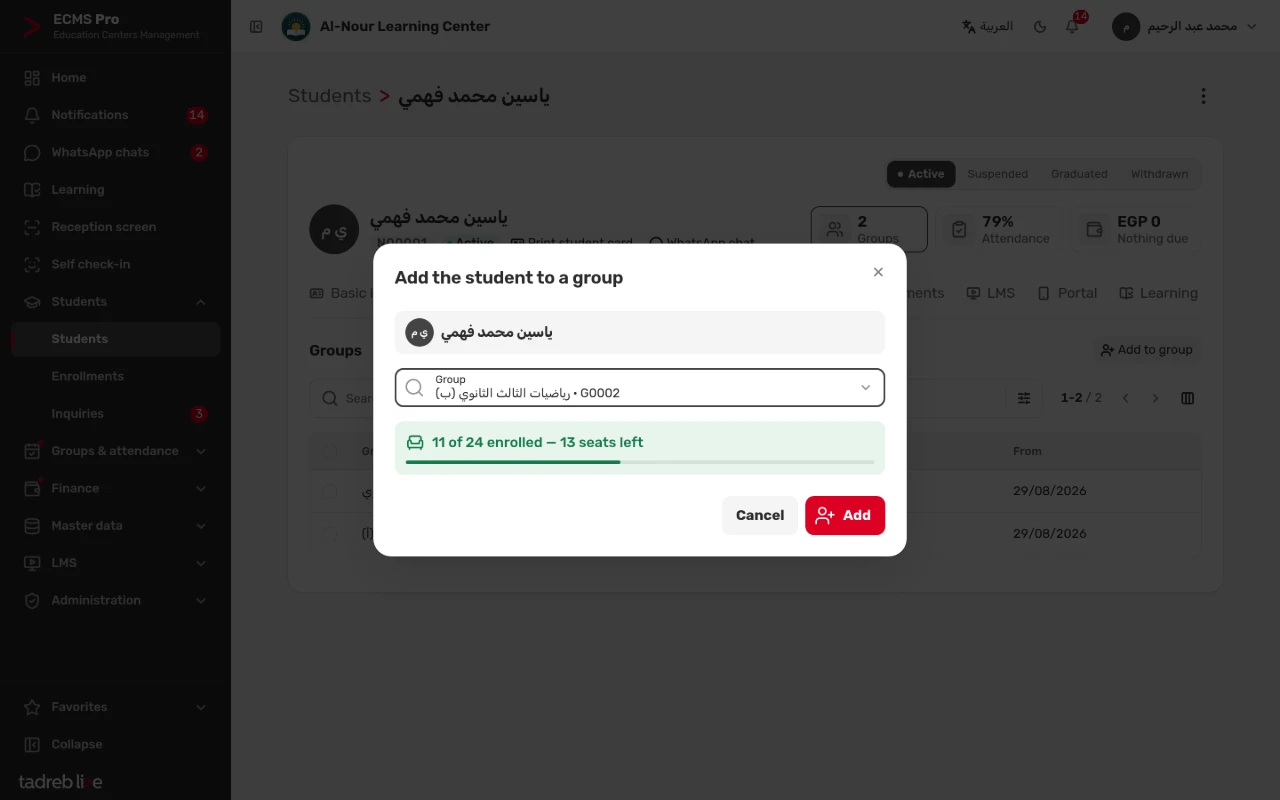
The Groups tab lists the student’s enrollments with their group, teacher, status and start date, and “Add to a group” enrolls them in another group once you see its free seats, or puts them on its waitlist when it is full.
Attendance and marks
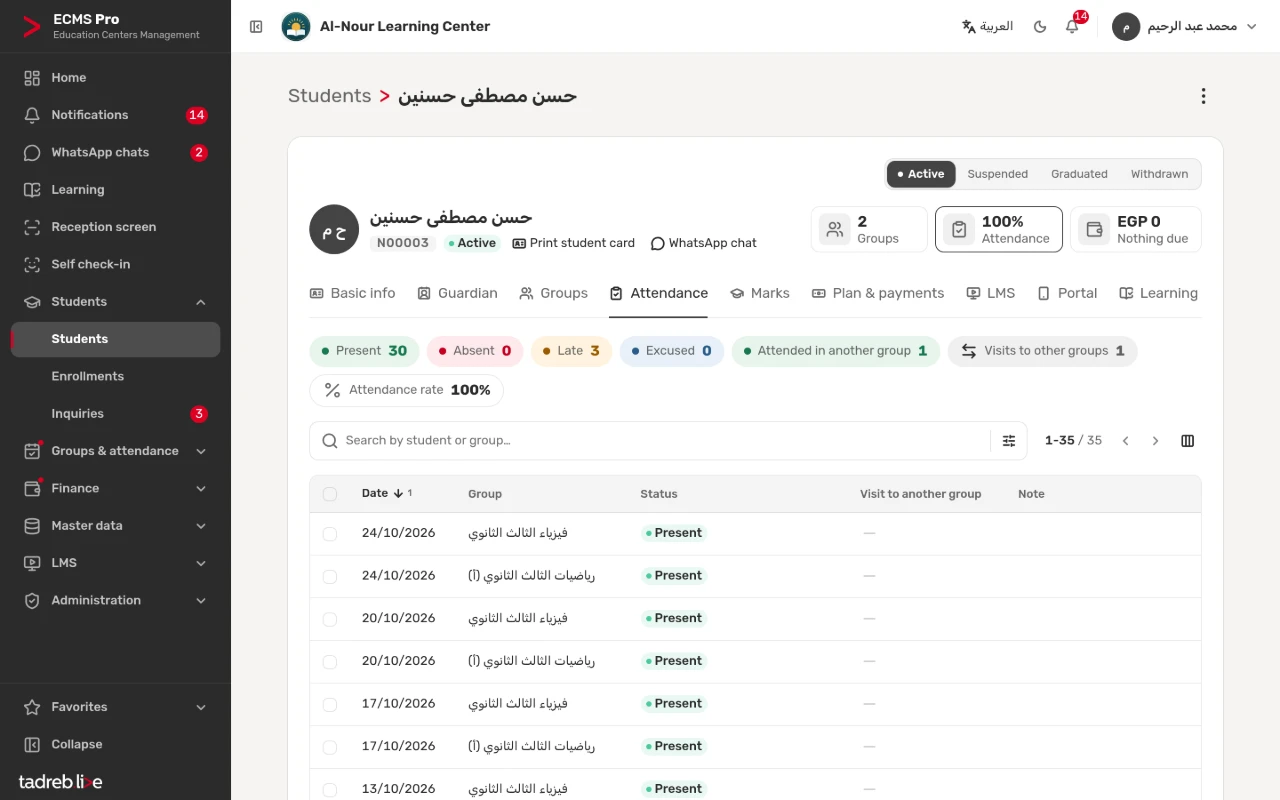
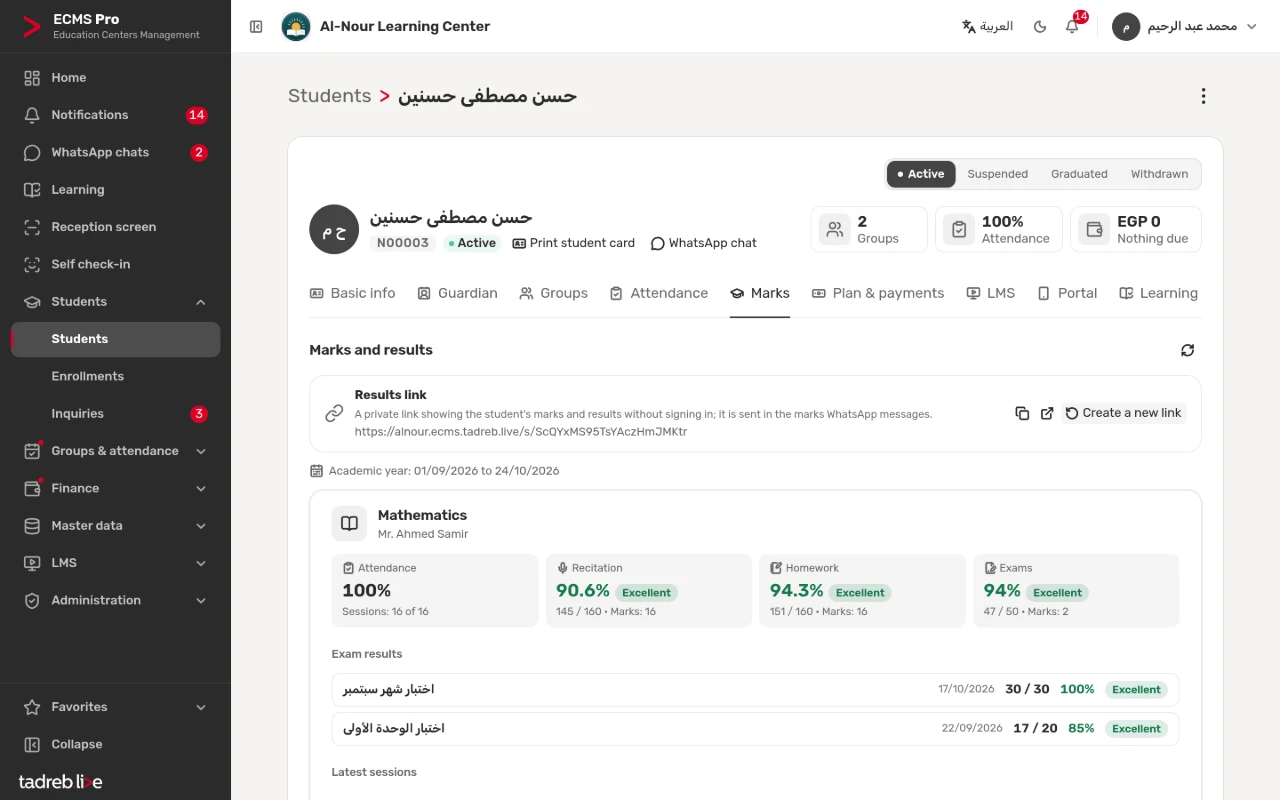
The Attendance tab counts each status, including “Attended in another group” and visits to other groups, with the attendance rate and every session’s record. The Marks tab shows the results of each subject, the exams, and the results link the guardian opens without signing in.
Payments on the same page
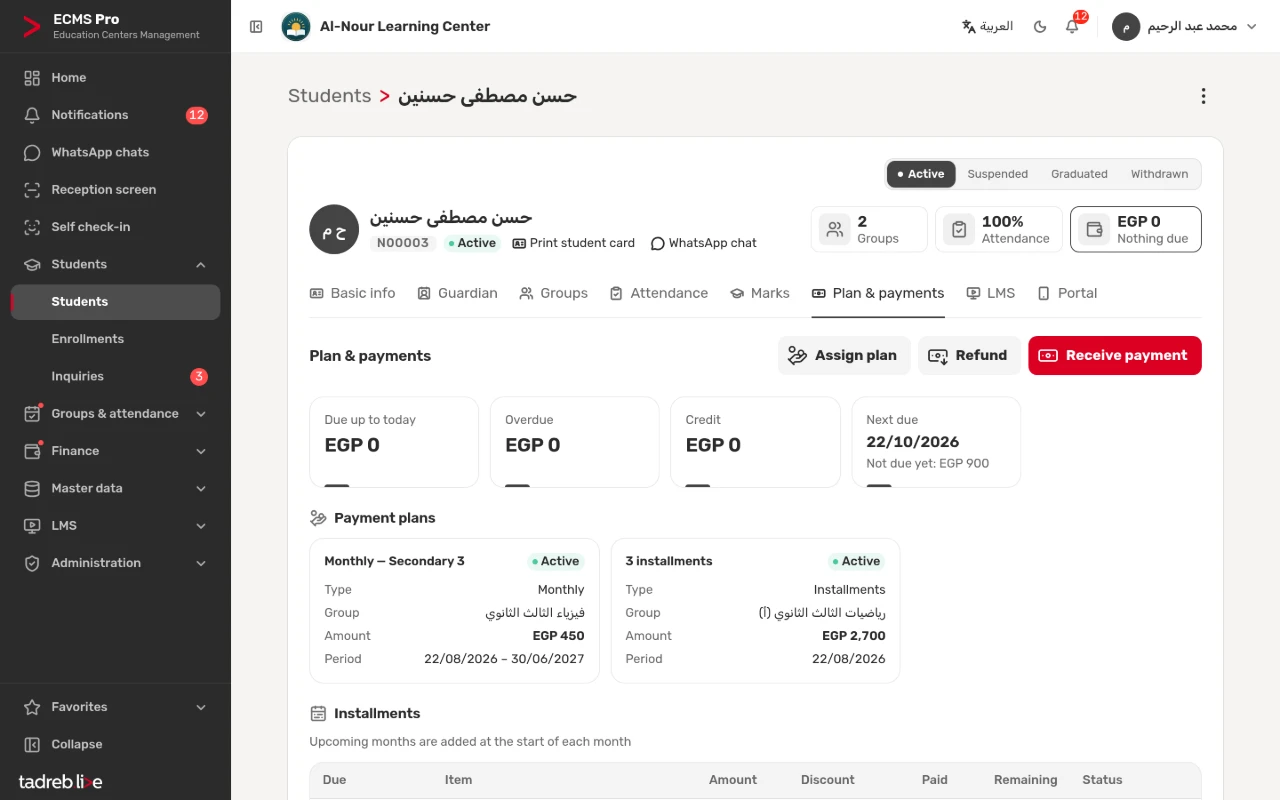
Plan & payments shows what is due until today, the overdue amount, the credit and the next due date, then the payment plans, installments, payments and refunds, with “Assign plan”, “Receive payment” and “Refund” for those allowed. Teachers never see this tab.
The students list, and importing it
Search the list by name, mobile or code, even when a name is typed with a different hamza, filter it by status, “Has dues”, “Overdue” or “Not in any group”, group it, save your favorites and export it to Excel. To start, import your students from an Excel file, with their groups and earlier arrears if you want.
Inside the system
The student page and its tabs on a computer and a phone, as they look in ECMS Pro.
The student page
The code, status, number of groups, attendance rate and amount due at the top, then the tabs, starting with Basic info: name, mobile, grade, track and school.
The guardian
The guardian’s name, mobile number and relation; absence and dues messages go to that number.
The student’s groups
Each enrollment with its group, teacher, status and start date, and “Add to a group”.
The student’s attendance
Each status counted and the attendance rate, then every session with its date, group and status.
The student’s marks
The results of each subject, the exams, and the student’s own results link.
Plan & payments
Due until today, overdue and credit, the payment plan, the installments with their status and the payment history.
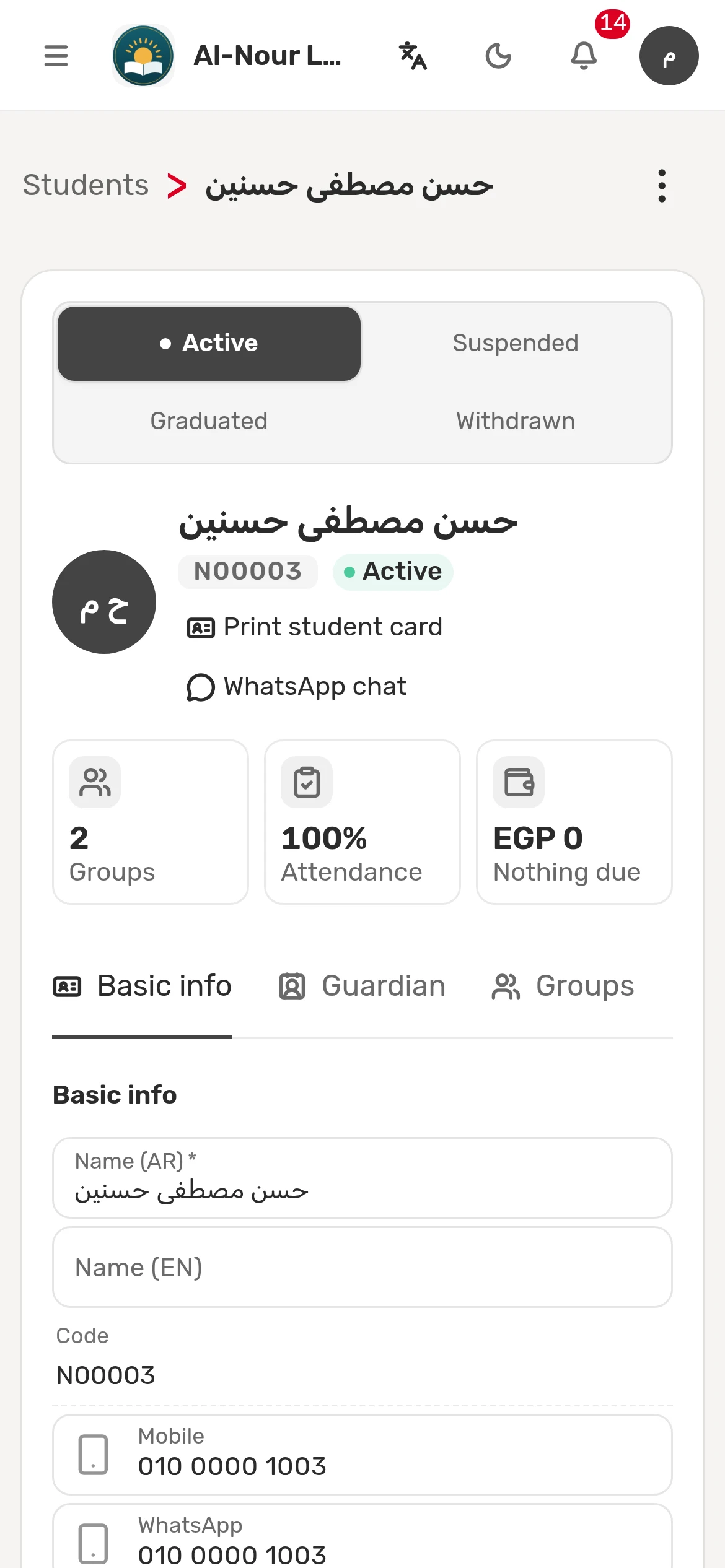
On a phone
The same student page on a phone.
How it works, step by step
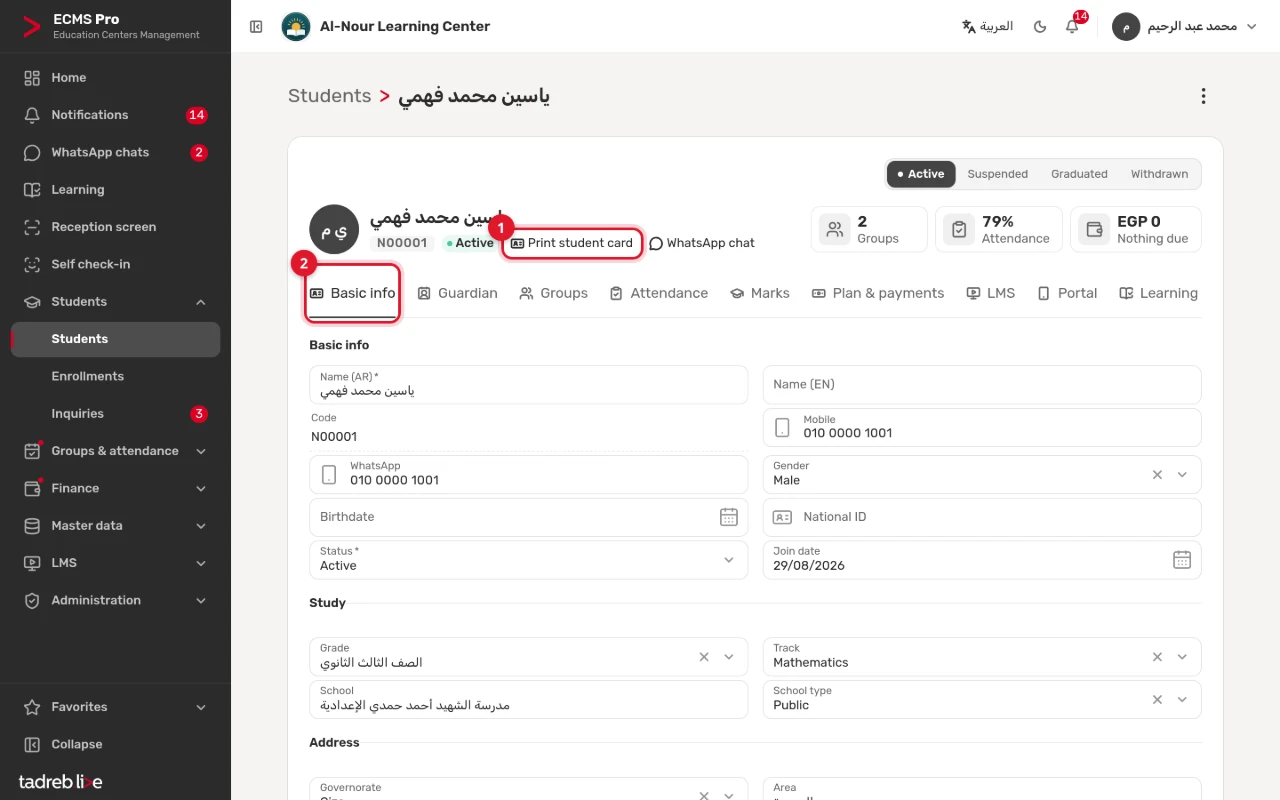
The first steps of the “The student page, its tabs and enrollments” guide in the help center, numbered as in the pictures.
1–2. Name, code, status and quick boxes
Groups, attendance rate and amount due, “Print student card”, and Basic info below.
4. “Add to group”
The student’s groups with their teachers, and each enrollment’s status and start date.
4. The group and its free seats
If the group is full: “Add to the waitlist”.
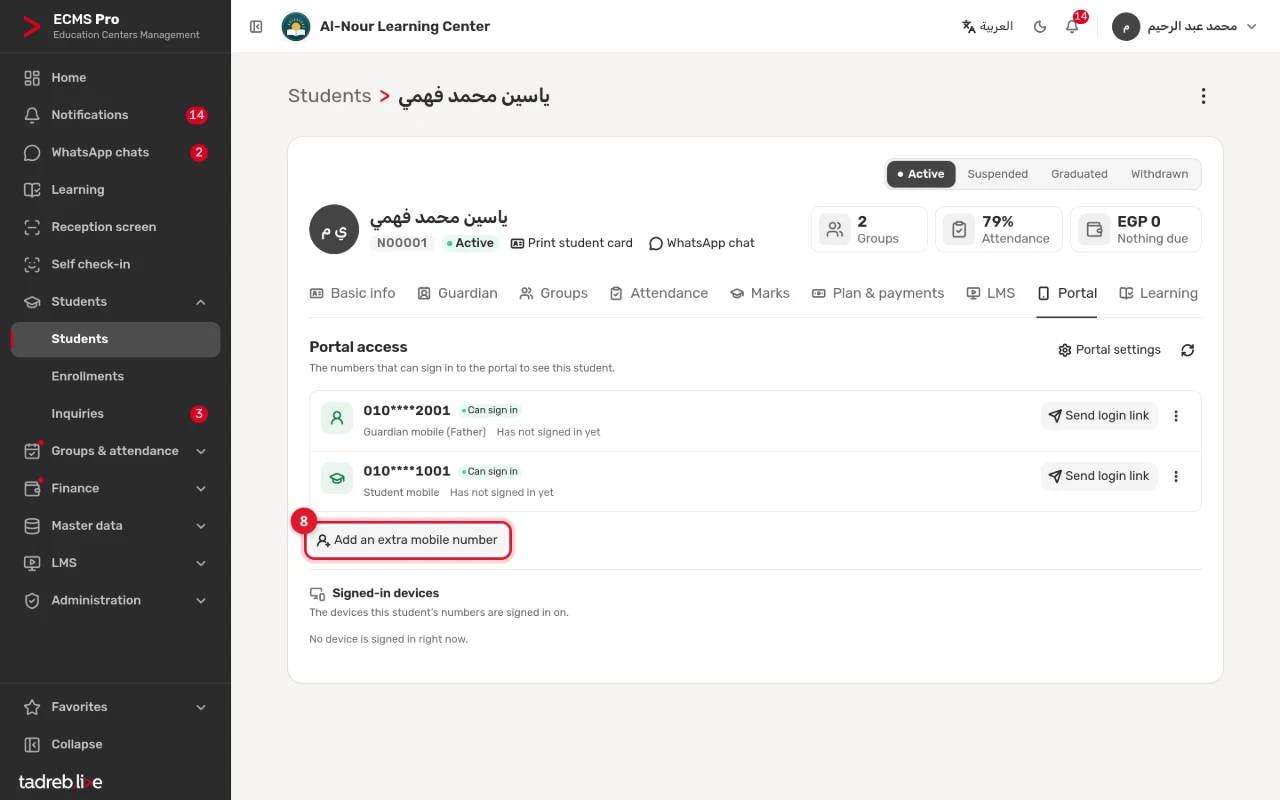
8. The numbers that sign in to the portal
The guardian’s and the student’s mobile, “Add an extra mobile number” (up to 4), and “Send login link” for each.
Frequently asked questions
Can I add a mobile number for another guardian?
Yes, once the student and guardian portal is on: on the student page’s Portal tab you add up to 4 more mobile numbers with their relation (mother, father or another guardian), and each number’s owner follows the student in the portal.
What do I do with a student who left?
Change their status to “Withdrawn” or “Graduated”, or archive them, and their whole record stays: attendance, marks and payments. The list shows active students by default, and you find the others by filtering on the status or “Archived”.
How do I bring my students over from Excel?
Under “Students” → “Import from Excel”: download the ready template or upload your own file, match its columns and review the rows before saving. Every step is in the student import guide, and importing groups, master data and payment plans in the guide to importing other data.
Try student records at your center
A 14-day free trial with every feature, no payment details.
Or talk to our sales team on WhatsApp.