Lists: search, filters, group by, favorites, export
Every list in the system works the same way: “Students”, “Groups”, “Payments”, “Dues”, “Teachers” and the others. This article shows their tools on the “Students” list.
1. Search
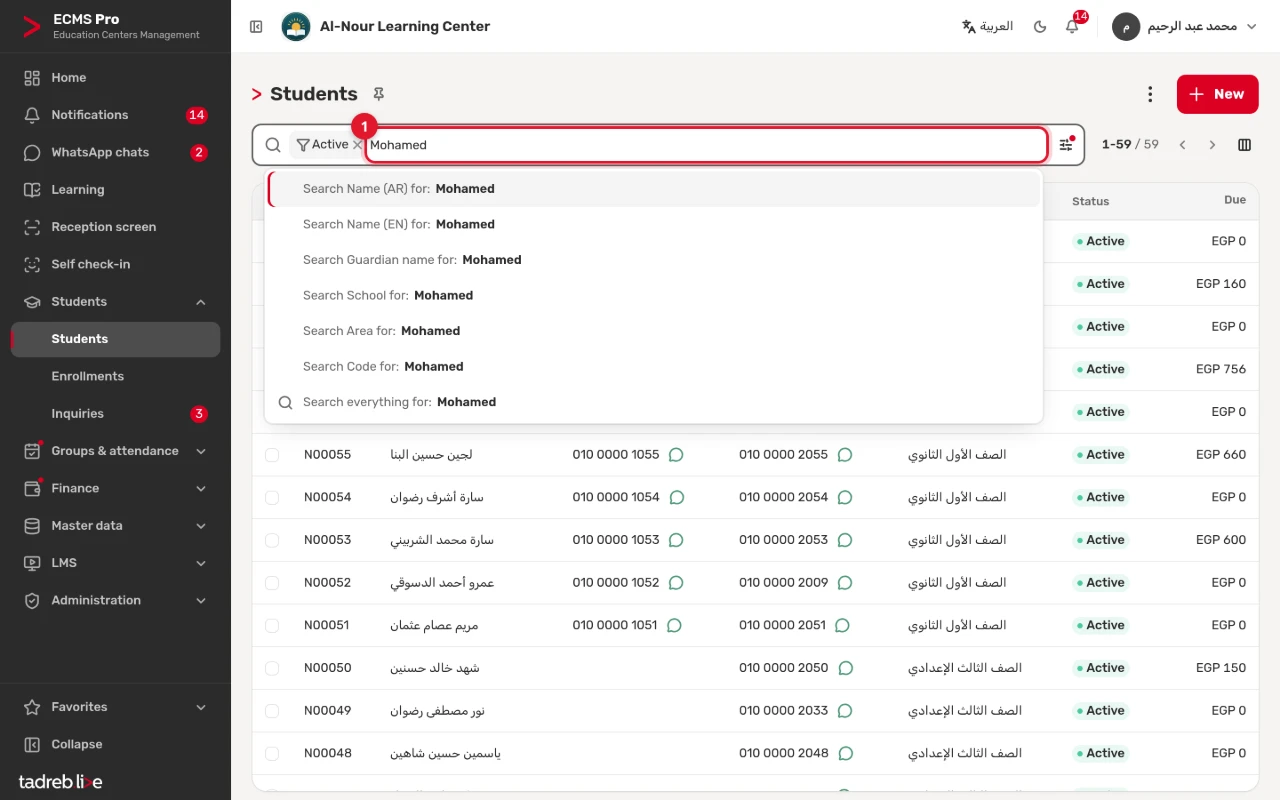
Type in the search box, and the system suggests the field to search, such as “Search Code for:”, ending with “Search everything for:”. Choose one: the search becomes a chip above the list, which you remove with its ×.
- If you add more than one value to the same chip, the records that match any of them show.
- If you add more than one chip, the records that match all of them show.
2. Filter the list
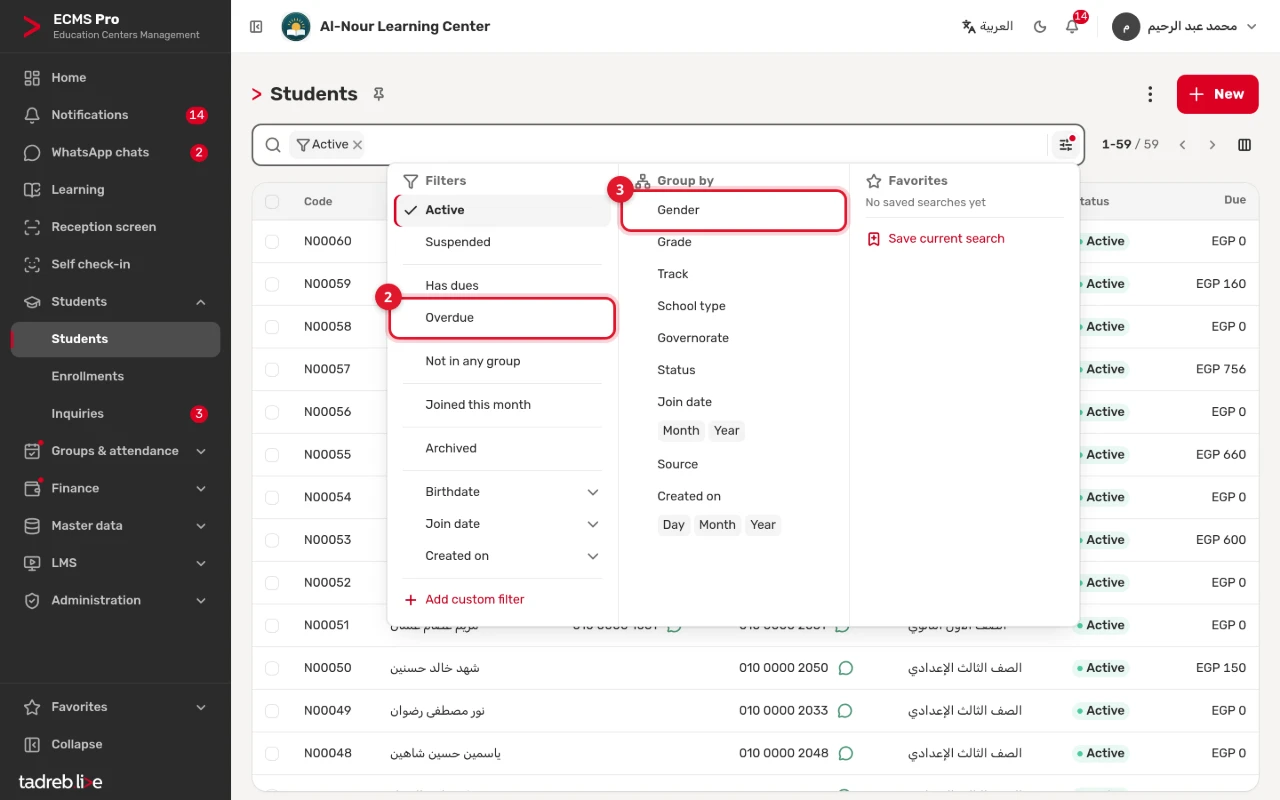
Press the “Filters, group by & favorites” button next to the search box. The “Filters” column has ready filters for each list, such as “Active”, “Overdue”, “Not in any group” and “Joined this month” on the students list, and date filters such as “This month” and “Last month”. For other conditions, press “Add custom filter” and choose the field, the condition and the value.
Each list opens on its default filter, such as “Active” for students. Remove it to see every record.
3. Group the records
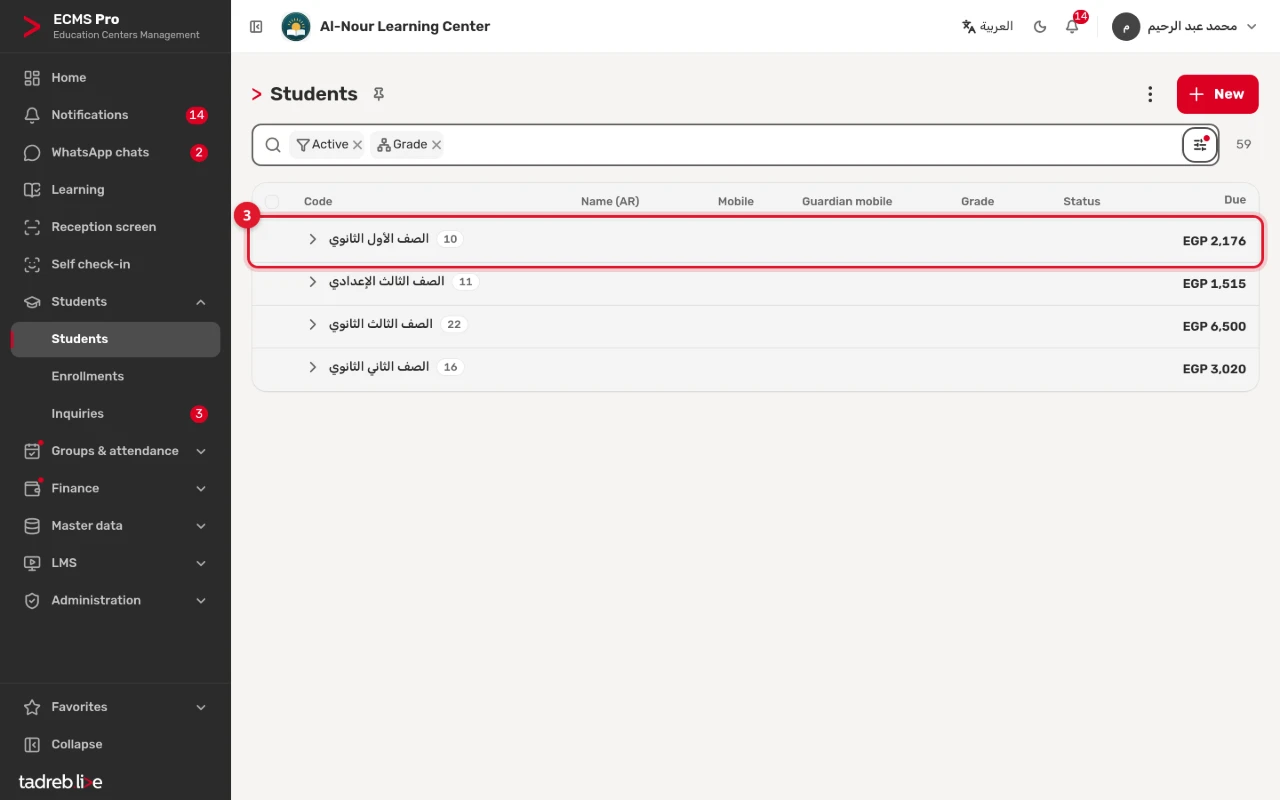
In the “Group by” column, choose a field, such as “Grade”: the list shows groups, each with its number of records and the sum of its amounts; press a group to open it. You can group on two levels at most, such as grade then status. Dates are grouped by day, week, month or year.
4. Save the search under “Favorites”
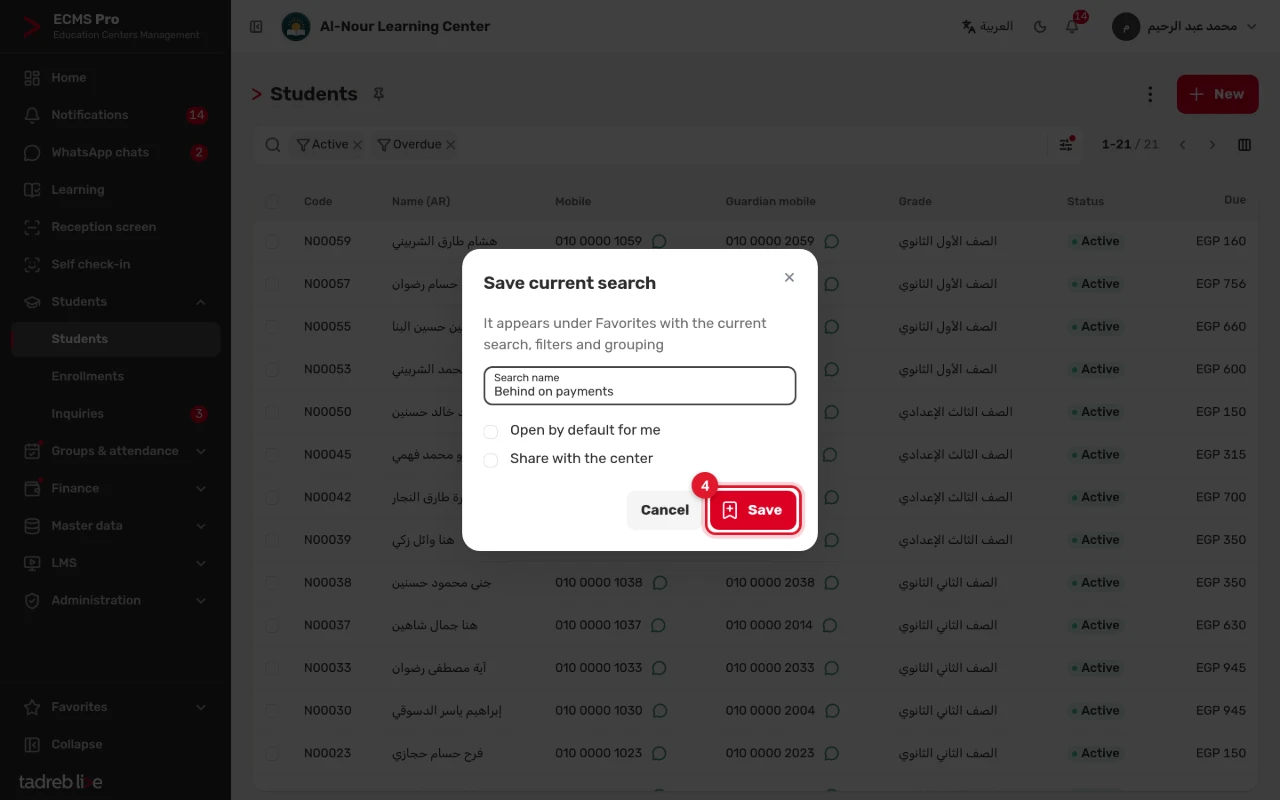
Once the search, filters and grouping are set, press “Save current search” in the “Favorites” column. Type its “Search name”, and choose if you like:
- “Open by default for me”: the list opens on it whenever you open it.
- “Share with the center”: every user of the center sees the search. This choice shows to those allowed to share.
Then press “Save”. The search is under “Favorites”, one press away. The column choice is not saved with it.
5. Export the list
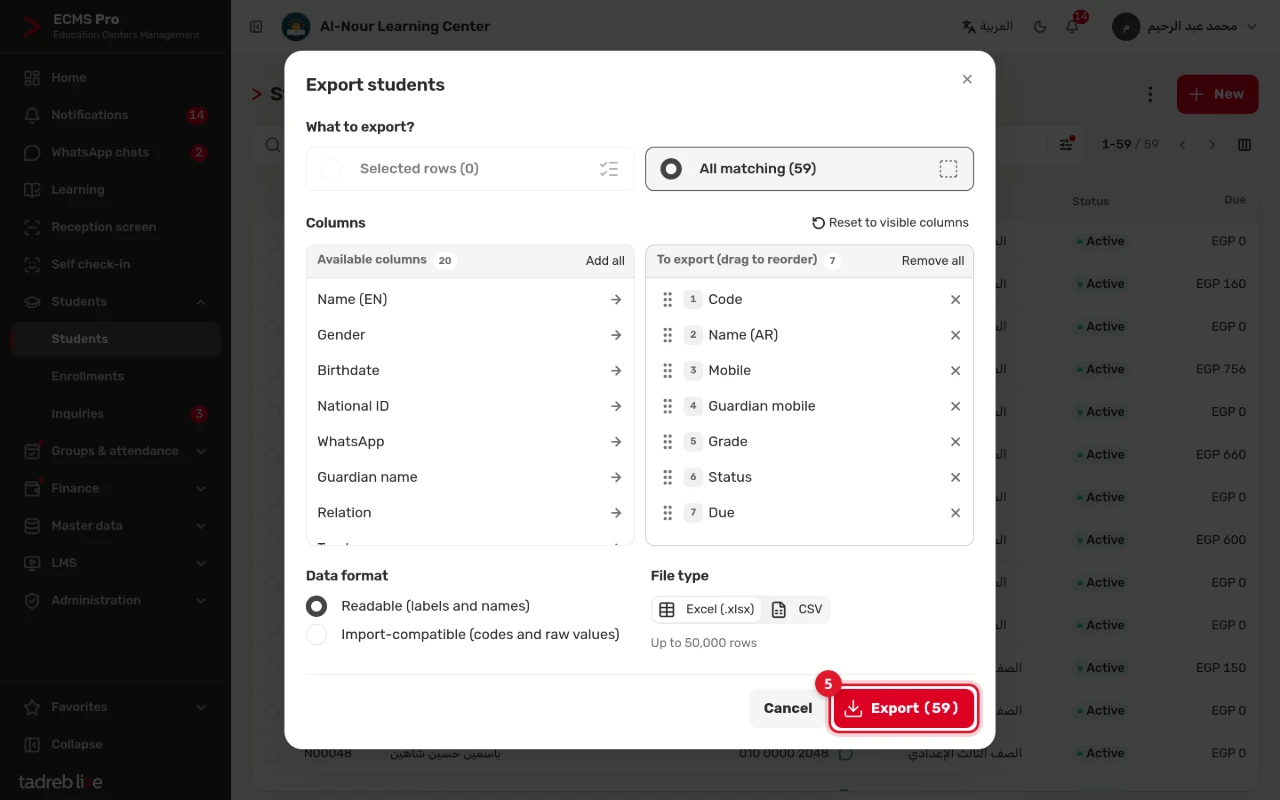
In the “Actions” menu (⋮), choose “Export”, or select records then “Actions” → “Export”. In the export window:
- “What to export?”: “Selected rows” or “All matching”, with the current search and filters.
- “Columns”: they start as the columns shown in the list. Add from “Available columns”, and drag columns to reorder them.
- “Data format”: “Readable (labels and names)”, or “Import-compatible (codes and raw values)” to edit the file and import it back.
- “File type”: Excel (.xlsx) or CSV.
Then press “Export”. A file holds 50,000 rows at most.
Each user exports what their permissions allow: with the default roles, the secretary exports students, groups, attendance and exam results, the accountant payments, installments and refunds, and teachers export nothing.
6. Pin the list to the side menu
Press “Pin to the menu” next to the list’s title, or the pin icon next to a search under “Favorites”. The list, with its filters and sort order, appears in the “Favorites” group at the bottom of the side menu, one press away.
- Each user has their own pinned pages, 12 at most.
- To remove a page, press the × next to it under “Favorites”.
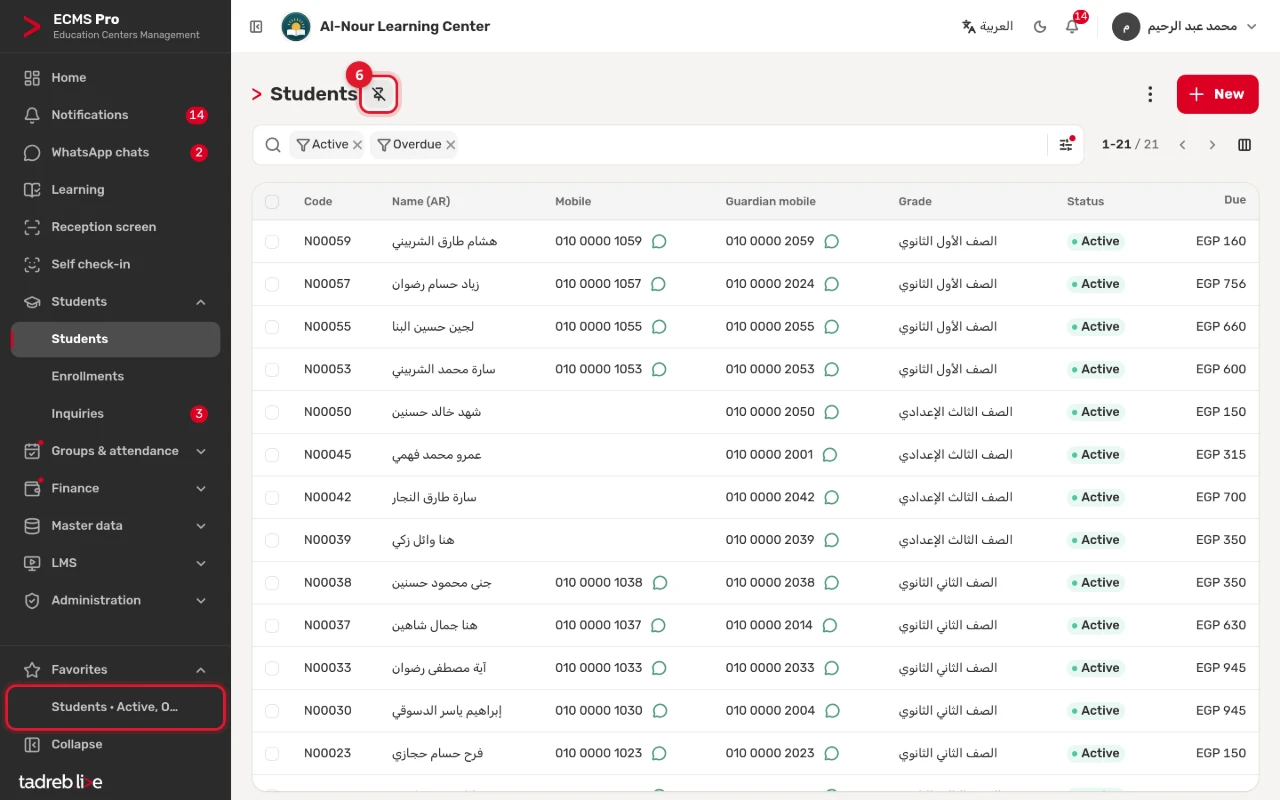
“Favorites” names two things: the pinned pages at the bottom of the side menu, and the saved searches in the “Filters, group by & favorites” button.
Columns and the number of records
- Choose the columns shown with the “Columns” button, and go back to the default with “Reset columns”. Your choice is saved for you alone.
- The number of records shows next to the arrows, such as “1-80 / 230”. Press it to type another range (200 records per page at most). You change the default number in “My settings” (see My settings, my devices and passwords).