Notifications and announcements
The system tells you what happens at the center as it happens: every payment collected or voided and every refund, sessions with no attendance taken and the absent students after each session, cancelled or moved sessions and full groups, inquiries from the center’s website, imports, and the center subscription and WhatsApp Business alerts. Every user sees only what their permissions allow.
1. The notifications bell
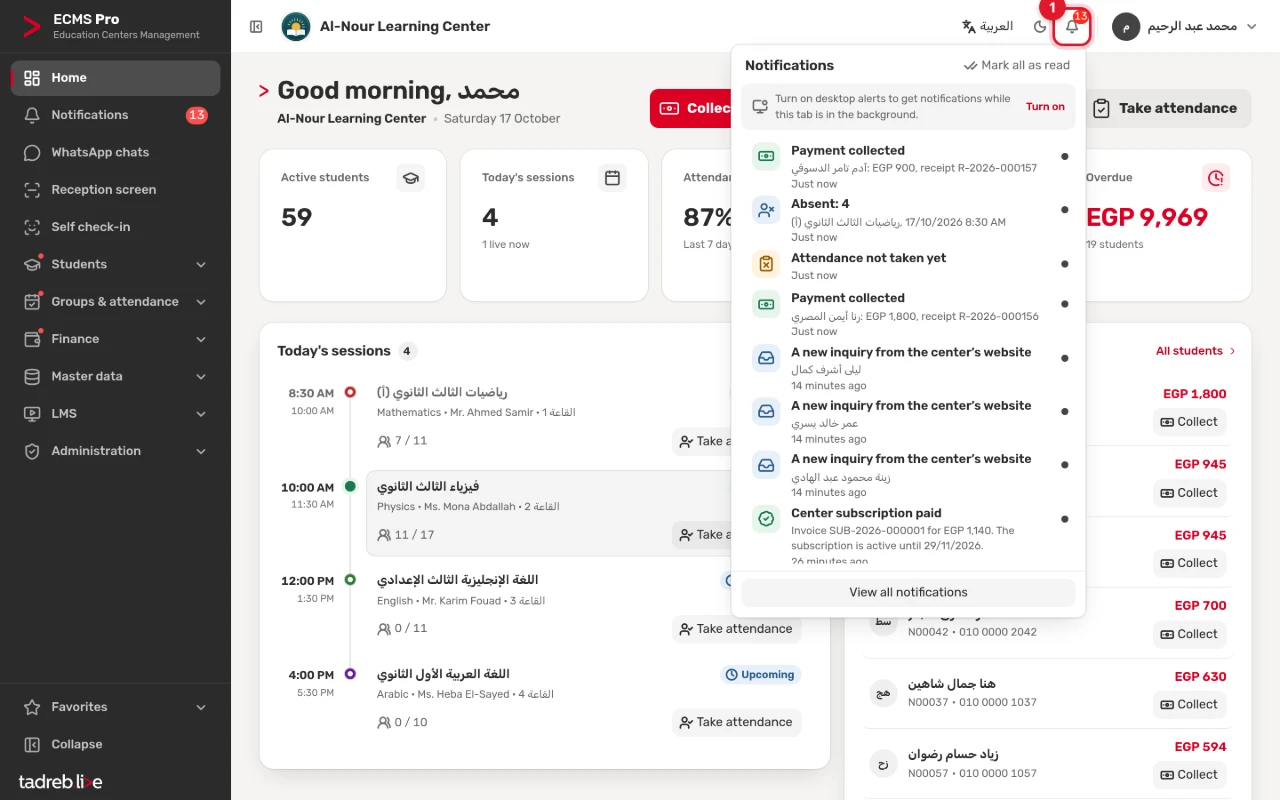
The bell at the top of the page shows how many notifications are unread. Press it to see the latest, then “Mark all as read” or “View all notifications”. New notifications arrive without reloading the page.
2. The notifications page
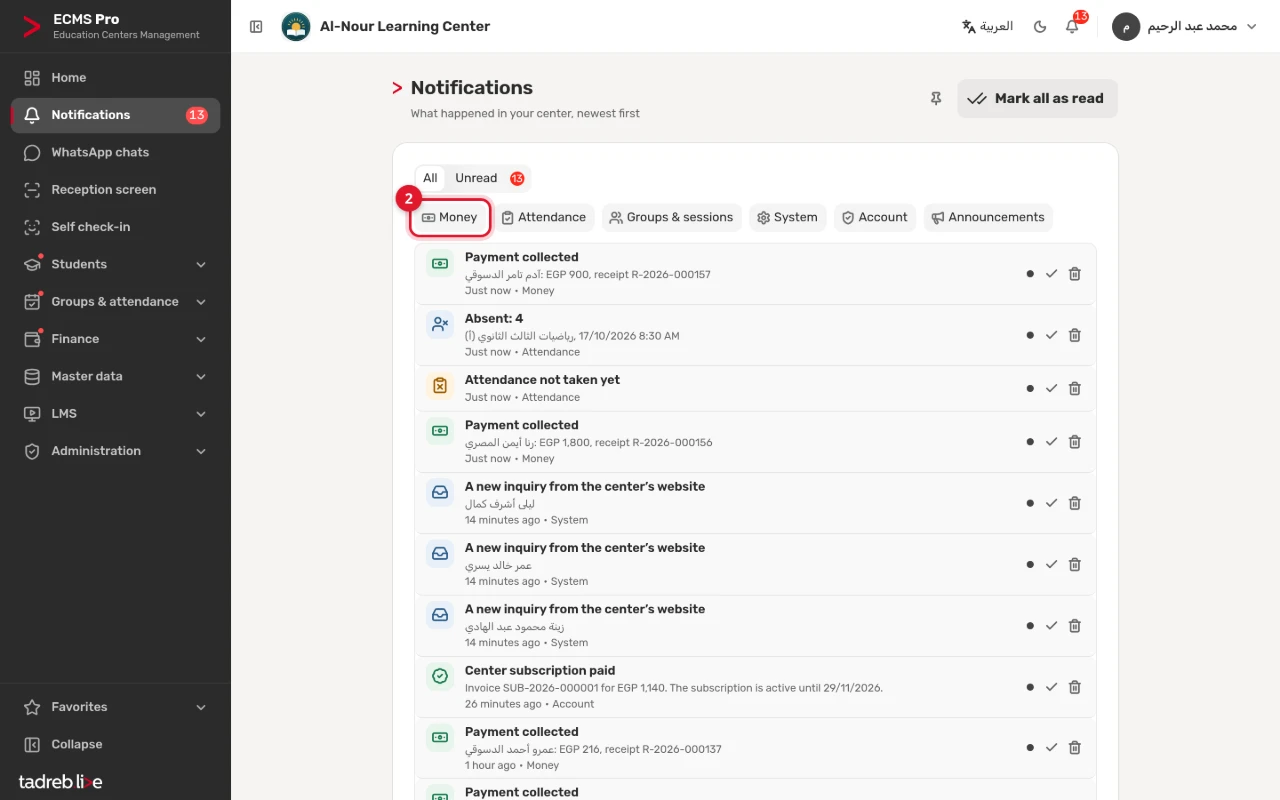
“Notifications” in the menu shows what happened at the center, newest first. Choose “All” or “Unread”, and filter by category: “Money”, “Attendance”, “Groups & sessions”, “System”, “Account” and “Announcements”. Each notification has “Mark as read” and “Delete”.
3. Choose what reaches you
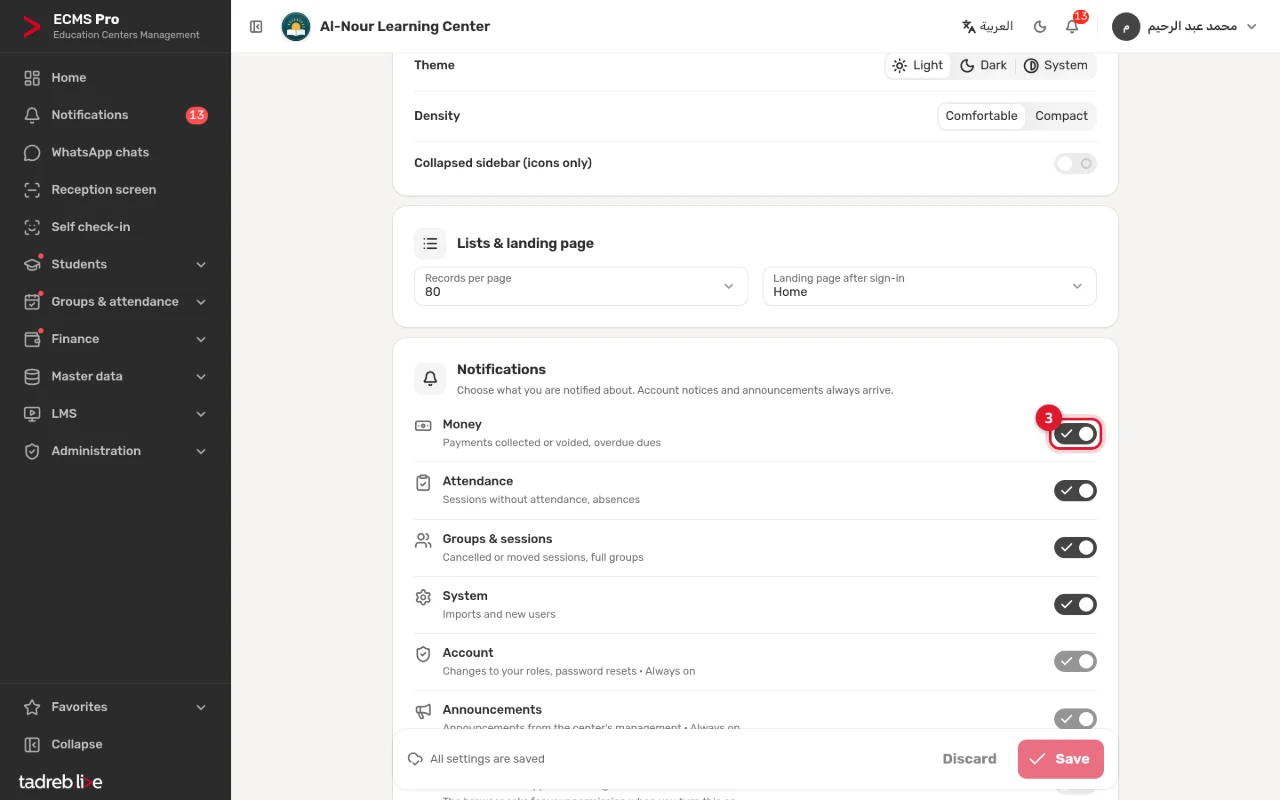
From the menu under your name at the top of the page, open “My settings”, then the “Notifications” section: turn the categories you want on or off and press “Save”. Account notices and announcements always arrive.
“Desktop alerts” show while the app is in a background tab; the browser asks for your permission when you turn them on. You can also turn them on from the bell’s list.
4. Send an announcement to your team
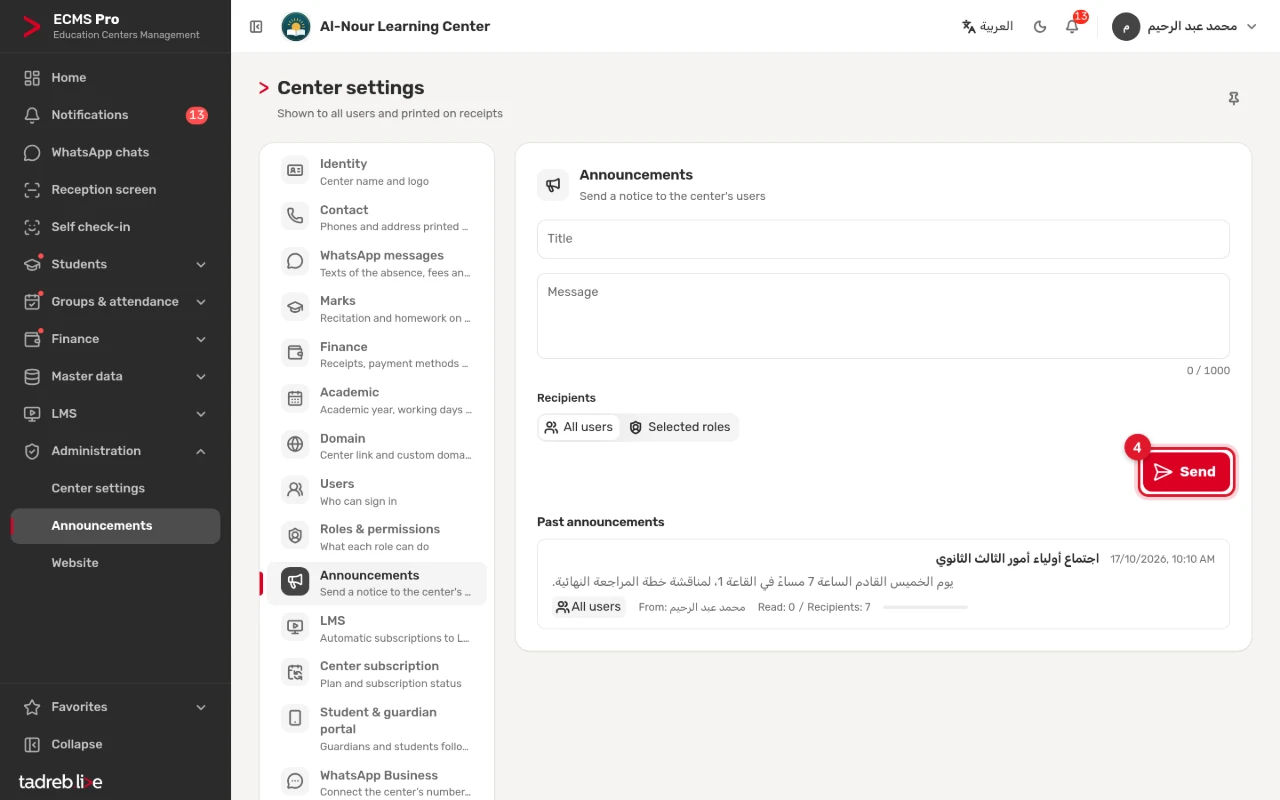
“Administration” → “Announcements”: write the “Title” and the “Message”, choose the “Recipients” — “All users” or “Selected roles” — then press “Send” and confirm. The announcement reaches the recipients as a notification, and sending cannot be undone. Under “Past announcements” you see each one with its sender, how many received it and how many read it.
Summaries
A quarter of an hour after each session ends, its teacher gets a notification with the number of absent students, or one saying attendance was not taken yet, and so do the staff who follow attendance and absence messages. Every day a summary lists the students behind on their fees and the total overdue, for users who see amounts.