Groups and schedules
Create a group with its subject, teacher, grade, weekly schedule and payment plan, and its sessions are created automatically and show under “Take attendance” on their day. Subjects, grades, teachers and rooms stay in “Master data”, ready to pick from.
A group in one form
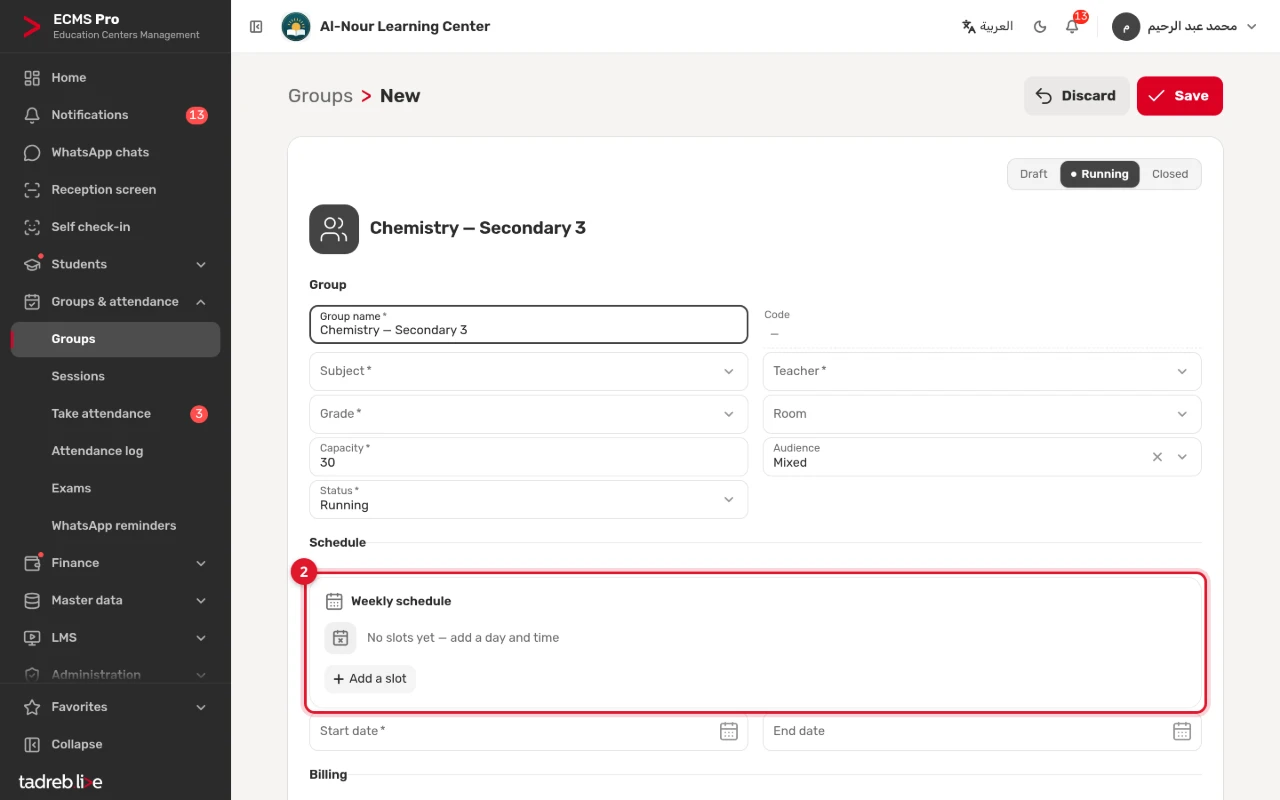
The group’s name, subject, teacher, grade and capacity, the room, the category (mixed, boys or girls) and a color if you like, its status — draft, running or closed — and the payment plan its students’ dues follow. Every group gets a code automatically.
A weekly schedule
Add a slot for each day the group meets with its start and end time, then the start date, and the end date if you know it. The system checks that each slot ends after it starts, and refuses two overlapping slots on the same day.
Sessions created on their own
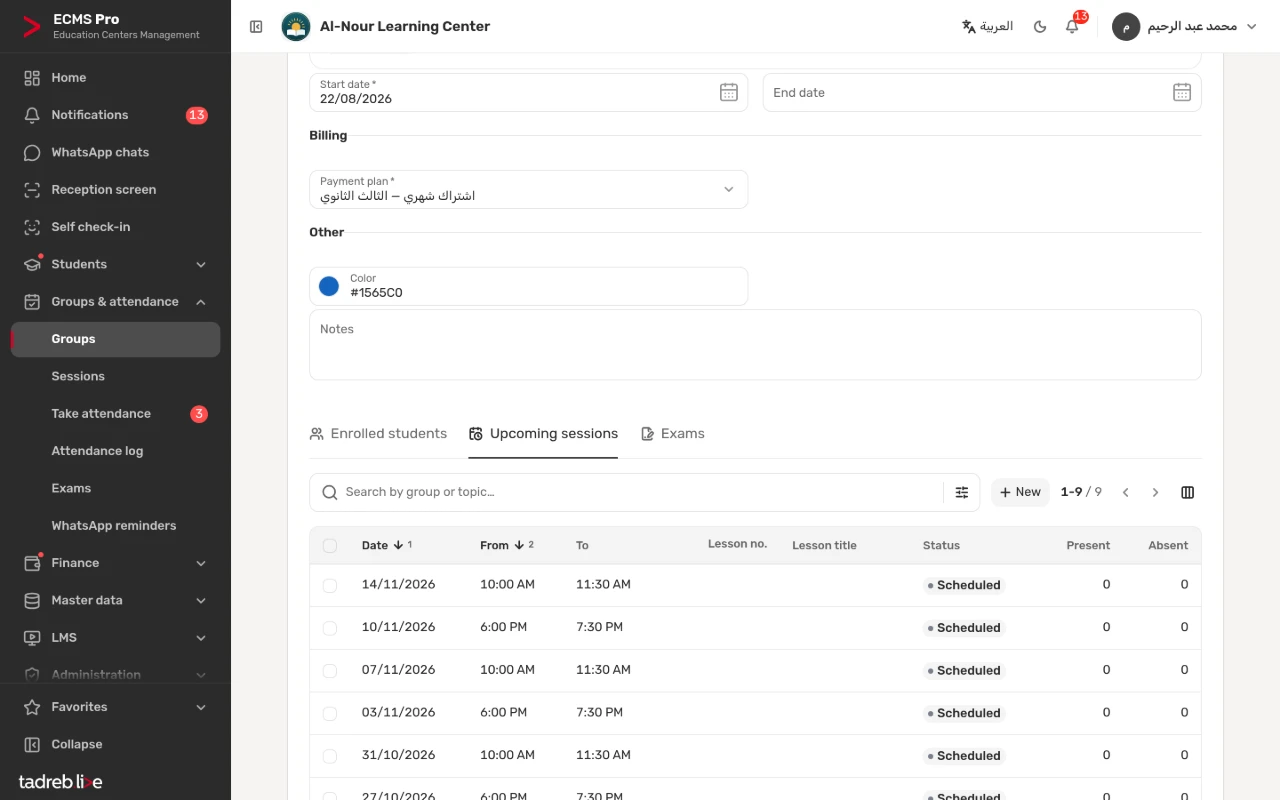
When an active group with a schedule is saved, its sessions are created for the days ahead you set in “Center settings” (28 days by default), never past its end date, and “Generate sessions” extends them whenever you like without repeating a session. When you change the schedule, the coming sessions with no attendance are rebuilt, and the ones already taken stay as they are.
One session changes
Move a session to another day or time, cancel it, or add a make-up, review or exam session under “Sessions”. When a session is cancelled, its fees are cancelled if the plan is per session, and anything paid for it returns to the student’s credit. The administration can give a session a substitute teacher, and every session keeps its lesson number, its title and its present and absent counts.
Enrolling students, and the capacity
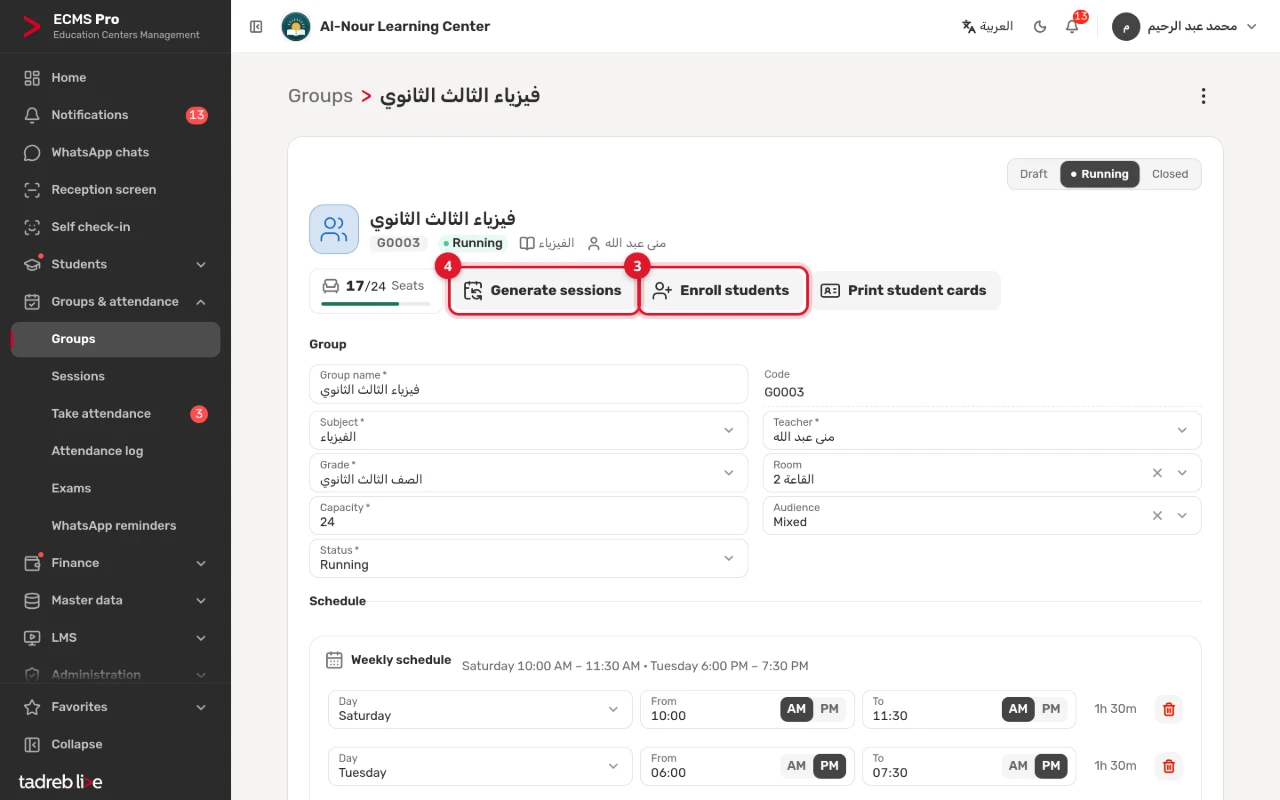
On the group page, “Enroll students”: search by name, code or mobile and add several students at once, with the enrollment start date and, for whoever needs it, a different payment plan or a discount. The seats taken out of the capacity show beside the button, and once the group is full the extra students are refused or put on the waitlist, as you choose. The same page prints the group’s student cards.
Master data
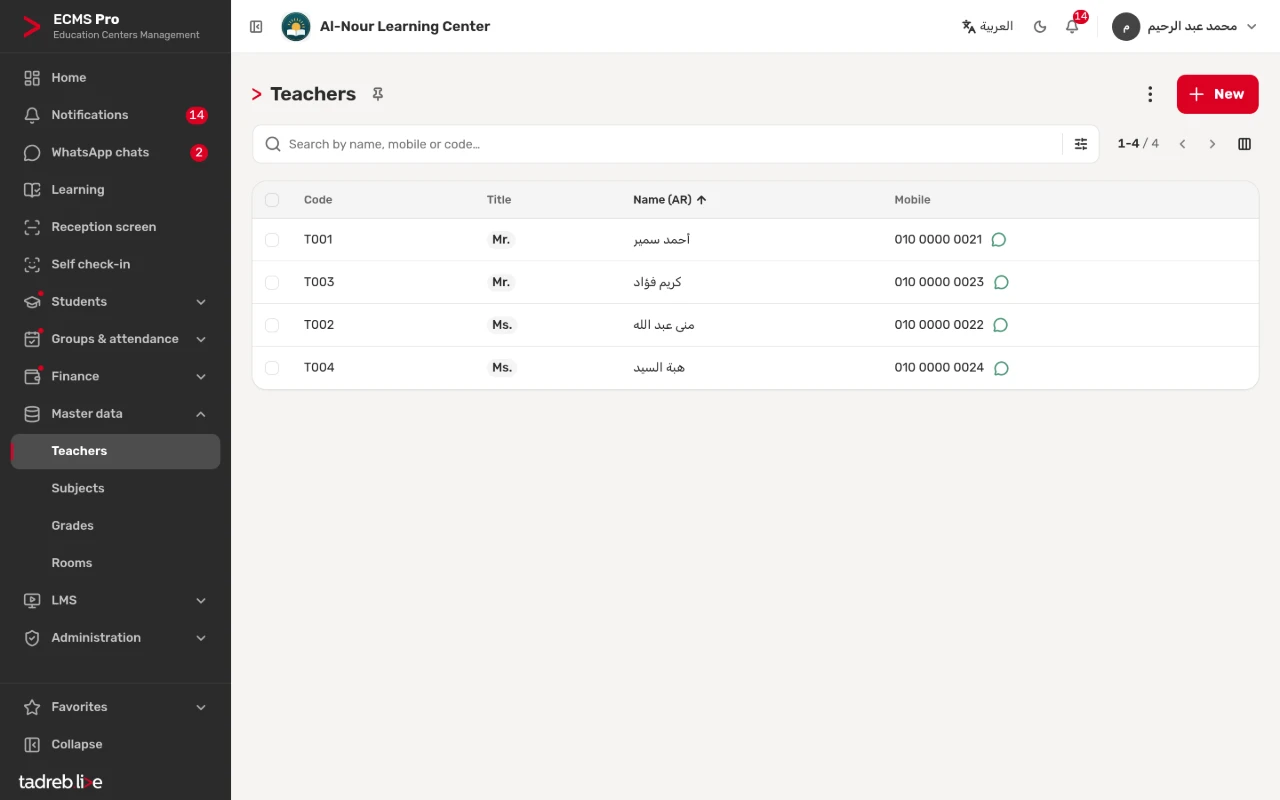
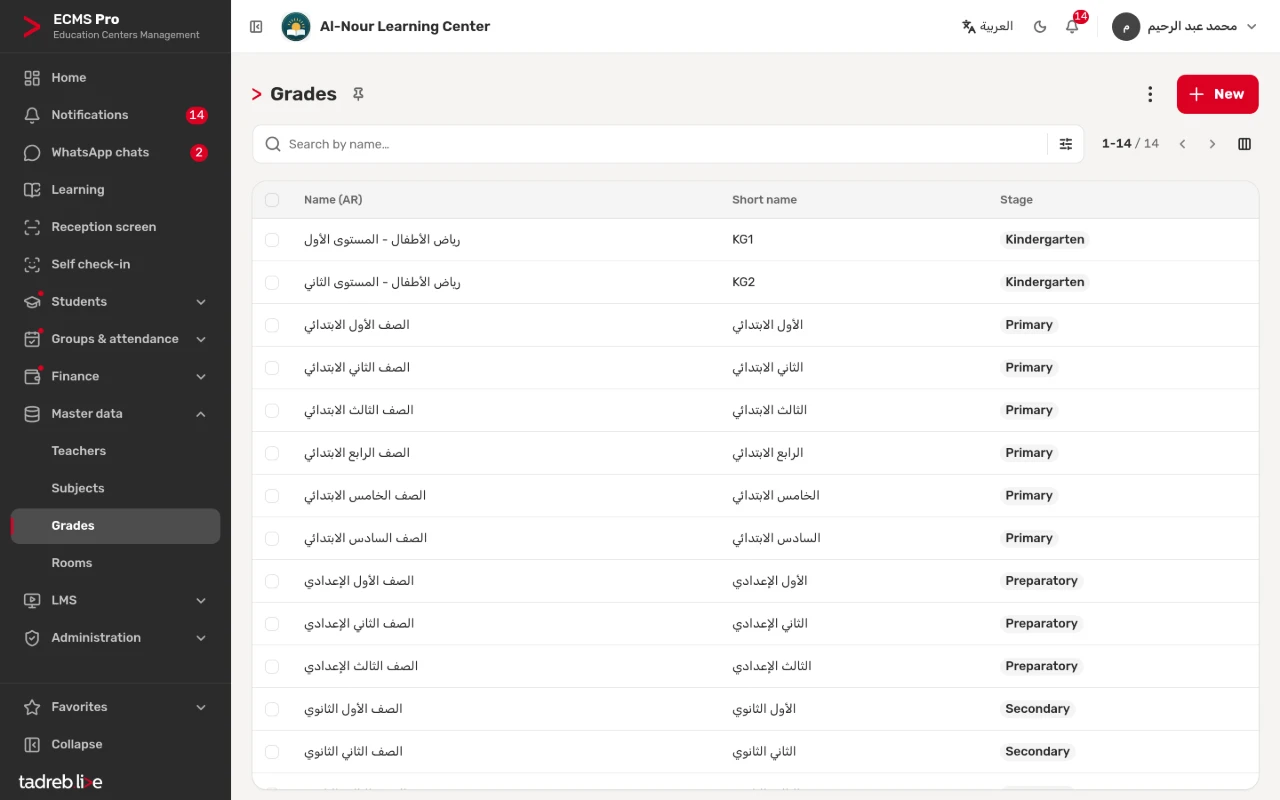
Teachers with their title, mobile and WhatsApp numbers, subjects with their color, grades in their stages from kindergarten to secondary (every new center starts with 14 grades ready), and rooms with their capacity. You can import them from Excel, archive what you no longer use instead of deleting it, and show a teacher on the center’s website with their profile if you want.
Inside the system
The groups list, a group’s page and weekly schedule, the sessions, the teachers and the grades, as they look in ECMS Pro.
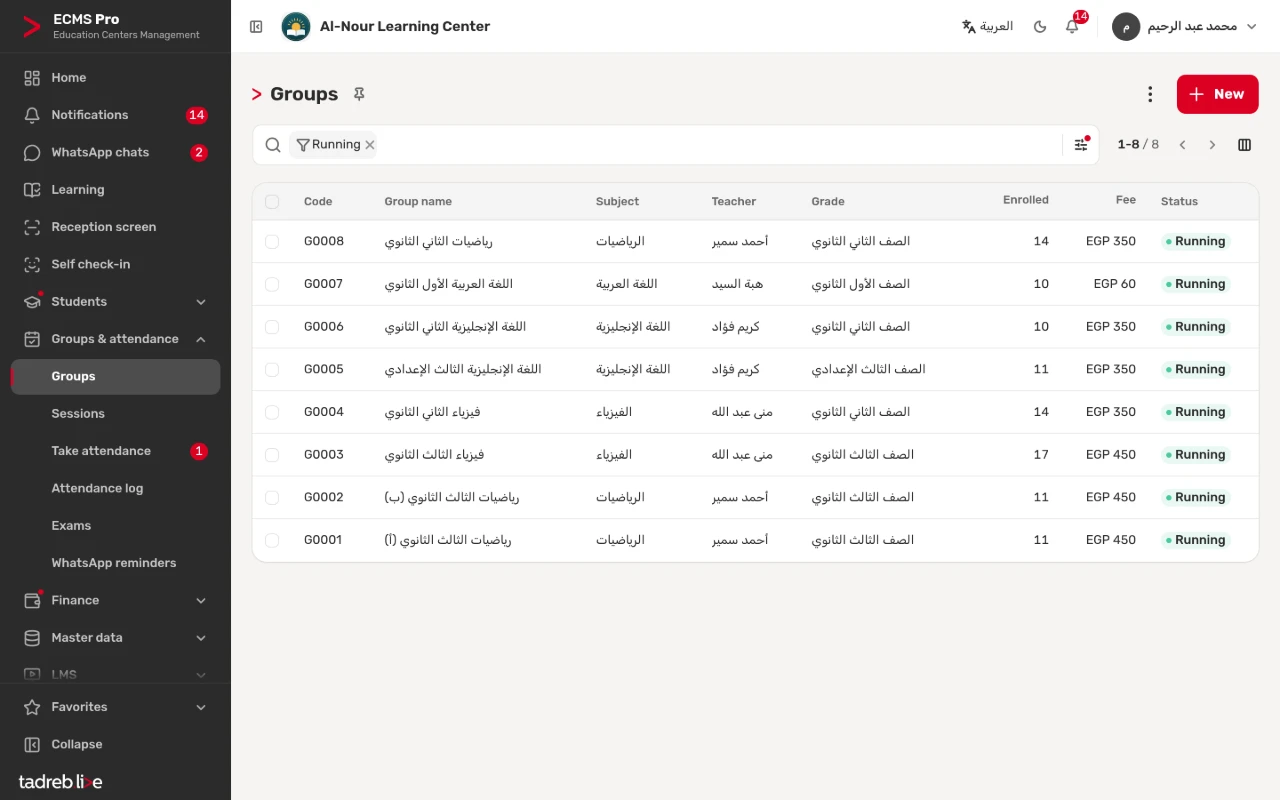
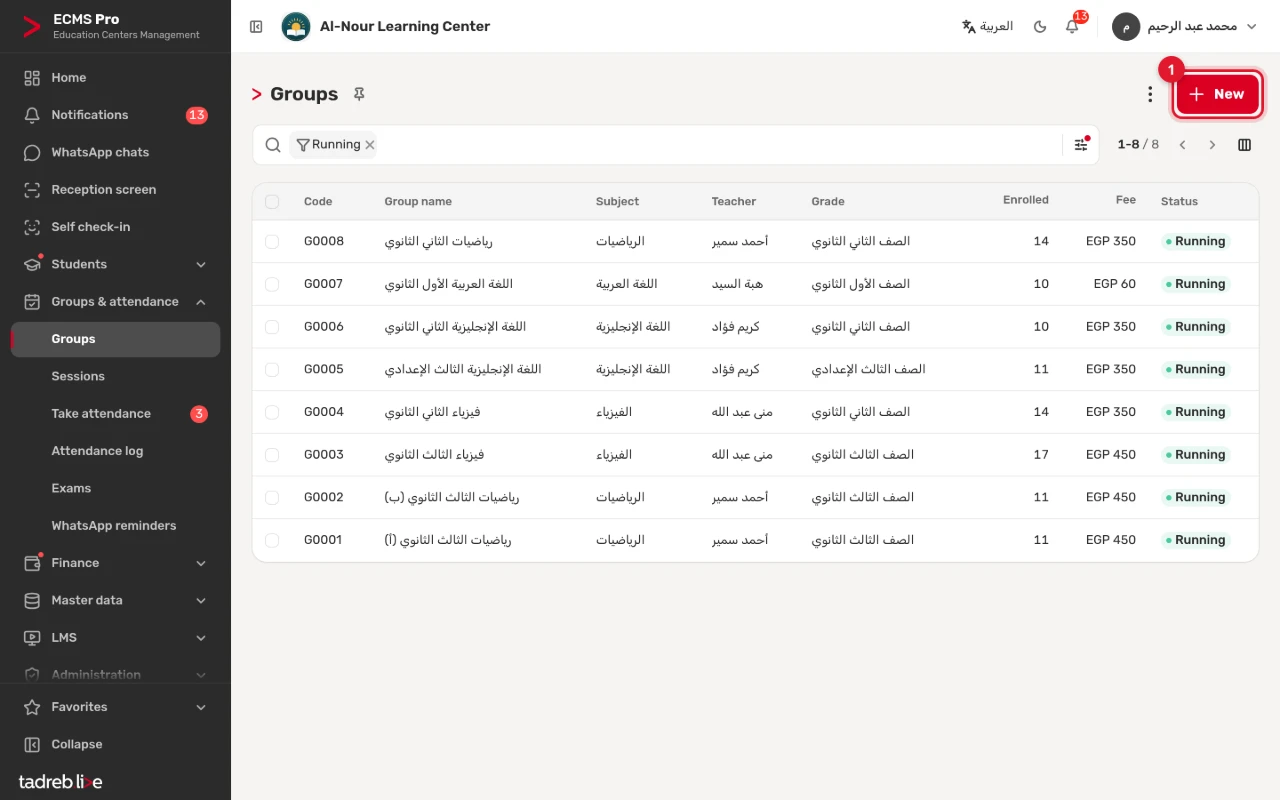
Every group in one list
Each group with its code, name, subject, teacher, grade, enrolled students, fee and status, with search and filters such as “Has seats” and “My groups”.
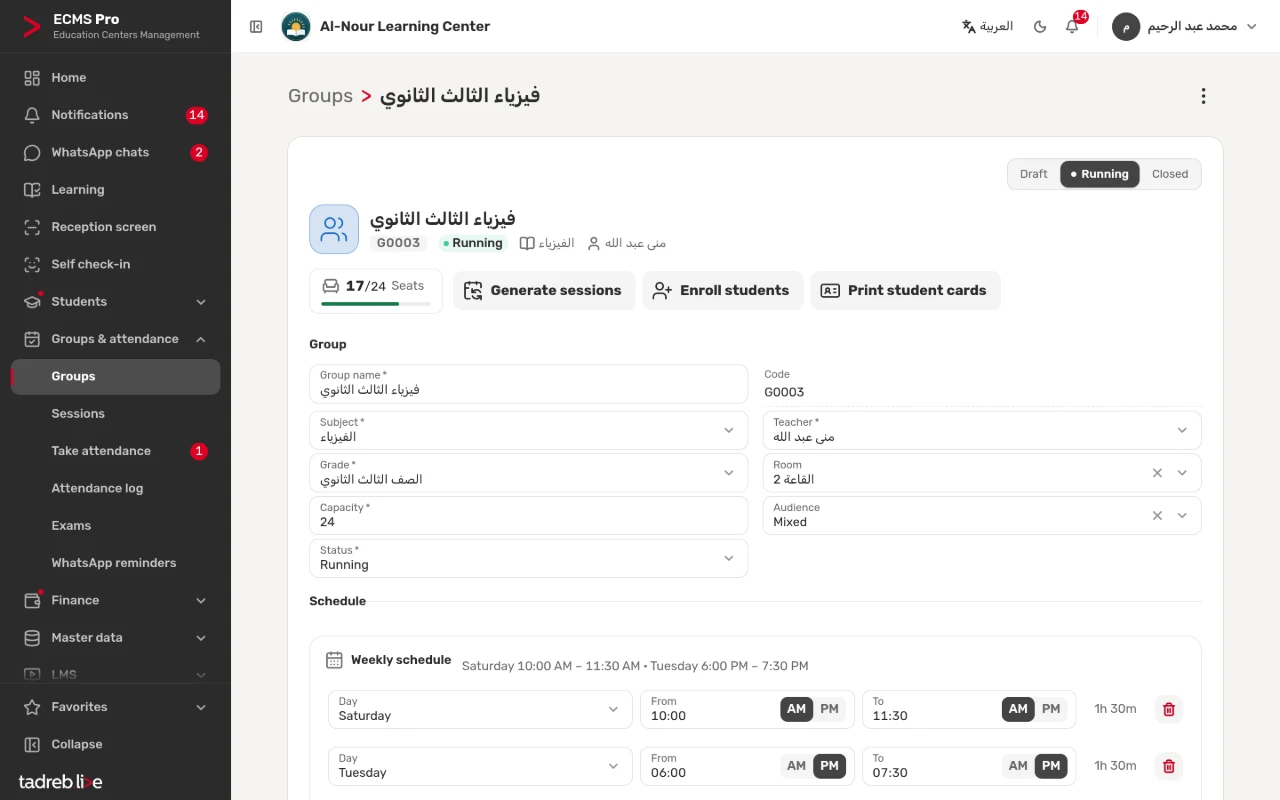
A group’s page
The seats taken out of the capacity, “Generate sessions”, “Enroll students” and “Print student cards”, then the group’s details, with the enrolled students, upcoming sessions and exams tabs below.
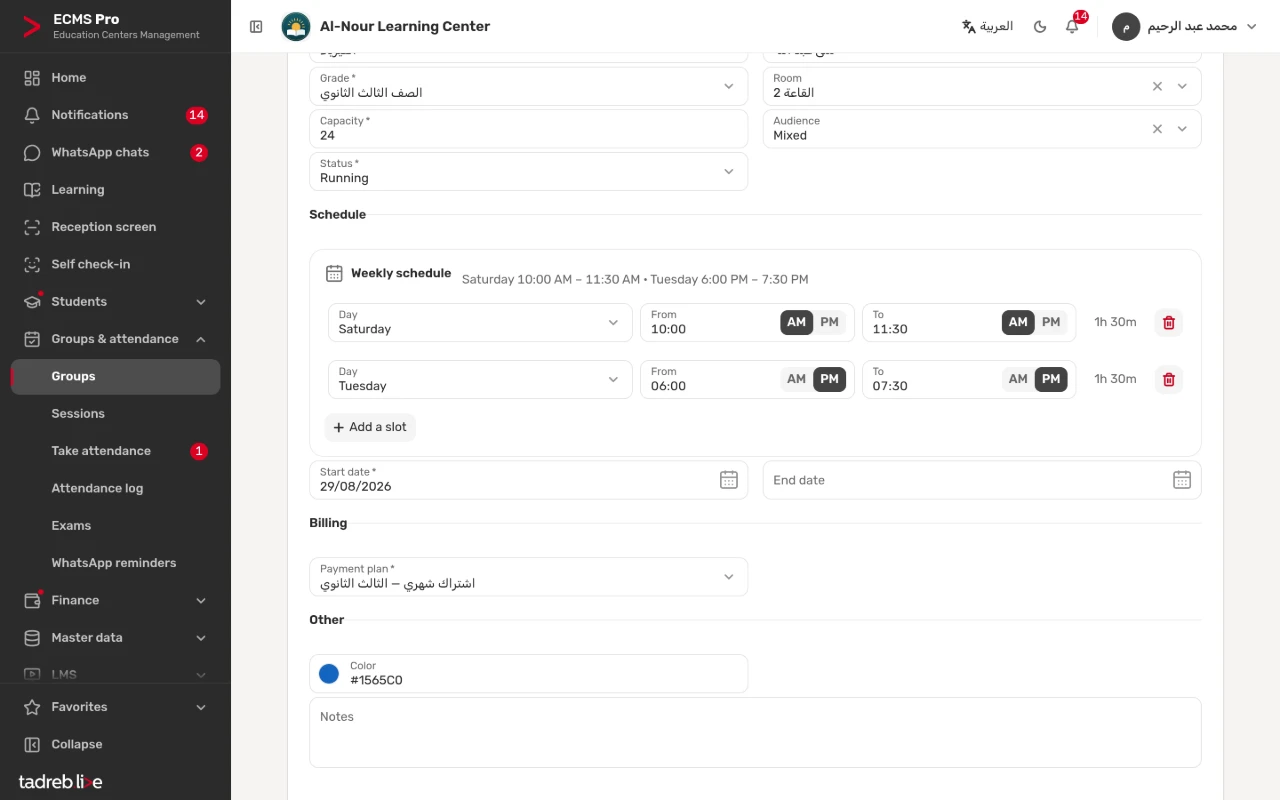
The group’s weekly schedule
Each slot with its day, start and end time and length, all of them summed up in one line above, then the start date and the payment plan.
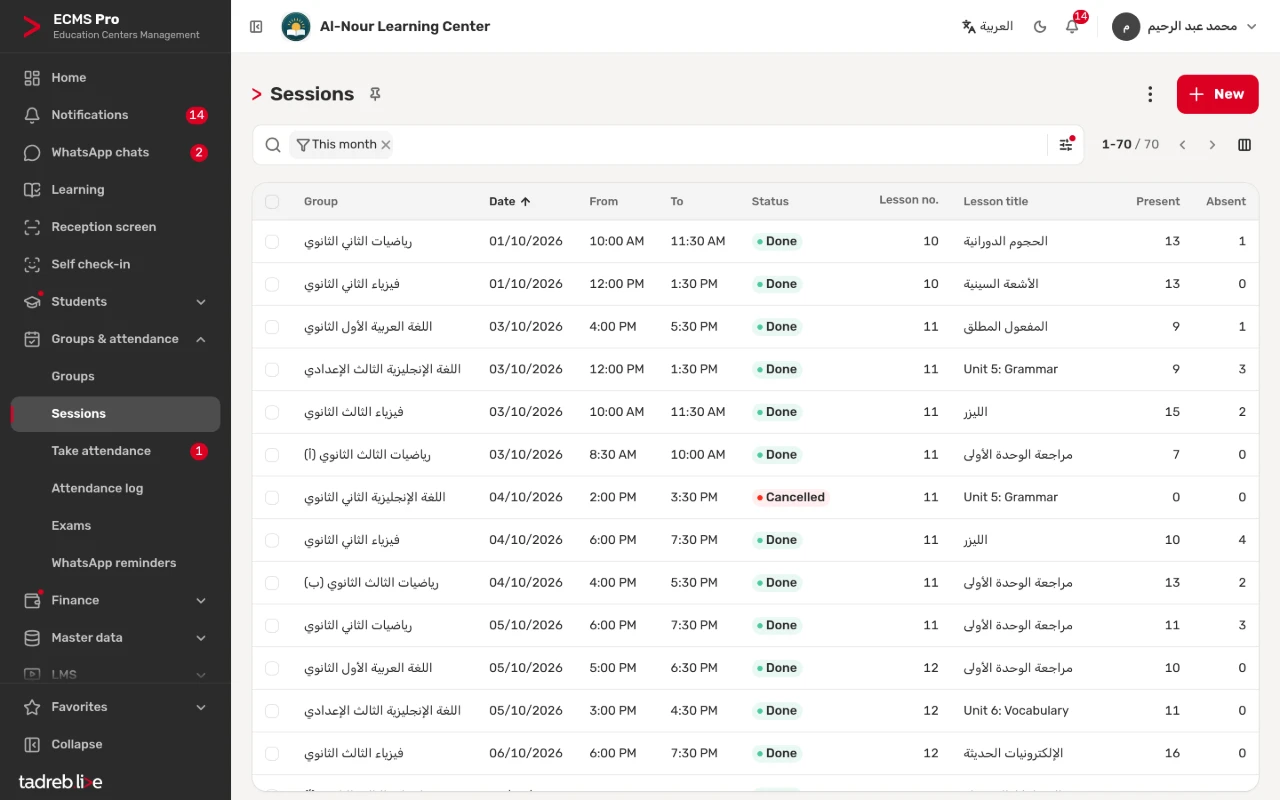
Sessions
Every session with its group, date, time, status, lesson number and title and its present and absent counts; a cancelled session shows as such.
Teachers
The teachers with their codes, titles and mobile numbers, imported from Excel or added with “New”.
Grades
The grades from kindergarten to Secondary 3, each with its short name and stage.
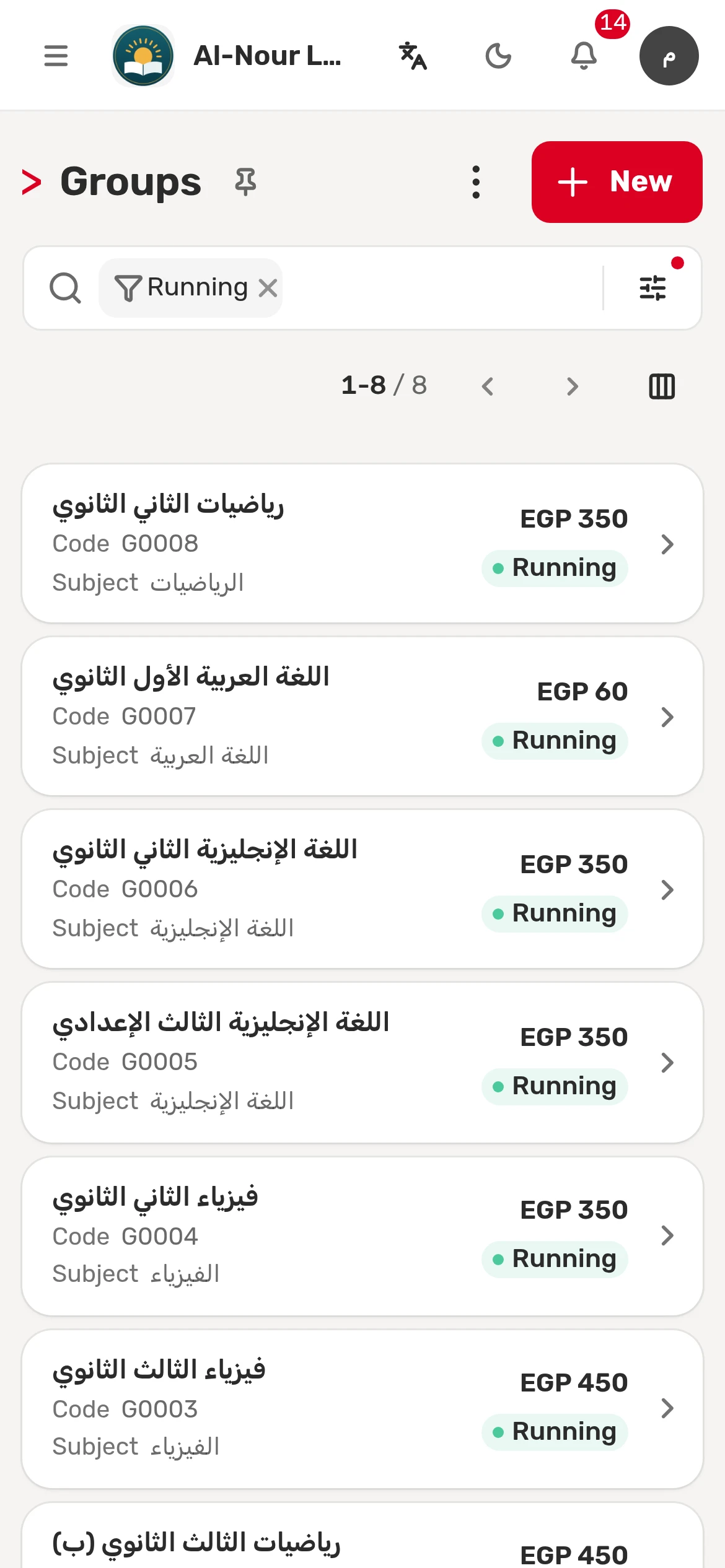
On a phone
The groups list on a phone, with each group’s fee and status.
How it works, step by step
The first steps of the “Set up groups and schedules” guide in the help center, numbered as in the pictures.
1. “New” on the groups list
Then its name, subject, teacher, grade and capacity, and the room if you like.
2. A day and a time for every slot
Then the start date and the payment plan, and save: an active group’s sessions are created automatically.
3–4. “Enroll students” and “Generate sessions”
Beside them, the seats taken out of the capacity.
4. The group’s sessions, once generated
Each with its date, time and status, and under “Take attendance” on its day.
Frequently asked questions
Does the system warn me about clashing times?
The system refuses two overlapping slots in the same group, and the session register lists the sessions held at the same time with the same teacher or in the same room.
Can I import groups?
Yes, from an Excel file with the same steps as the student import, and the imported groups get their sessions. Teachers, subjects, grades, rooms and payment plans import too.
What happens when a group ends?
When its status changes to “Closed”, its coming sessions are removed and its dues stop after its last day; the attendance and marks of its past sessions stay as they are.
Try groups and schedules at your center
A 14-day free trial with every feature, no payment details.
Or talk to our sales team on WhatsApp.