Master data: teachers, subjects, grades and rooms
“Master data” is a section of the side menu with four lists: “Teachers”, “Subjects”, “Grades” and “Rooms”. When you create a group you pick its subject, teacher, grade and room from them, and every student’s details take a grade from them too. So add them before you create your groups.
Permissions: with the default roles, the owner and the center manager add and edit master data, the secretary and the accountant can see it without editing it, and teachers don’t see it. You can change this under “Center settings” → “Roles & permissions”.
1. Open “Master data”
Press “Master data” in the side menu, then choose the list you want. Each list has a search box and a “New” button to add a record; press any record to open it.
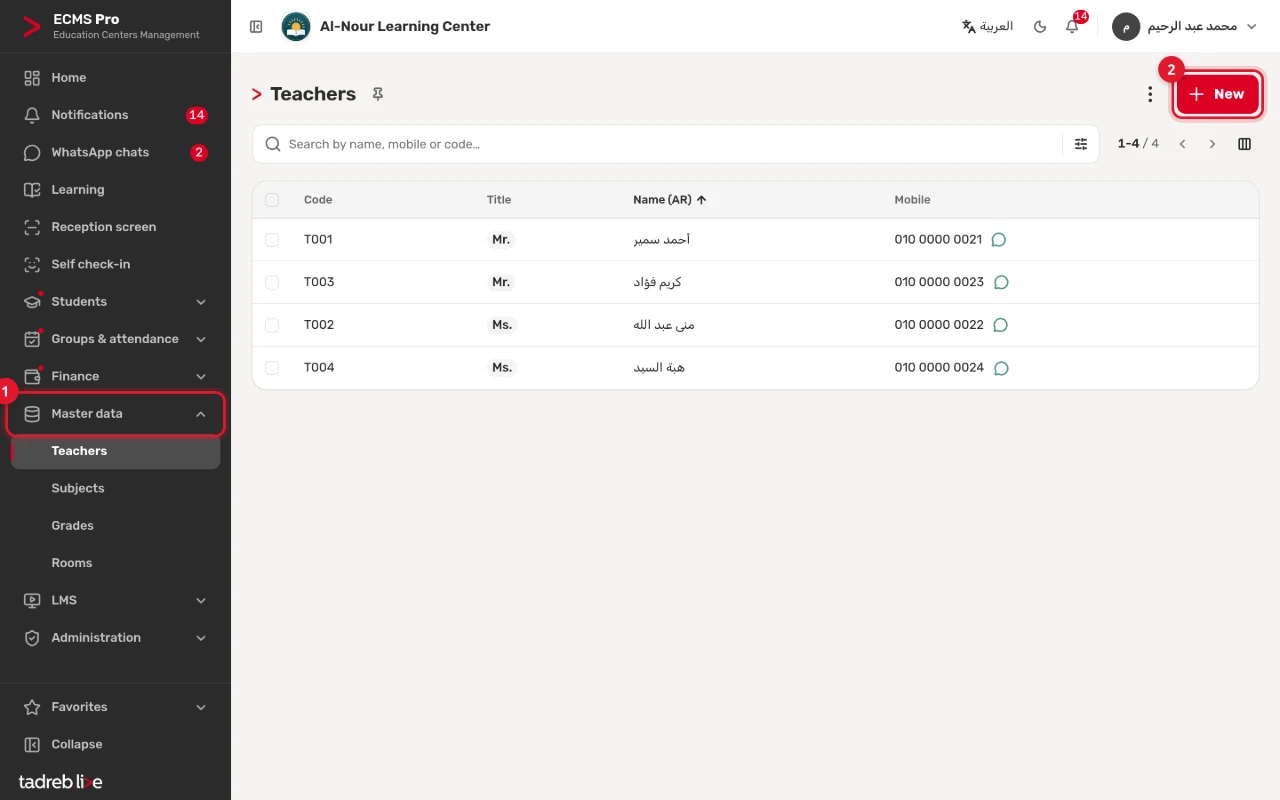
2. Add your teachers
Open “Teachers”, press “New”, then enter:
- “Name (AR)”: the only required field.
- “Title”: “Mr.”, “Ms.”, “Dr.” or “None”.
- “Mobile” and “WhatsApp”.
- “Code”: left empty, it is created for you, such as T001.
- “Share type” and “Share value”: to note your agreement with the teacher if you like. The system does not work out any amount for the teacher from them.
Then press “Save”.
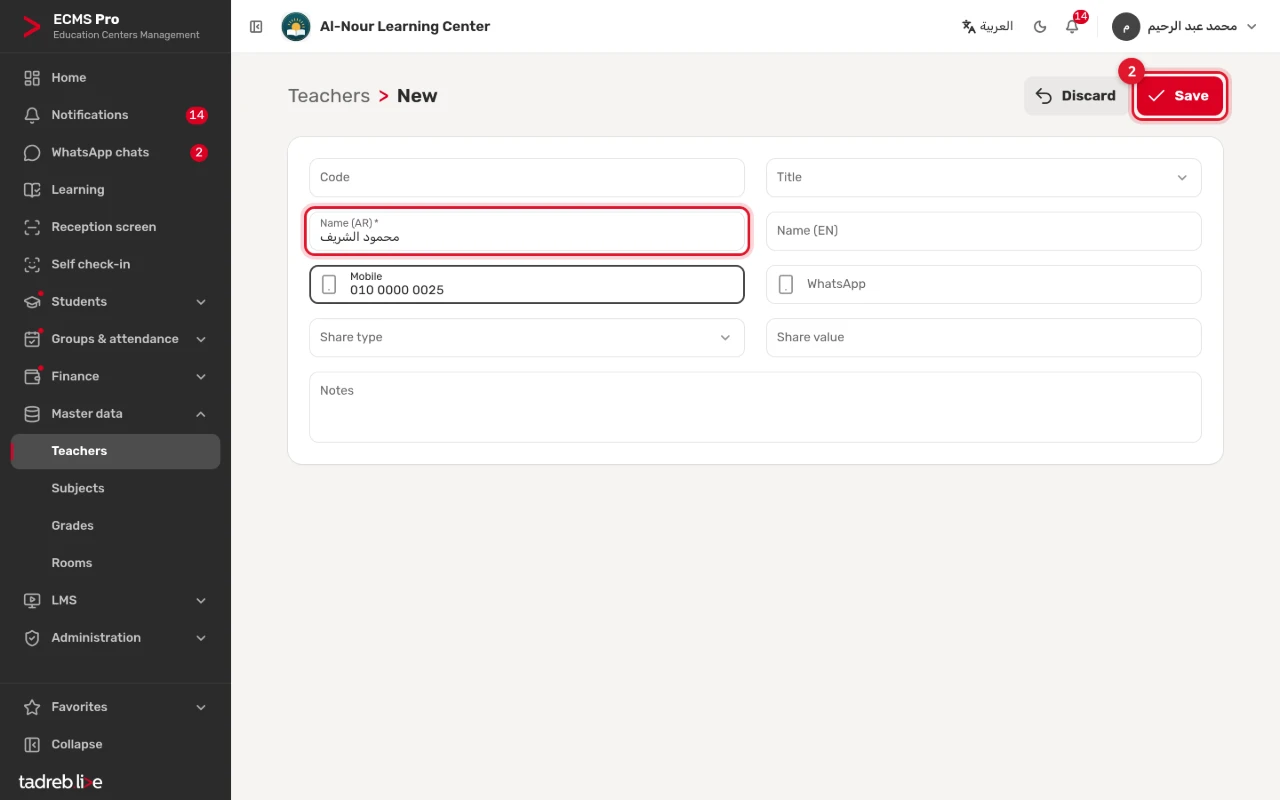
The account a teacher signs in with is a separate user, added under “Center settings” → “Users” (see Users, roles and permissions). A teacher’s page on your center’s website, with a photo and a short bio, is under “Website” → “Teachers” (see Build and publish your center’s website).
3. Add your subjects
Open “Subjects”, press “New”, then enter the subject’s name, and its English name and code if you like. Choose its “Color”: the subject’s session cards on the home page and under “Take attendance” use it when the group has no color of its own.
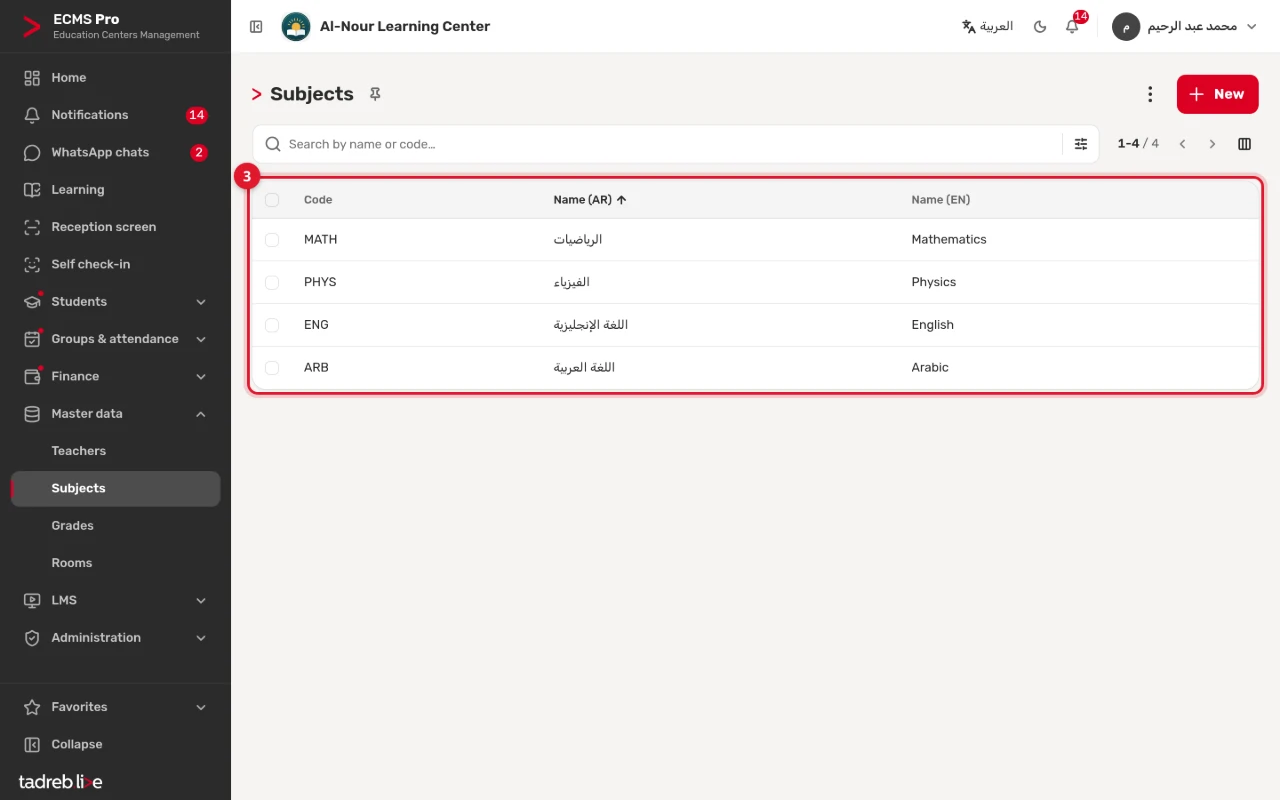
4. Check the grades
Every new center starts with fourteen ready grades, from kindergarten to the third year of secondary school. To add another one, such as a university year, open “Grades” and press “New”, then enter its name and “Stage”, which are required, and a short name if you like. “Sequence” sets where the grade sits in lists.
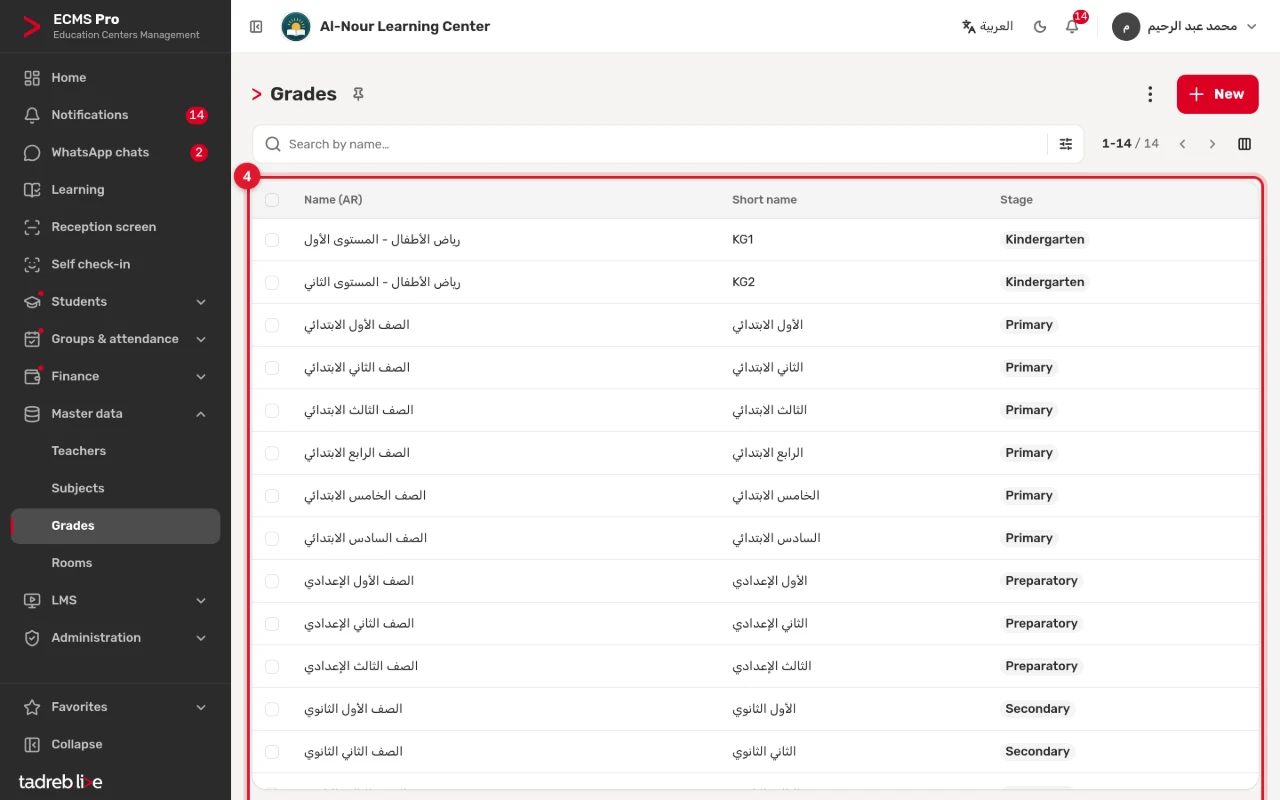
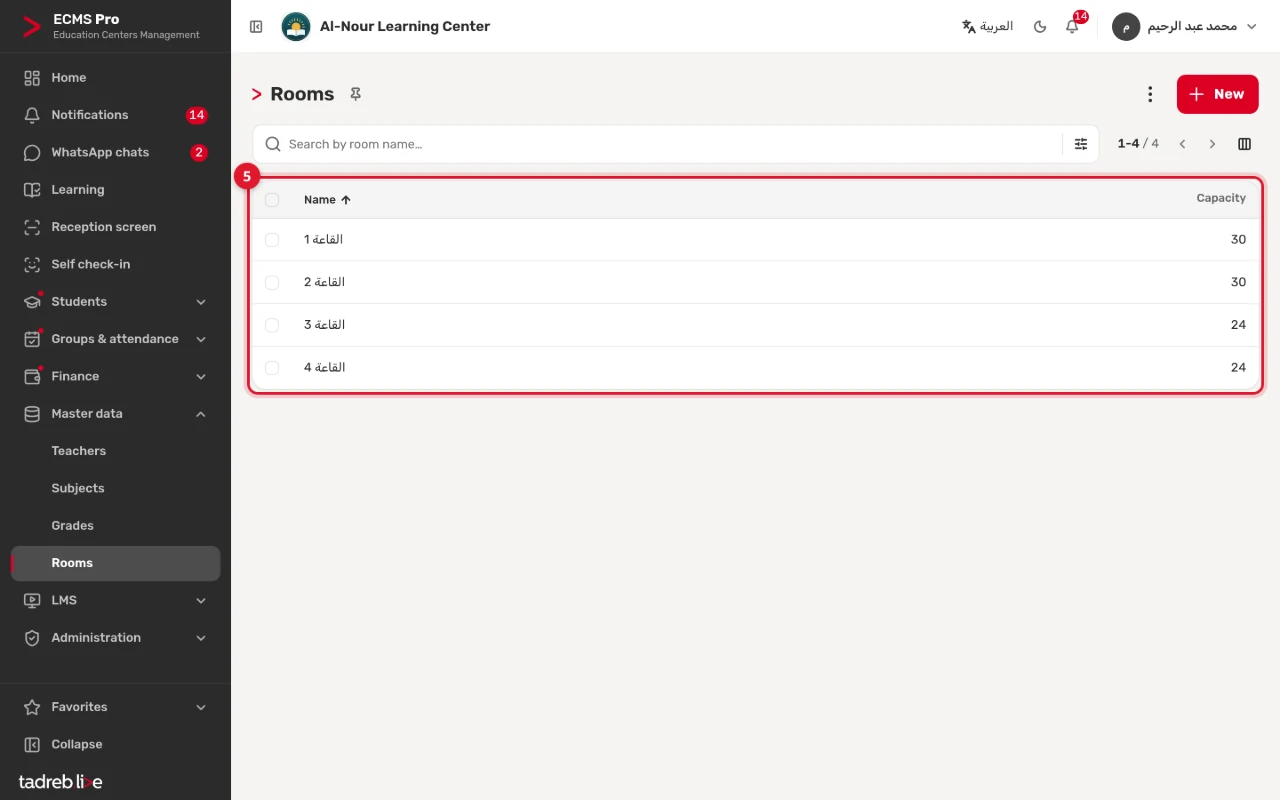
5. Add your rooms
Open “Rooms”, press “New”, then enter the room’s name and “Capacity”. The room shows on the session card and in the student’s schedule in the portal. A group’s own capacity is set on the group (“Capacity”); the system does not compare it with the room’s.
Editing and archiving
- To edit a record, open it, change what you need, then press “Save”.
- To stop using a record, open it, then choose “Archive” in the “Actions” menu. The record leaves the list, and what was recorded with it is not touched. In “Teachers” and “Grades”, the “Archived” filter shows the archived records: open the record from there and choose “Unarchive”.
Next
- If your data is in an Excel file, import it instead of typing it in one by one. See Import groups, master data and payment plans.
- Create your groups. See Set up groups and schedules.