Import groups, master data and payment plans
The import wizard you import students with (see Import students from Excel) imports seven more lists in the same steps: “Teachers”, “Subjects”, “Grades”, “Rooms”, “Payment plans”, “Groups” and “Enrollments”.
Permissions: with the default roles, the owner and the center manager import all of these lists, and the secretary imports students and enrollments only.
1. Start in the right order
A group points to its subject, teacher, grade, room and payment plan, and an enrollment points to a student and a group. So import in this order:
- “Teachers”, “Subjects” and “Rooms”, and check the “Grades” (every center starts with fourteen ready grades).
- “Payment plans” (every center starts with four: monthly, per session, full course and 3 installments).
- “Groups”.
- Students, then “Enrollments”.
Open the list, press the “Actions” menu (⋮) next to “New”, and choose “Import from Excel”.
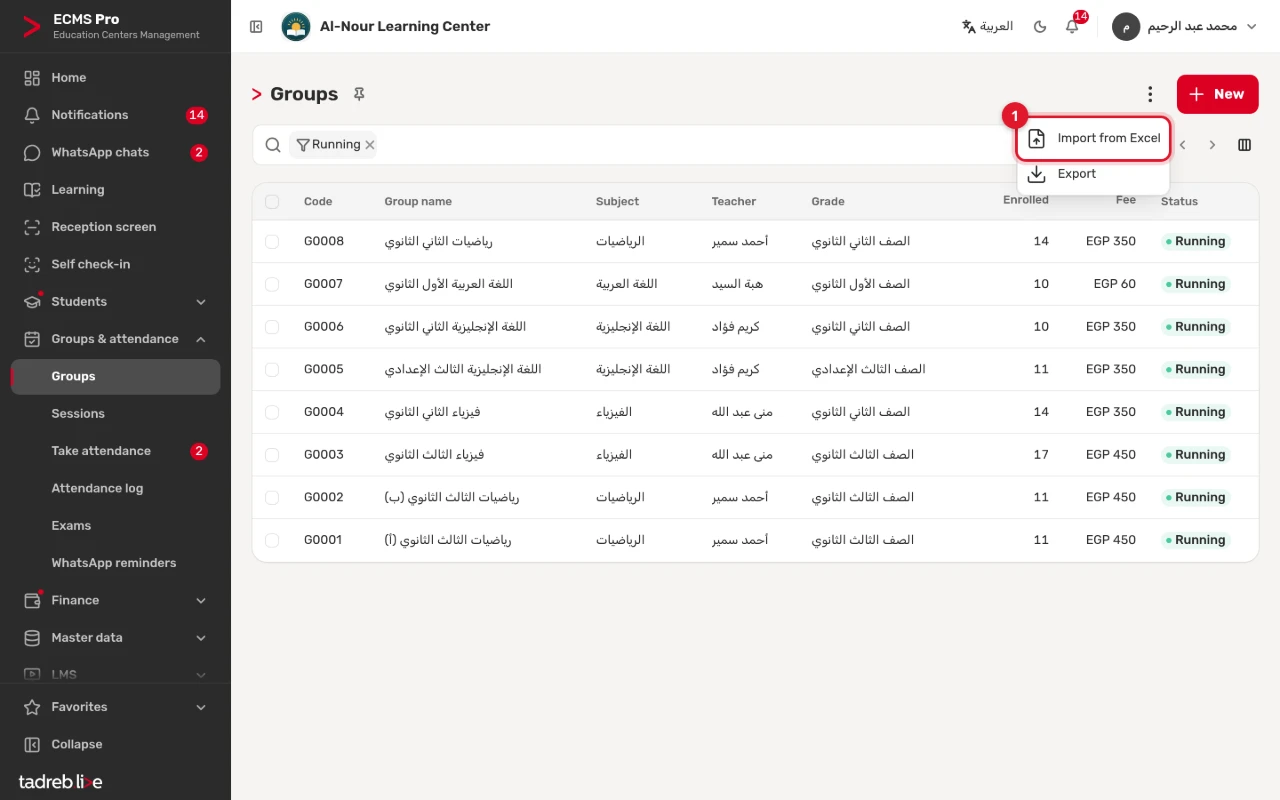
2. Download the template and upload the file
Press “Download Excel template”: it has the list’s columns named as in the app, a * on the required ones, an example row to delete before uploading, ready-made choices, and an instructions sheet that explains every column. Fill in the template or your own file, then drop it on the wizard and press “Upload file”. The wizard takes an Excel (.xlsx) or CSV file of up to 5 MB and 10,000 rows.
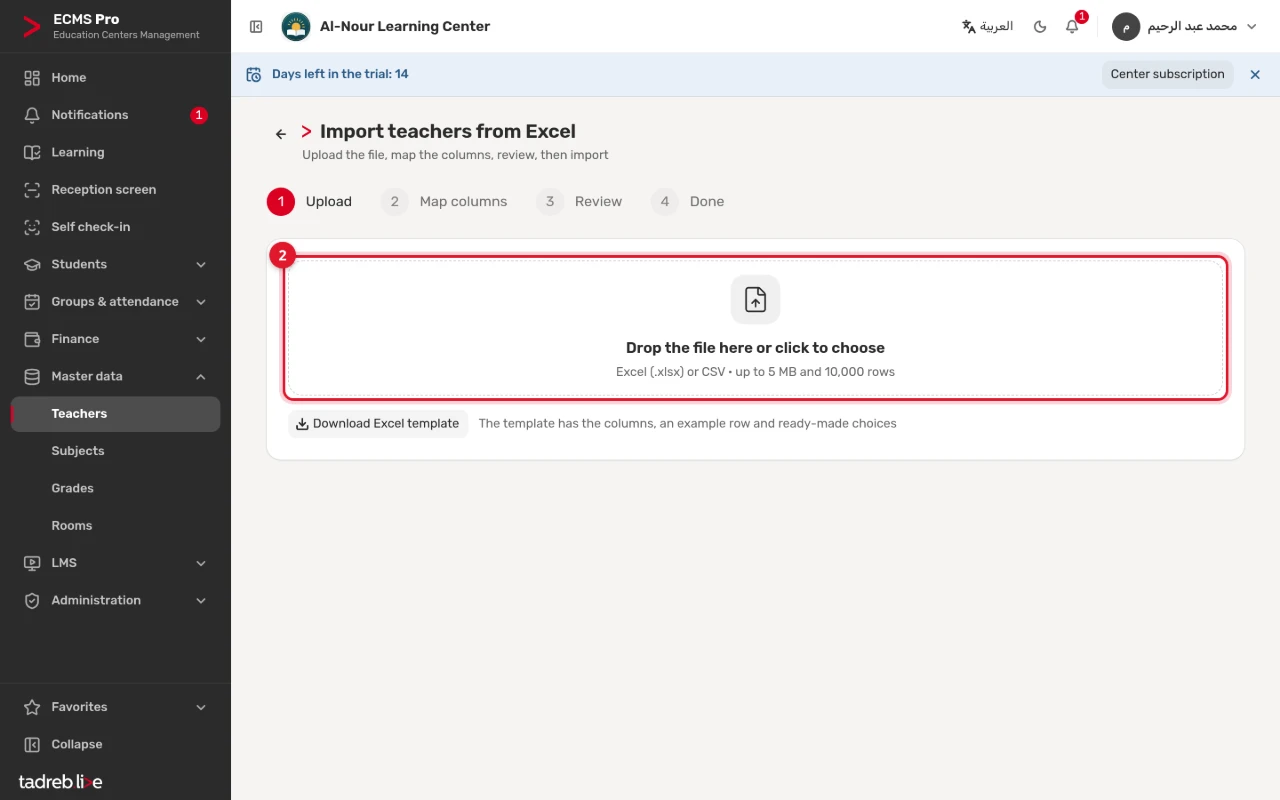
What each template holds:
| List | Required columns | Other columns | Match by |
|---|---|---|---|
| Teachers | Name | Code, title, English name, mobile, WhatsApp, share type and value, notes | Code, or mobile |
| Subjects | Name | Code, English name | Code, or name |
| Grades | Name, stage | Short name, English name, level | Name |
| Rooms | Name | Capacity, notes | Name |
| Payment plans | Name, type, amount | English name, installments, every (months), registration fee, due day | Name |
| Groups | Name, subject, teacher, grade, start date, payment plan | Room, capacity, category, end date, status, notes | Code, or name |
| Enrollments | Student, group, from | Status, to, notes | Student and group |
- A teacher’s code is created for you when you leave it empty, such as T001, and a group’s always is, such as G0001.
- “Stage” also accepts names such as primary, preparatory and secondary. A payment plan’s “Type” is monthly, per session, full course or installments.
- A group’s weekly schedule is not imported. After the import, open each group, add its slots under “Weekly schedule” and press “Save”: its sessions are then created.
3. Map the columns
The wizard maps each column to the field that fits it and says so with “Matched” or “Guess”. Check every “Guess”, and choose “Ignore this column” for anything you don’t want to import. For columns that point to another list, such as “Subject” and “Teacher” in the groups file, choose “Match by”: “Automatic”, or a given field, such as “Code” or “Mobile” for a teacher.
Then set the “Import options”: “Existing records”, “When a record exists”, “Date format in the file” and “If some rows are invalid”, and press “Review data”.
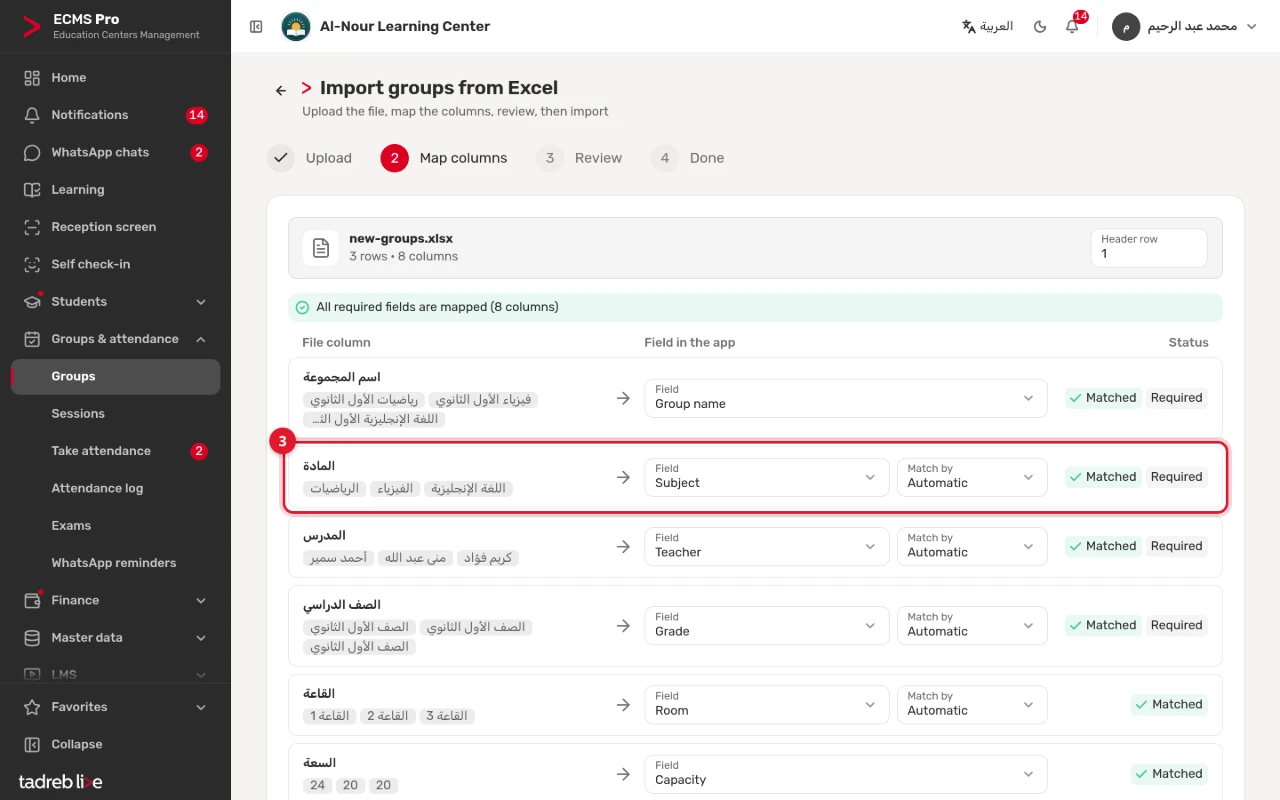
When the wizard can’t find a value in the list it points to, such as a subject not added yet, it says so among the errors and asks you to check the spelling or add that value first. When a value matches more than one record, use the code instead of the name.
4. Review and import
“Review” shows the valid rows, the rows with errors, those to create and those to update, and an “Errors” table with the row, column, value and problem. Download them with “Download errors (Excel)” and fix them if there are any, then press “Import”. Nothing is saved before this step.
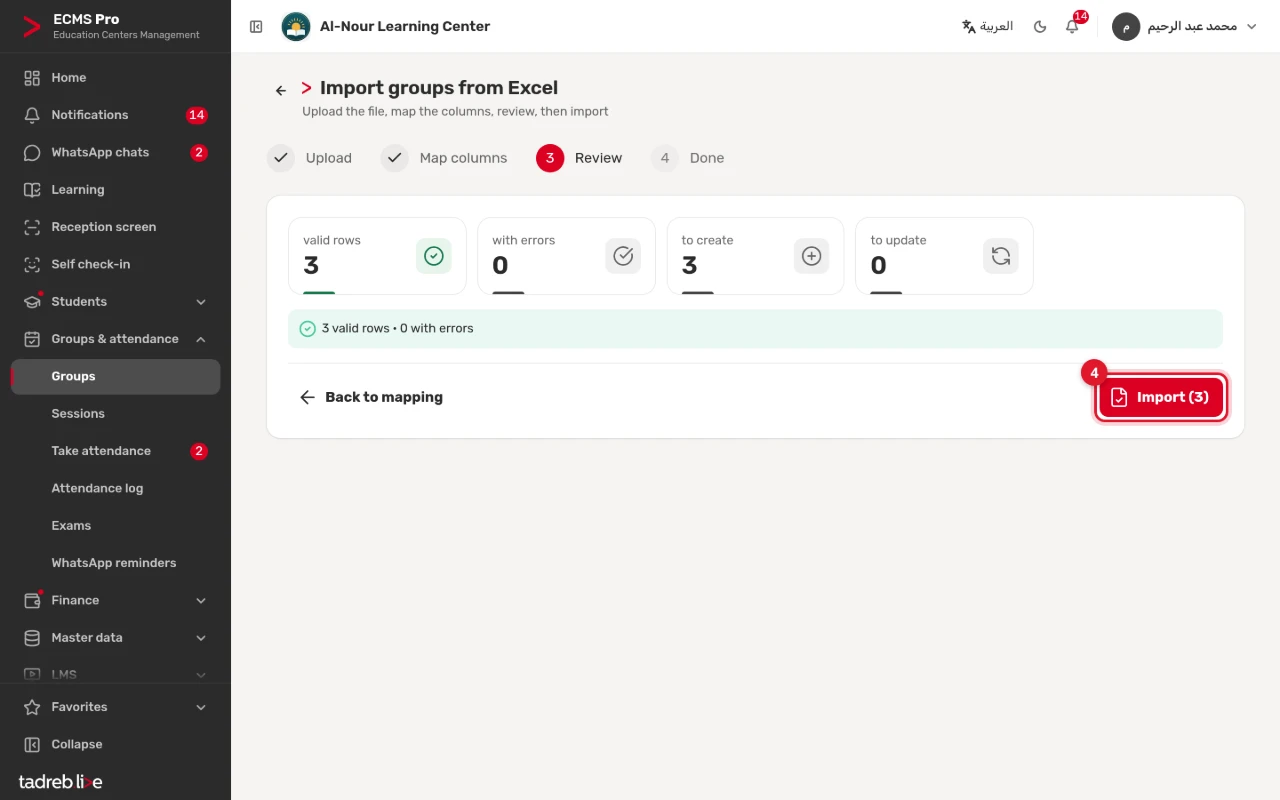
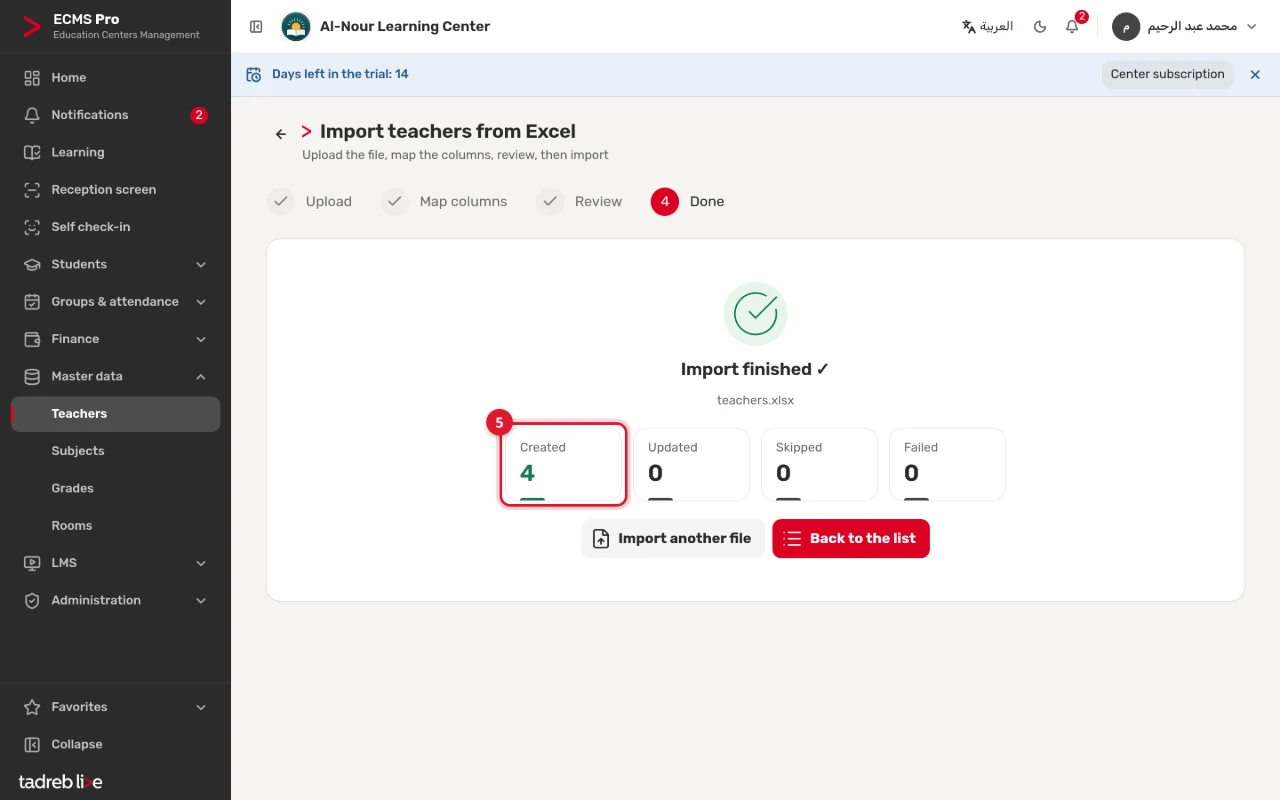
5. The result
“Created”, “Updated”, “Skipped” and “Failed” show. From here, “Import another file” or “Back to the list”.
Moving your data from another system, or editing it in Excel
To change many records at once, export the list as “Import-compatible (codes and raw values)” (see Lists: search, filters, group by, favorites, export), edit the file, then import it, choosing under “Existing records” to match by the code or the name, and under “When a record exists” “Update it”. On an update, an empty cell in the file keeps the stored value.