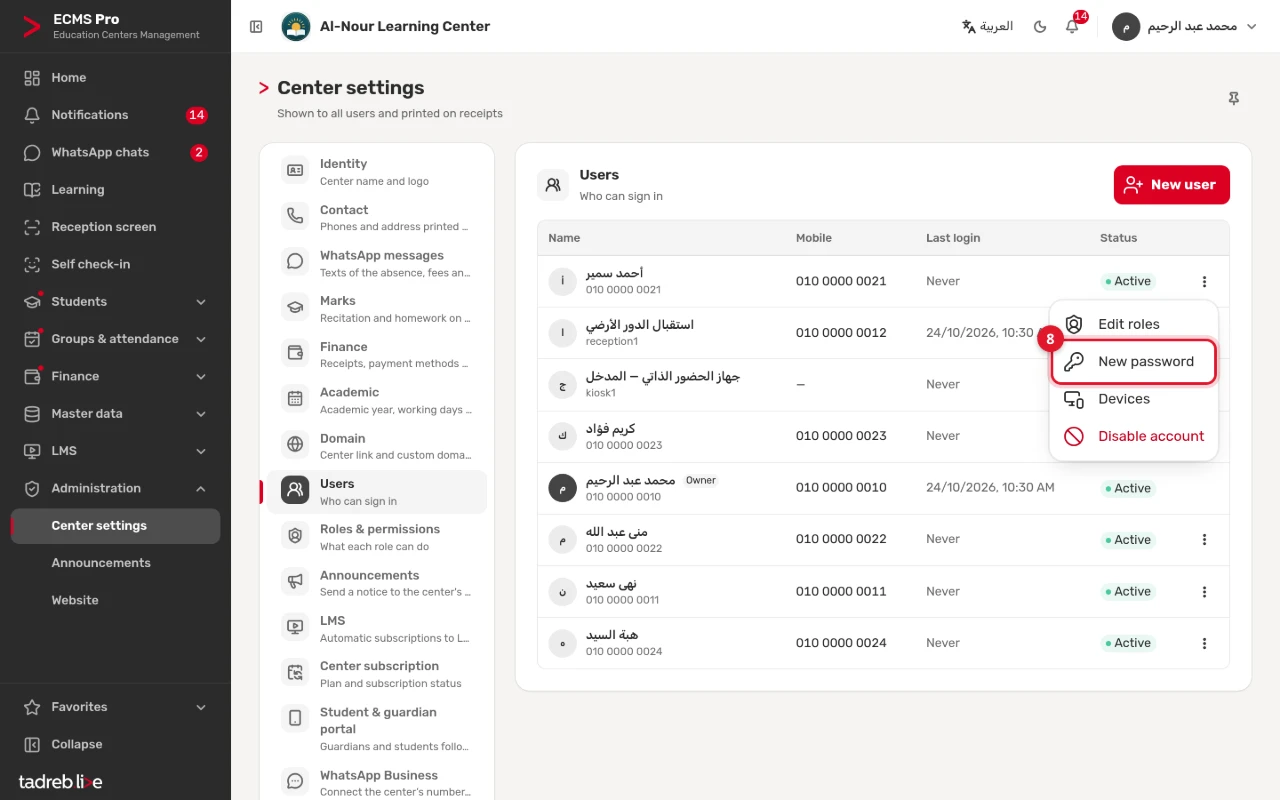
My settings, my devices and passwords
Every user has their own settings: the language, the numerals, the appearance and how lists show. They are saved for your account on the server, so you find them on any device you sign in from, and they change nothing for anyone else.
1. Open “My settings”
Press your name at the top of the page, then “My settings”.
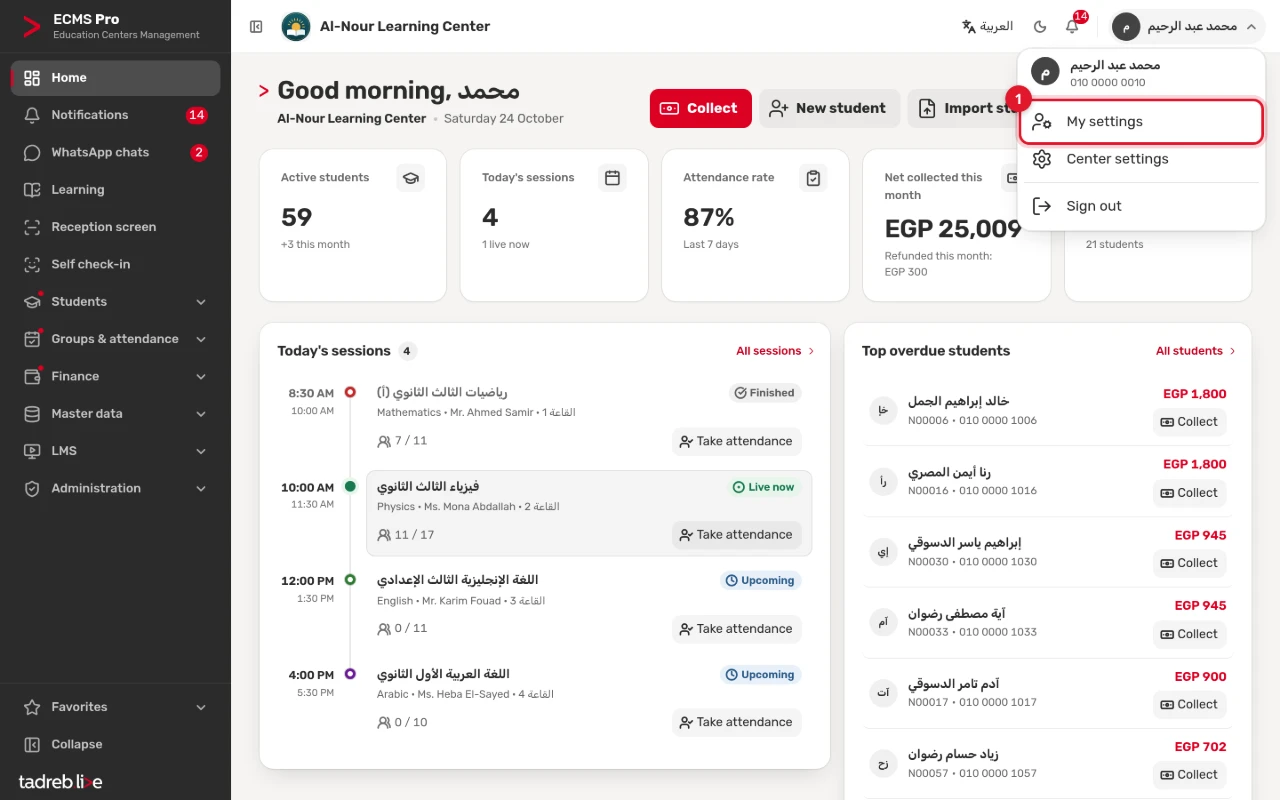
2. Language and numerals
- “Interface language”: “العربية” or “English”.
- “Numerals”: “123” or “١٢٣”. Latin digits are easier on phones and on receipts.
3. Appearance
- “Theme”: “Light”, “Dark” or “System”, which follows your device’s setting.
- “Density”: “Comfortable”, or “Compact” to fit more on the screen.
- “Collapsed sidebar (icons only)”.
Press “Save” at the bottom of the page to apply the changes. At the top of every page, two buttons switch the language and dark mode at once, and the bottom of the side menu has “Collapse”.
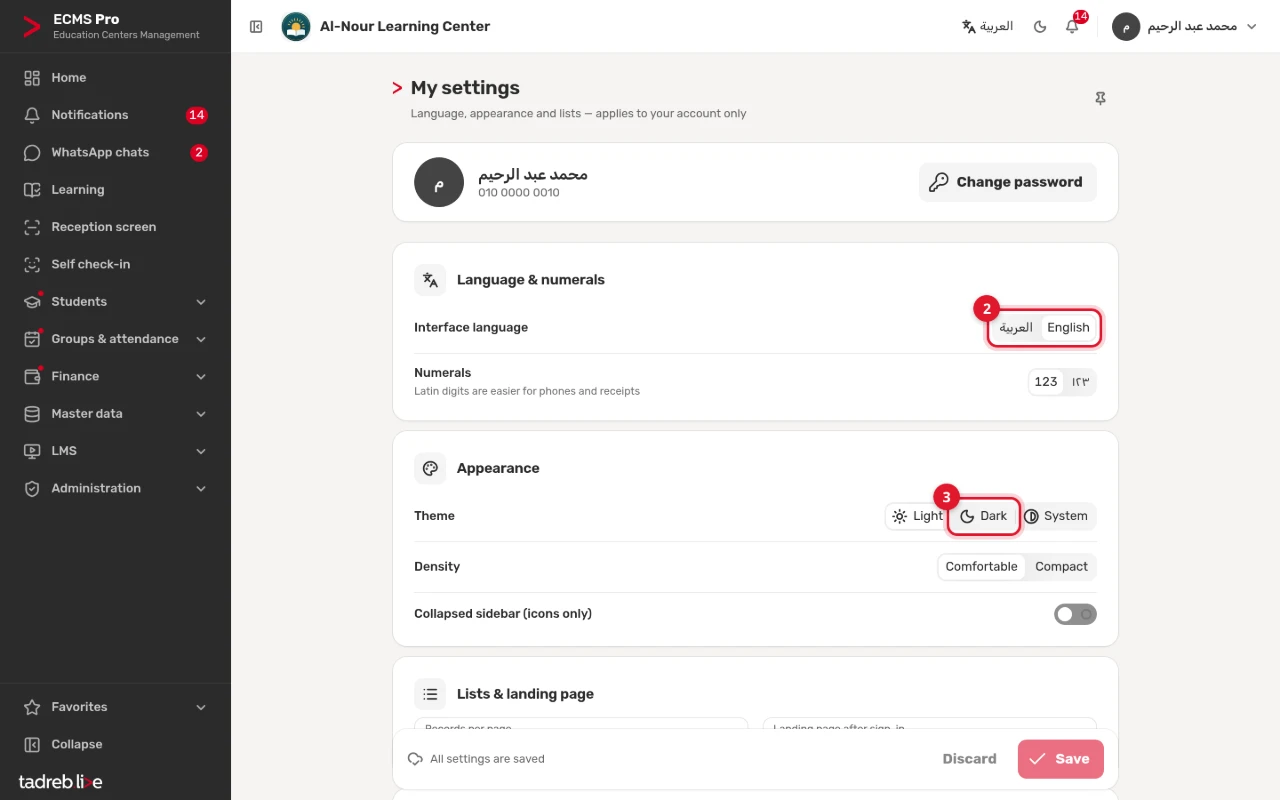
4. Lists and the landing page
- “Records per page”: 20, 40, 80 or 200.
- “Landing page after sign-in”: “Home”, “Take attendance”, “Students” or “Reception screen”, as your permissions allow.
Then press “Save”. Which notifications reach you is in the next section, “Notifications”; see Notifications and announcements. Pinned pages in the side menu are in Lists: search, filters, group by, favorites, export.
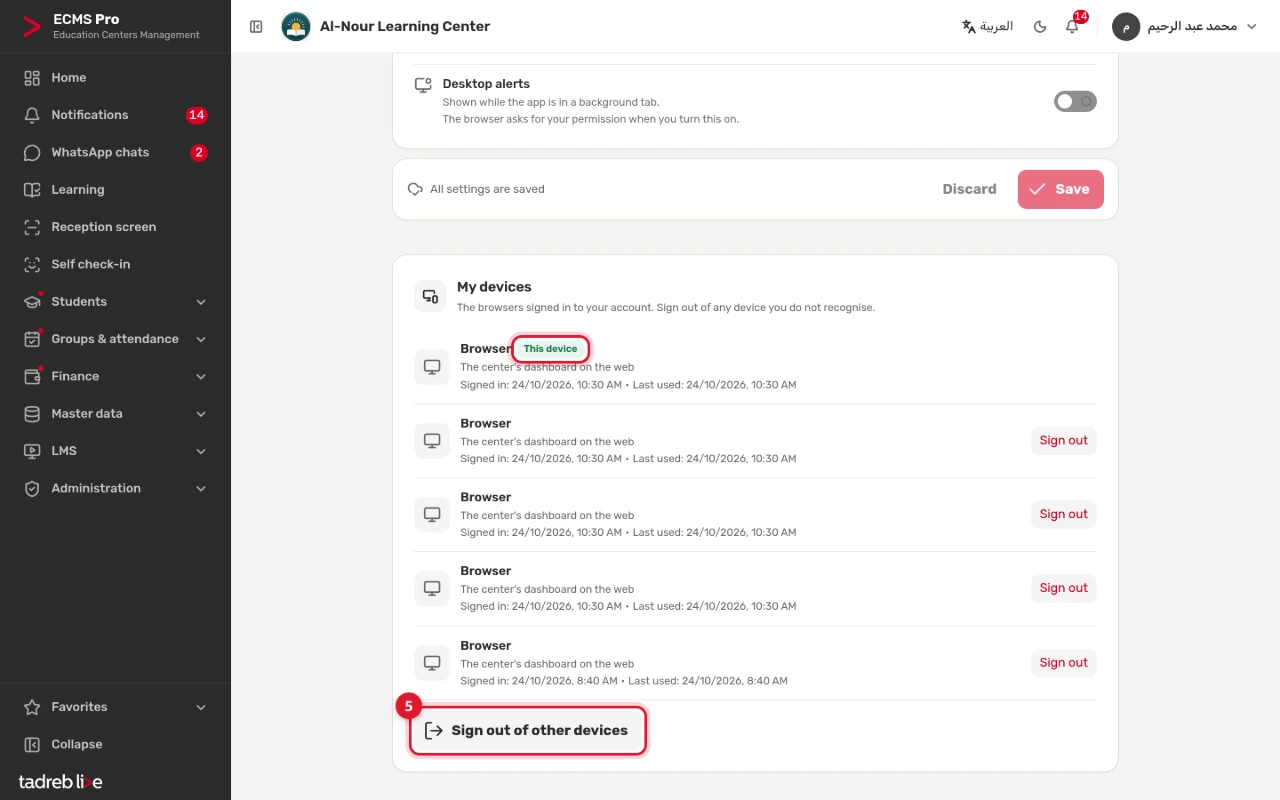
5. “My devices”
“My devices” lists the browsers signed in to your account, each with when it signed in and was last used, and “This device” on the one you are using.
- Press “Sign out” next to any device you don’t recognise.
- Or press “Sign out of other devices” and confirm: every device except this one has to sign in again.
To sign out of the device you are using, press your name, then “Sign out”.
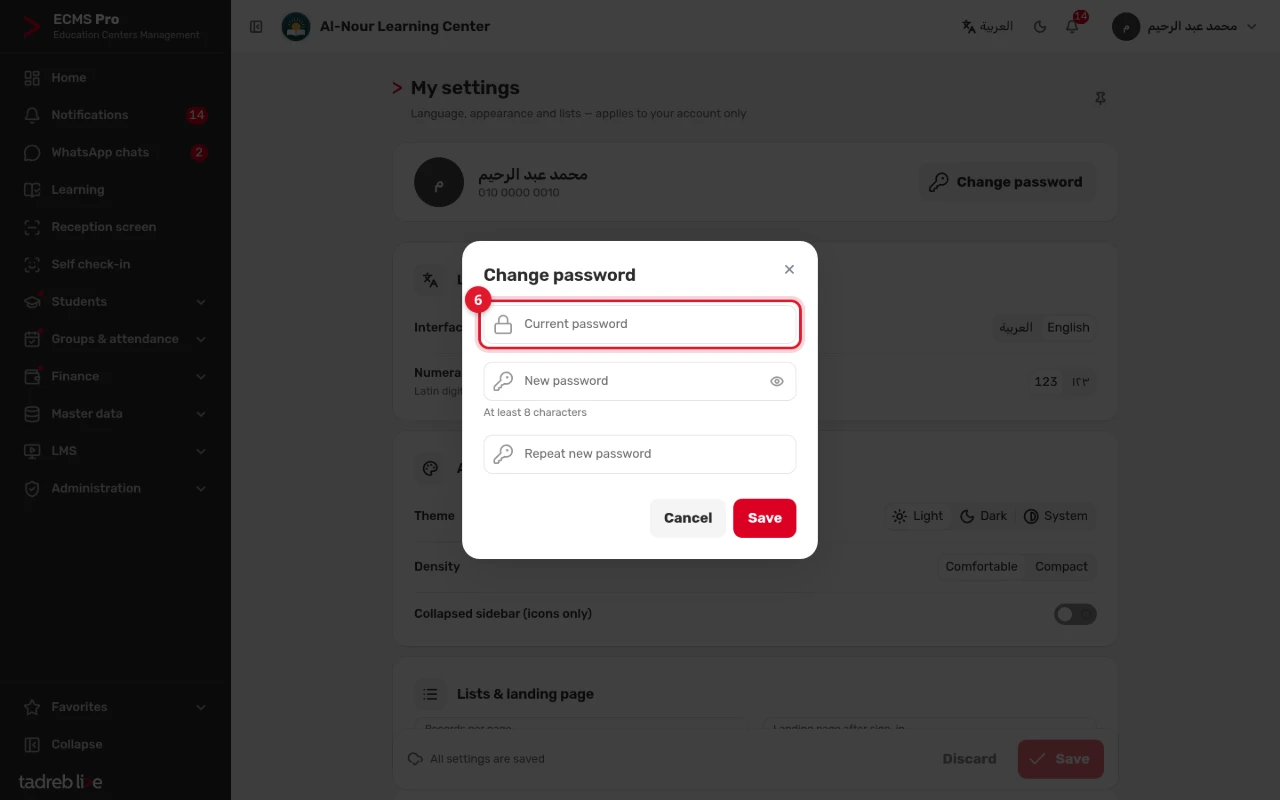
6. Change your password
Press “Change password” at the top of “My settings”, then type the “Current password”, the “New password” (at least 8 characters) and “Repeat new password”, and press “Save”. You stay signed in on this device, and you are signed out of every other one.
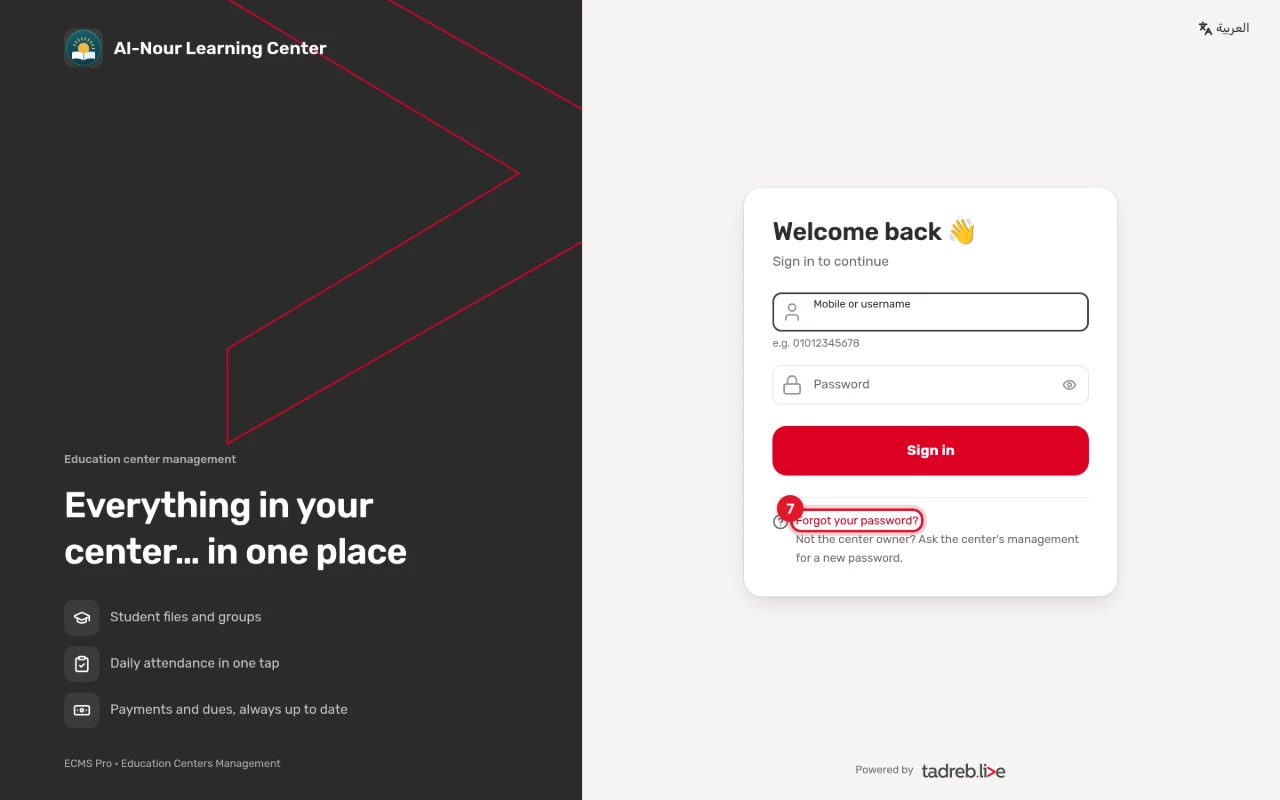
7. Forgot your password? (the center’s owner)
- On the center’s sign-in page, press “Forgot your password?”.
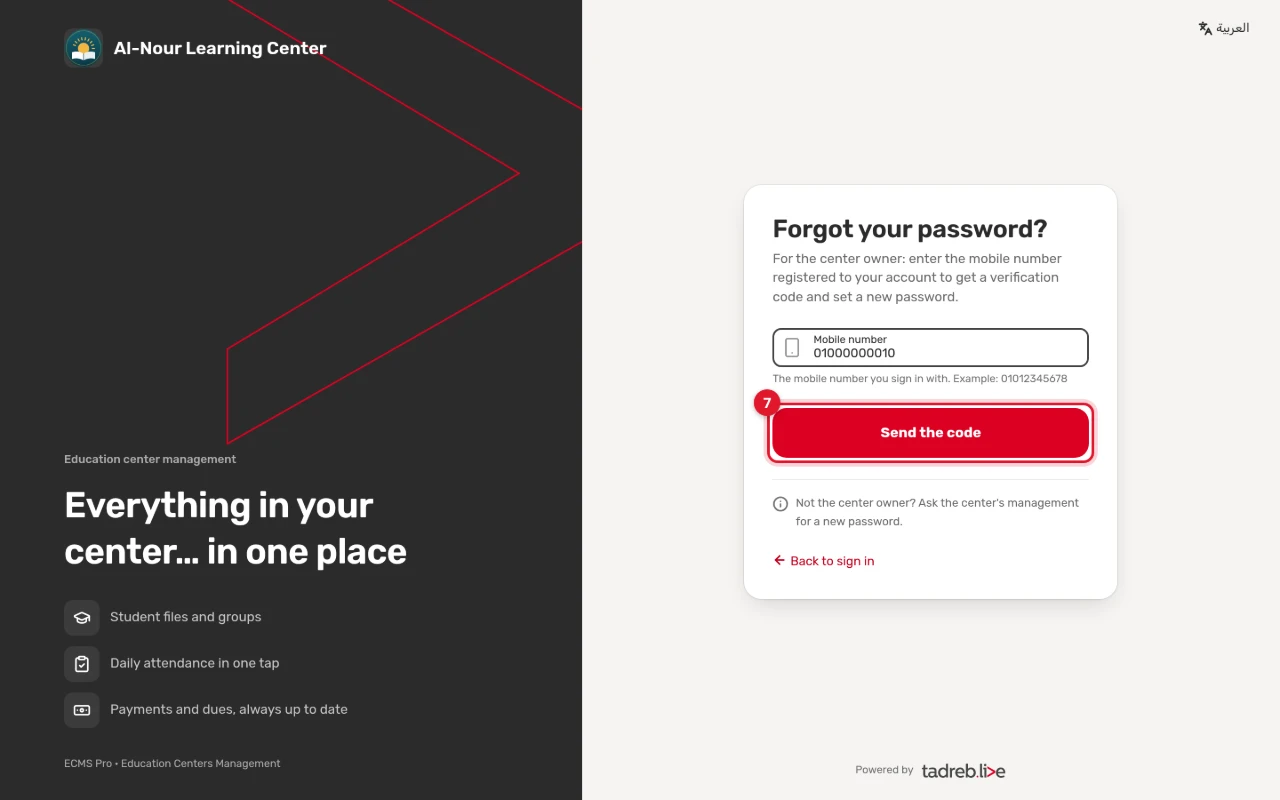
- Enter the mobile number you sign in with, and press “Send the code”.
- A 6-digit verification code reaches you by SMS or WhatsApp, valid for 10 minutes. Enter it, then type the “New password” and “Confirm the new password”, and press “Change the password”.
- Sign in with the new password.
You are signed out of every device, and you get the notification “Your password was reset”. This works for the center’s owner only: other users ask the center’s management for a new password (step 8).
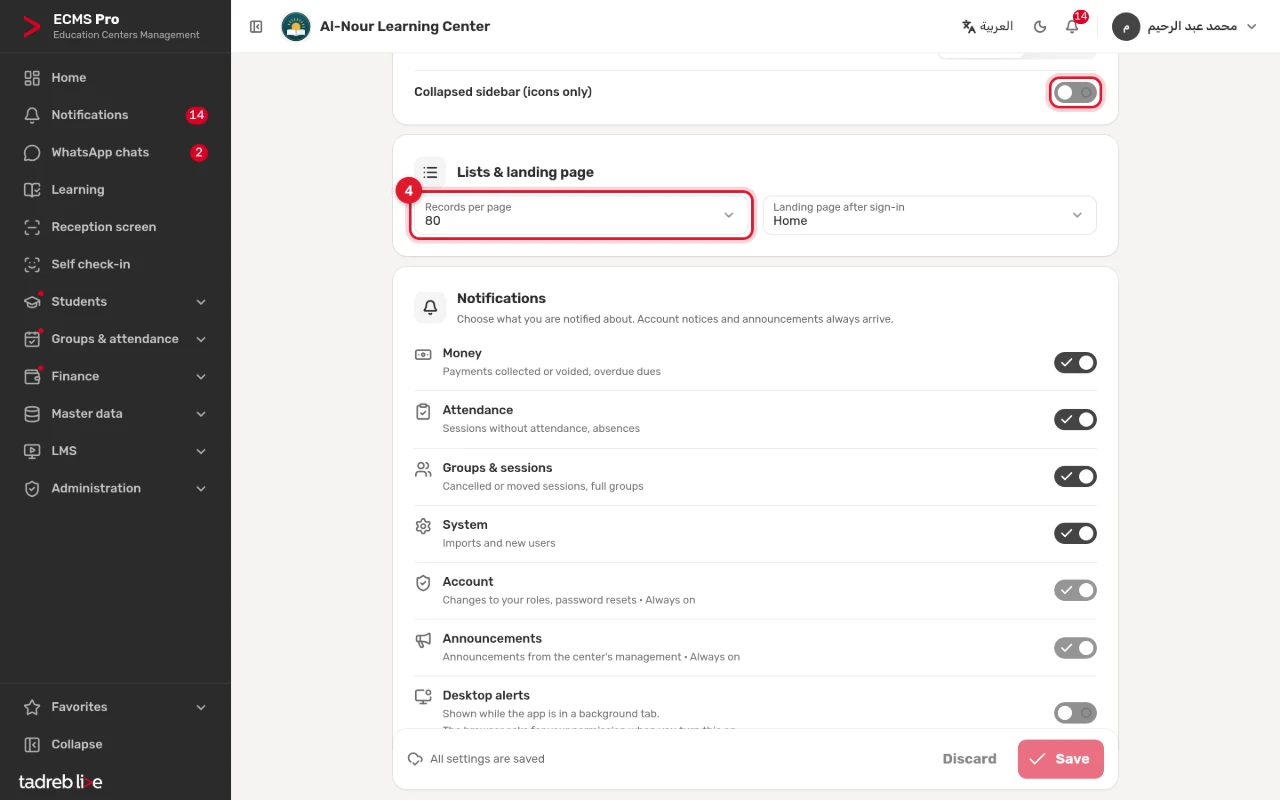
8. A new password for another user
When a user forgets their password, open “Center settings” → “Users”, press ⋮ next to the user, then “New password”, and confirm. The system creates a new password that shows only once: copy it with the user name and send them both. The old password stops working, and the user is signed out of every device.
The same menu has “Devices”: the user’s devices, and “Sign out of all devices”. This menu is not on the owner’s row, nor on your own.