Learning: online courses and quizzes
“Learning” is a part of your center’s system and of the student and guardian portal: you build your courses with their units and lessons, and your online quizzes from a question bank; your students study them in the portal on a phone or a computer, and guardians follow their children’s progress and results.
Before you start: “Learning” is included in the Learning plan and in the trial, not in the Basic plan; the center’s owner upgrades with “Upgrade to the Learning plan” on the “Center subscription” page (see Your center’s subscription and paying with Fawry). If “Learning” does not show in a center on the Learning plan, contact us. It appears in the menu for anyone with one of its permissions: “Manage learning”, “Author courses and online quizzes” or “Grade online quizzes”. Students study in the student and guardian portal, so the portal must be on.
1. Accept the learning data processing notice
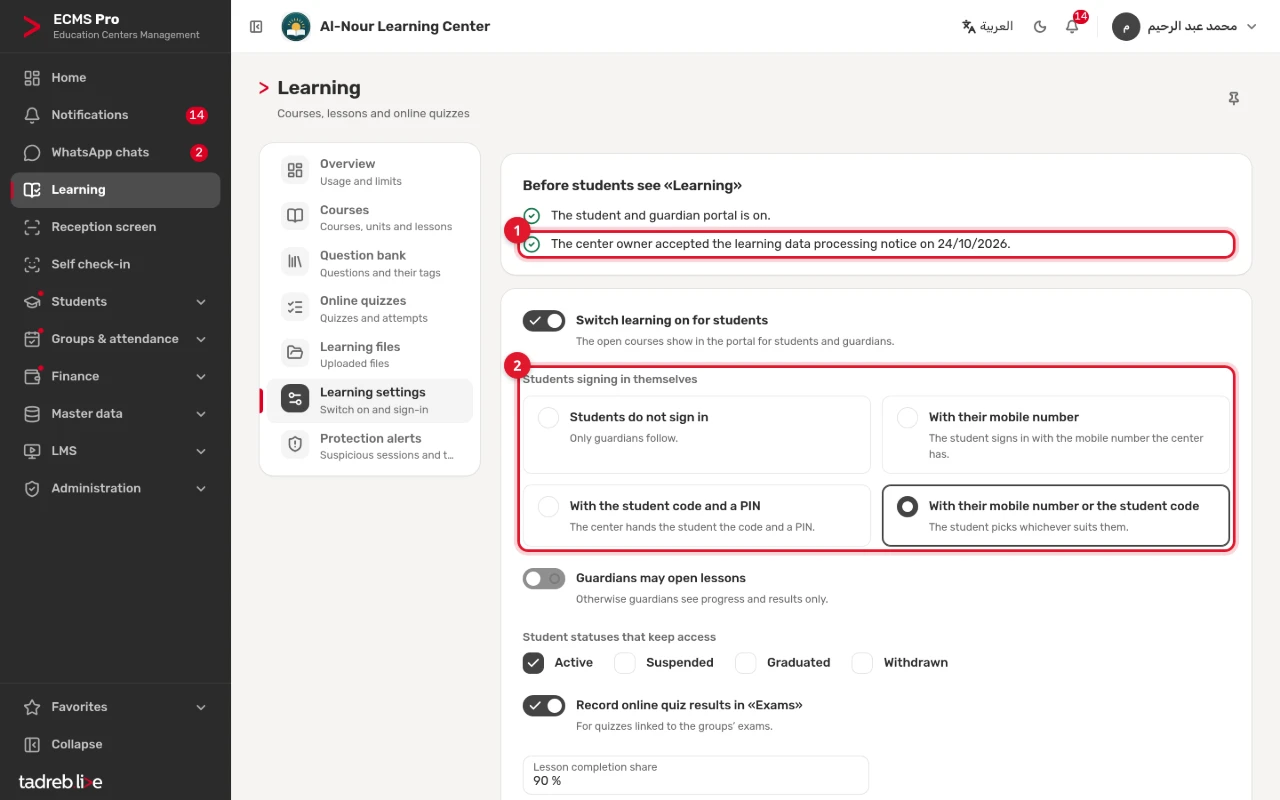
Open “Learning” → “Learning settings”. “Before students see «Learning»” shows whether the student and guardian portal is on and whether the notice was accepted. The center’s owner reads the “Learning data processing notice” and presses “Accept the notice” on the center’s behalf; “Learning” cannot be turned on before that. The notice explains that the center is the controller of its students’ online-learning data, that the platform processes it on the center’s behalf, and the limits of content protection.
2. Turn “Learning” on and choose how students sign in
On the same page, turn on “Switch learning on for students” and choose how “Students signing in themselves” works: “With their mobile number” registered at the center, “With the student code and a PIN” the center gives them, “With their mobile number or the student code”, or “Students do not sign in”, so only the guardian follows. Choose also the “Student statuses that keep access”; at first only “Active” students may study. Then press “Save”.
At their first entry into “Learning”, every student or guardian reads the “Learning privacy notice” and accepts it; no data is shown to them before that.
3. Create a course and add its lessons
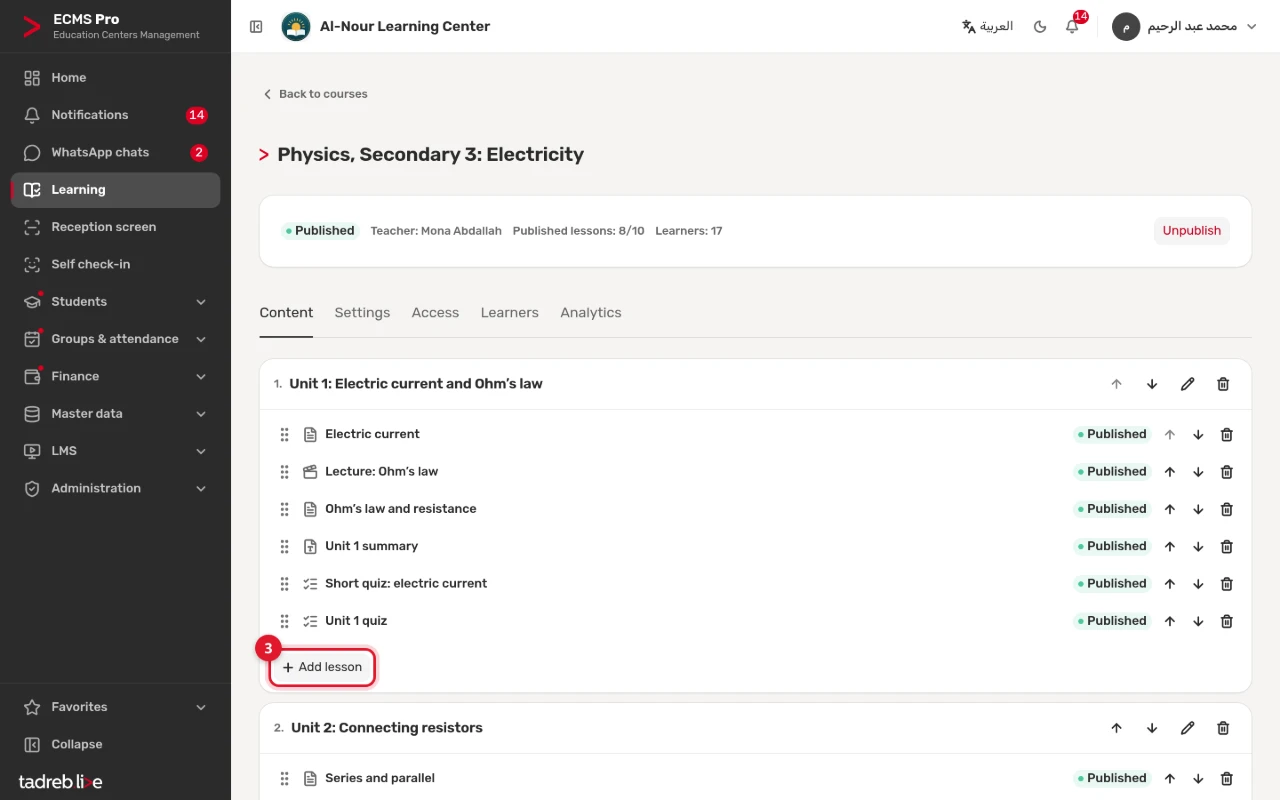
Open “Learning” → “Courses” and create the course. A course is made of units, and you add lessons with “Add lesson” in each unit. Lessons are of five kinds:
- Text lesson: paragraphs, headings, tables and pictures, with math, physics and chemistry formulas, note boxes, diagrams and structural formulas (see Lesson tools).
- PDF file, which the student opens from the lesson.
- YouTube video, by its link.
- Video from another platform: paste the video’s link or its embed code from Vimeo, Google Drive, Facebook or any other platform; the platform’s name and a preview of the video appear.
- Online quiz, one of your quizzes.
You can make a text lesson, or a video lesson from YouTube or another platform, a free preview, shown to those who cannot open the course yet. When the course is ready, publish it, and its students see it.
The player of YouTube or of the other platform loads for the student only once they press play, and the platform’s name is shown before. In a lesson from another platform, the address of the site the video comes from stays visible under the frame after the press; if the site is not one of the known platforms, a warning shows with it not to type a phone number or any password into it. Before the first lesson from a platform other than YouTube is published, the center’s owner accepts the updated “Learning data processing notice”.
4. Choose who studies each course
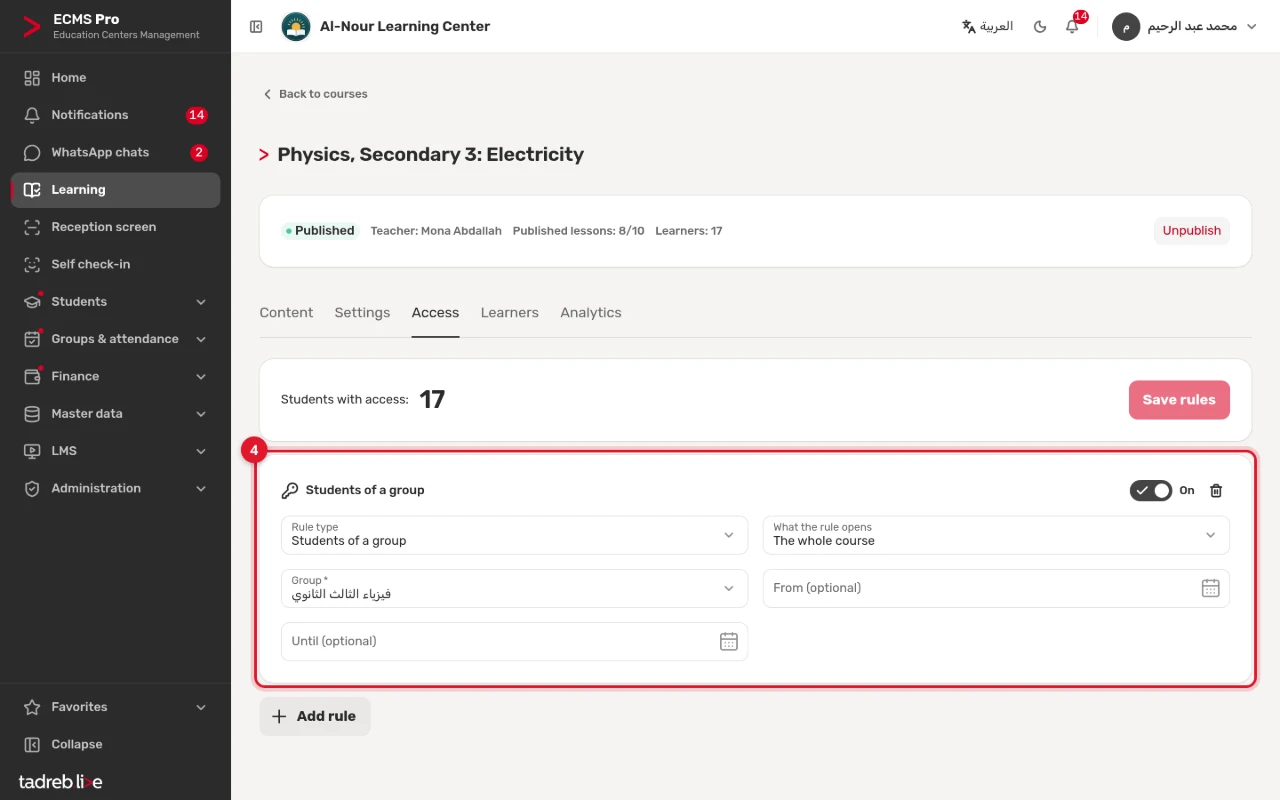
You open a course with one or more rules: “All the center’s students”, “Students of a group”, “All the teacher’s groups of the subject and grade”, “Grade”, “Paid month” or “Full course paid”. The rules are on the course’s “Access” tab: press “Add rule”, then “Save rules”, and “Students with access” shows how many. Access follows the center’s own data: when a student moves to another group, pays the month or has a payment cancelled, what they see changes at once.
5. Prepare the online quizzes
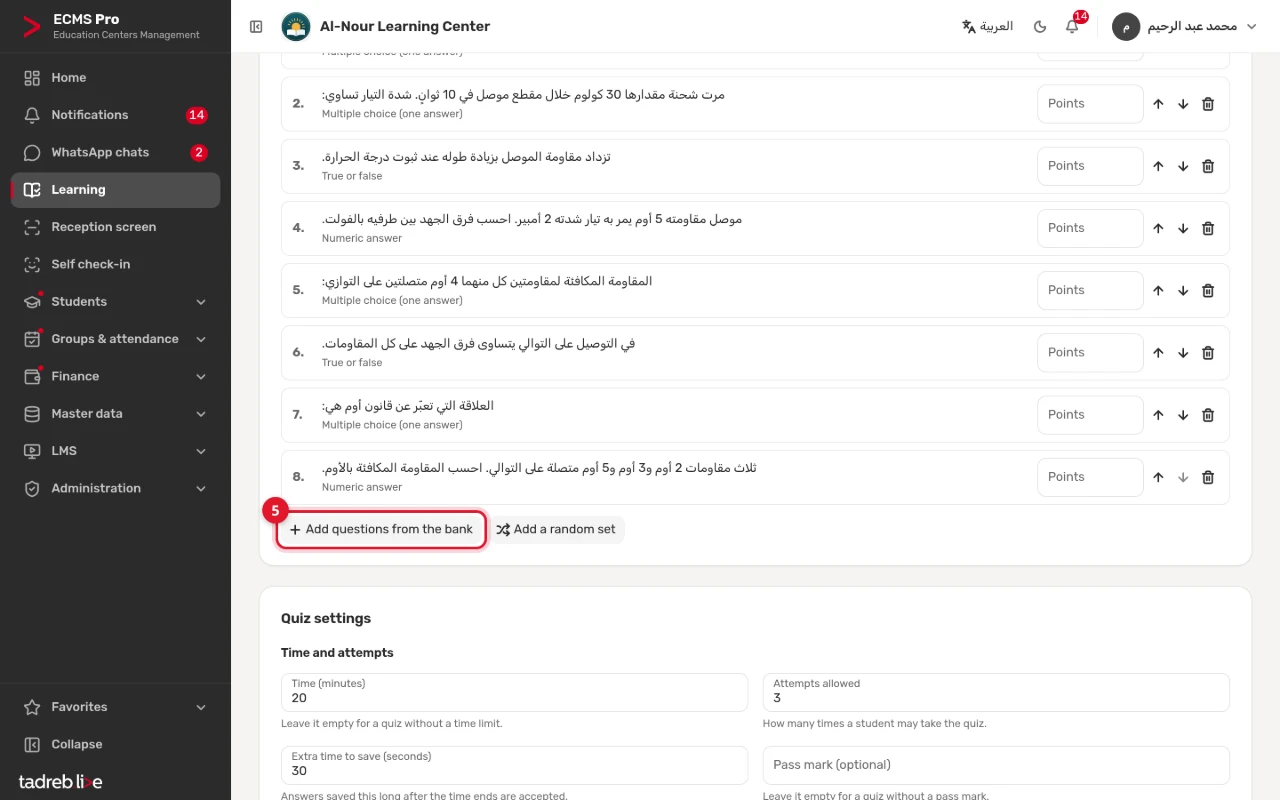
Write your questions in the question bank, in nine types, among them “Multiple choice (one answer)”, “True or false”, “Numeric answer” and “Essay”. Then build the quiz from questions you pick or that are drawn at random from the bank, and set its duration, its dates and what the student sees after submitting. The quiz is graded automatically, except essays, which the teacher grades, and it can be linked to an exam in “Exams” so that its marks go there. The question types and their grading are in Online quizzes: question types and grading.
6. Hand the students their PINs
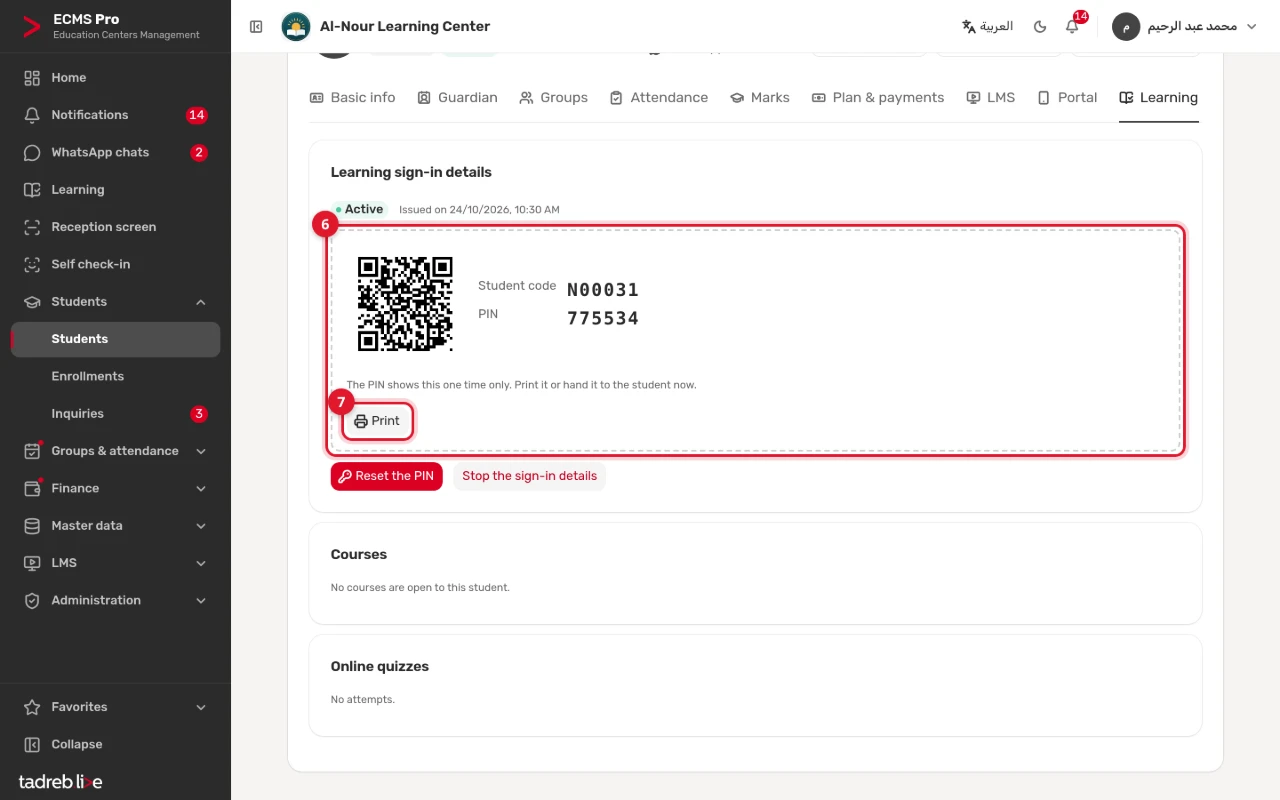
If you chose sign-in by code, open the student’s page → the “Learning” tab, and press “Issue a PIN” under “Learning sign-in details”. A slip appears with the student code, the PIN and a QR code to the sign-in page. Hand it to the student or their guardian only.
- The PIN shows this one time only, so print it or hand it to the student at once.
- To issue a new one, press “Reset the PIN”: the old PIN stops working, and the student is signed out of the devices they signed in on with the code.
- To stop signing in with the code, press “Stop the sign-in details”.
- Signing in with the code stops for a while after repeated wrong attempts; a reset lifts that.
7. Print the student’s slip
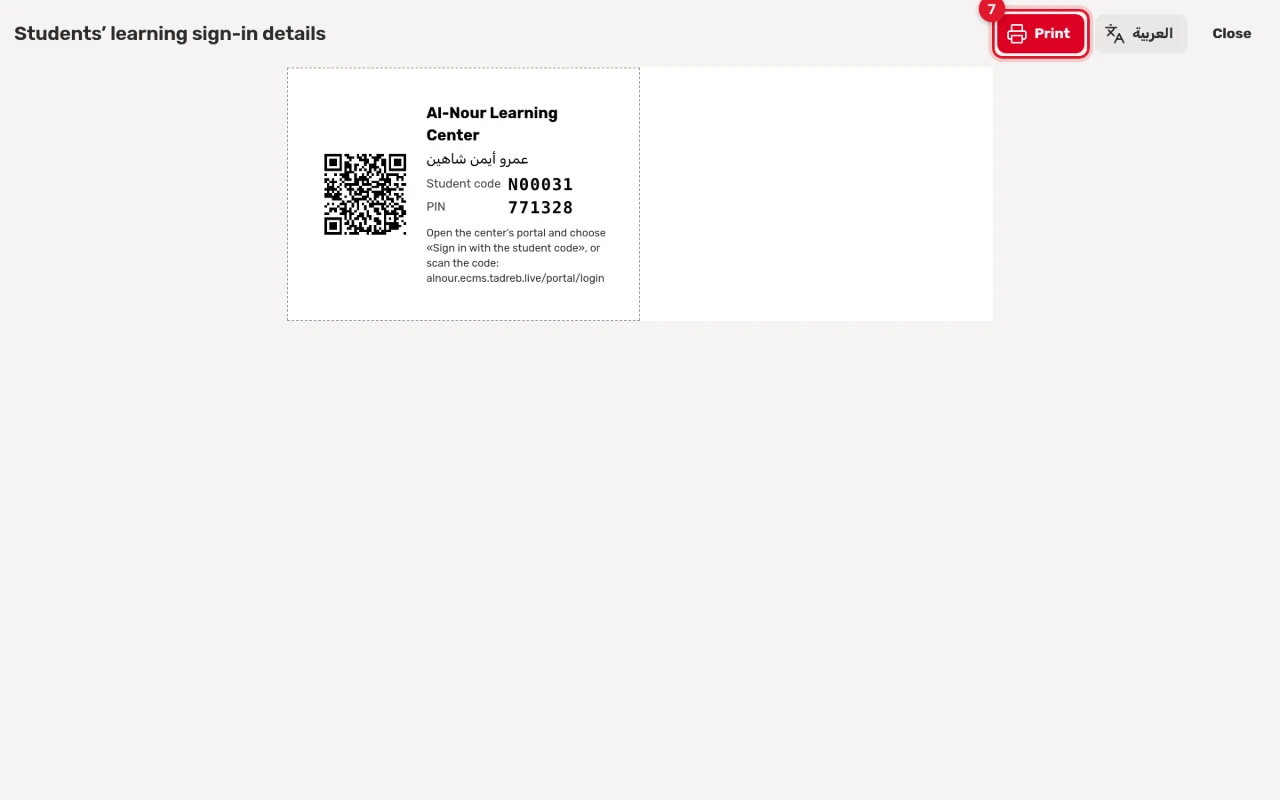
Press “Print” under the PIN: the “Students’ learning sign-in details” page opens with the student’s slip: the center’s name, the student’s name, code and PIN, how to sign in, and a QR code. Press “Print” at the top of the page, and switch the slip’s language with “English” or “العربية” if you like.
The PIN is not kept once you leave the page. If you reload it before printing, “Students without a visible PIN” shows, with “Issue new PINs for them”: the old PINs stop working and new ones appear.
The students’ and guardians’ guide to using the slip, signing in and studying is Learning for students and guardians.
Protection limits
- A PDF can always be saved once it is opened; “Allow download” controls only the download button.
- Lessons from YouTube and other platforms stay on those platforms, and an unlisted video can be shared by its link there: do not put content there that must stay with your students.
Learning storage
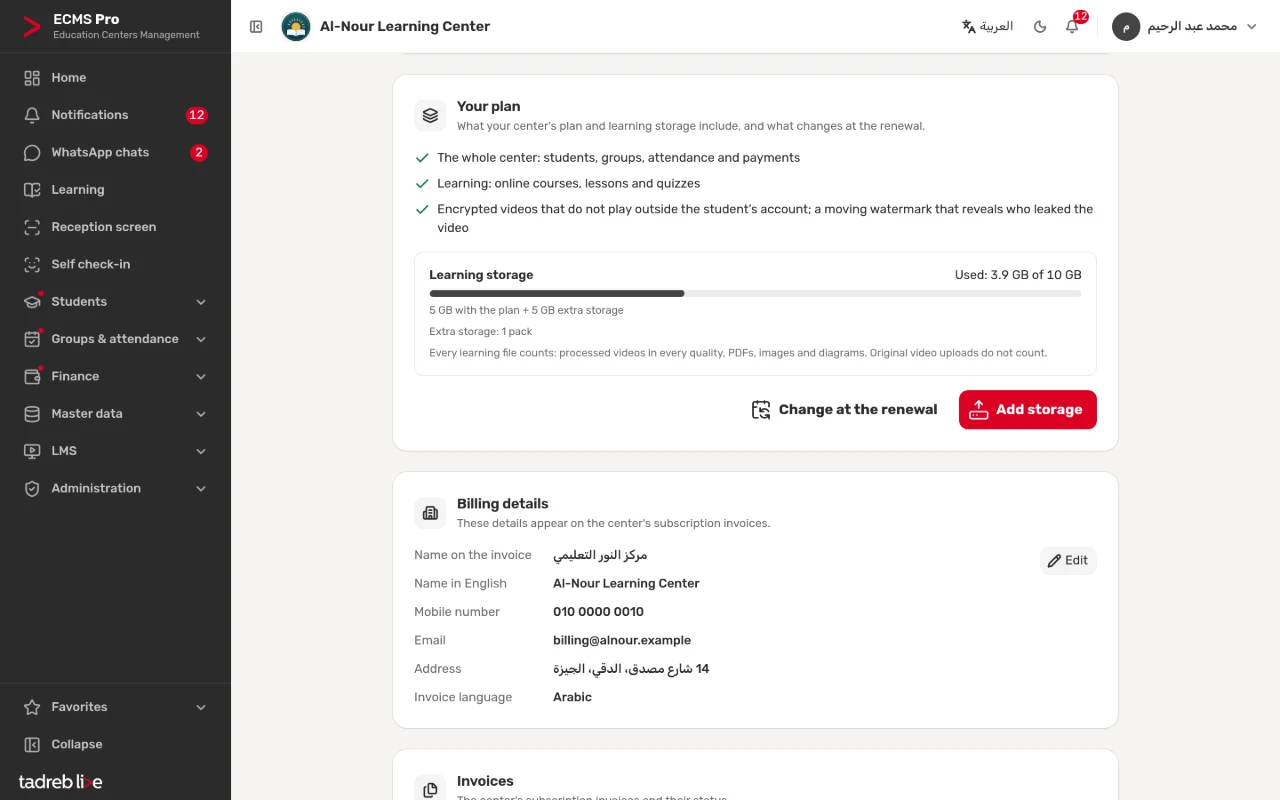
The Learning plan includes 5 GB for the files you upload to “Learning”: the PDFs, pictures and diagrams in your lessons, and videos once converted, in all their qualities. A video’s original file does not count during the 30 days it is kept for reprocessing, unless its processing has not started within 7 days of the upload, nor do video lessons from YouTube and other platforms, because they stay on those platforms, nor your center website’s pictures. You see what is used under “Overview” → “Storage”.
If the space fills up, nothing is deleted: lessons stay as they are, and a new upload is refused until there is more space. The center’s owner adds space with “Add storage” on the “Center subscription” page: packs of “Extra learning storage 5 GB”, each adding 5 GB. In a center on the Basic plan the button is “Upgrade to the Learning plan and add storage”. Packs bought during the free trial start with the first paid period.
Privacy
The center is the controller of its students’ data in “Learning”, and the platform processes it on the center’s behalf. The student sees their own progress and results, guardians see their children’s, and a teacher sees only the students of their own courses. A student’s progress, answers and results are deleted 3 years after their last activity in “Learning”.