Protected video lessons
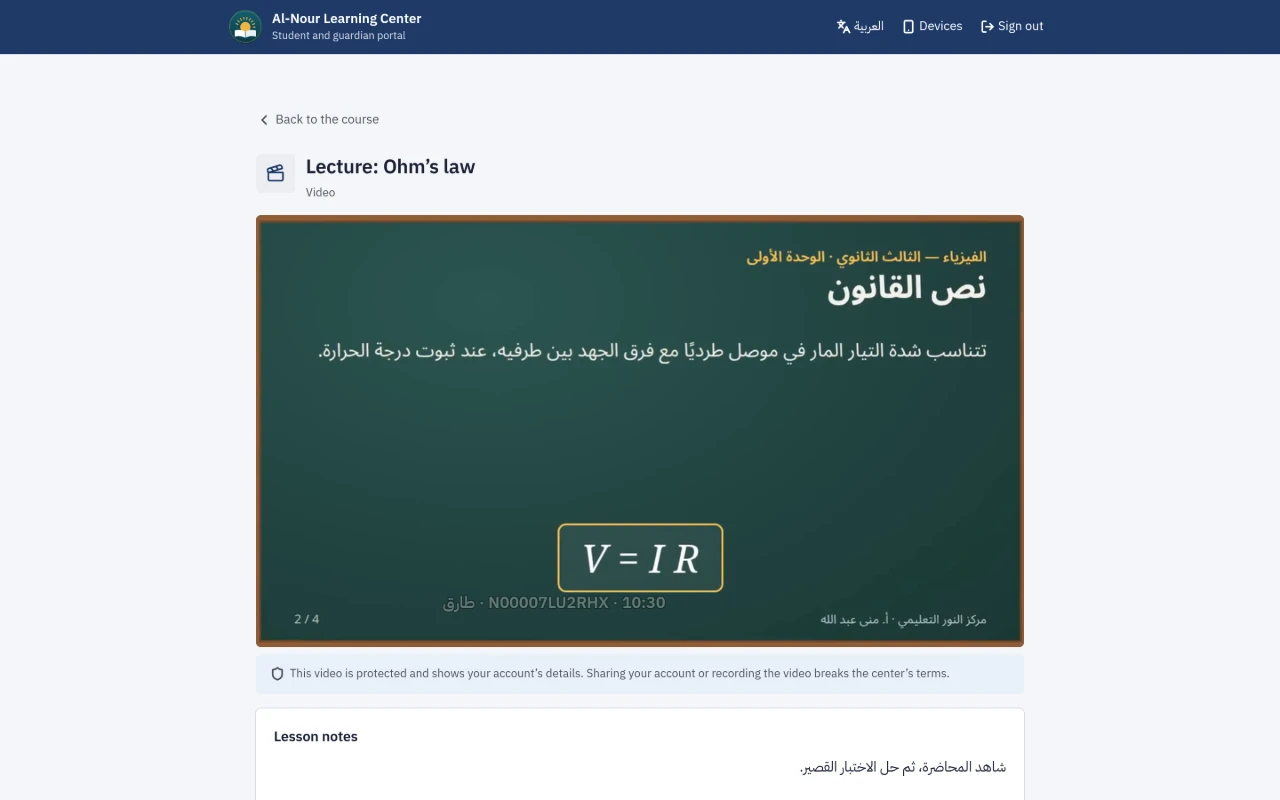
A “Video lesson” is a lesson whose file you upload yourself: it is processed on the platform’s servers, and your students watch it in your center’s portal in a protected player. Its video segments are encrypted and do not play outside the student’s account, it plays on one device at a time with a limit on devices, and a moving watermark on the picture reveals who leaked the video.
Before you start: protected video is not available in any center until the platform makes it available to it, even when “Learning” is on there. To ask for it for your center, contact us. Once it is available, “Video lesson” appears in “Add lesson”, the “Protected video” section in “Learning settings”, and the “Protection alerts” tab. Anyone with “Author courses and online quizzes” uploads videos; anyone with “Manage learning” sets the settings and follows the alerts and the students’ devices. Setting up “Learning” itself is in Learning: online courses and quizzes.
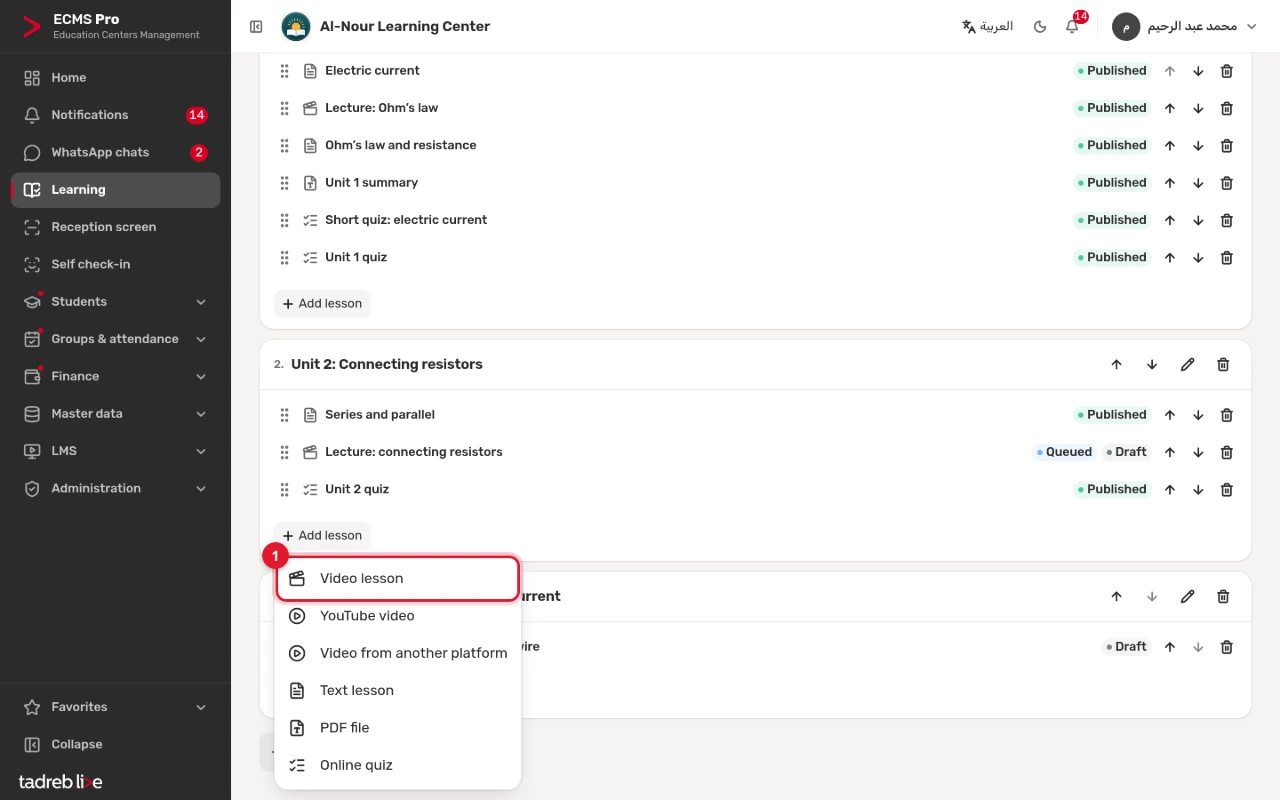
1. Add a video lesson and upload the file
- Open the course, press “Add lesson” in the unit, then choose “Video lesson”.
- Type the lesson’s title, then press “Create lesson”.
- Press “Choose the video file or drag it here” and pick the file. MP4, MOV, M4V, MKV and WebM files are accepted.
- Keep the page open until the upload finishes. If the upload is cut off, choose the same file again in the same browser tab, and it resumes where it stopped.
Each center has a limit on a video file’s size and length. A video counts against the “Storage” shown in “Overview” once it is converted, in all its qualities; its original file does not count during the 30 days it is kept for reprocessing, unless its processing has not started within 7 days of the upload. Until the processing is complete, space for its expected converted size is set aside, so a video that does not fit is refused. If it no longer fits when it is processed, the processing stops with “Learning storage is full” and its original file is kept for 7 days, so you can retry after adding storage.
2. Follow the processing
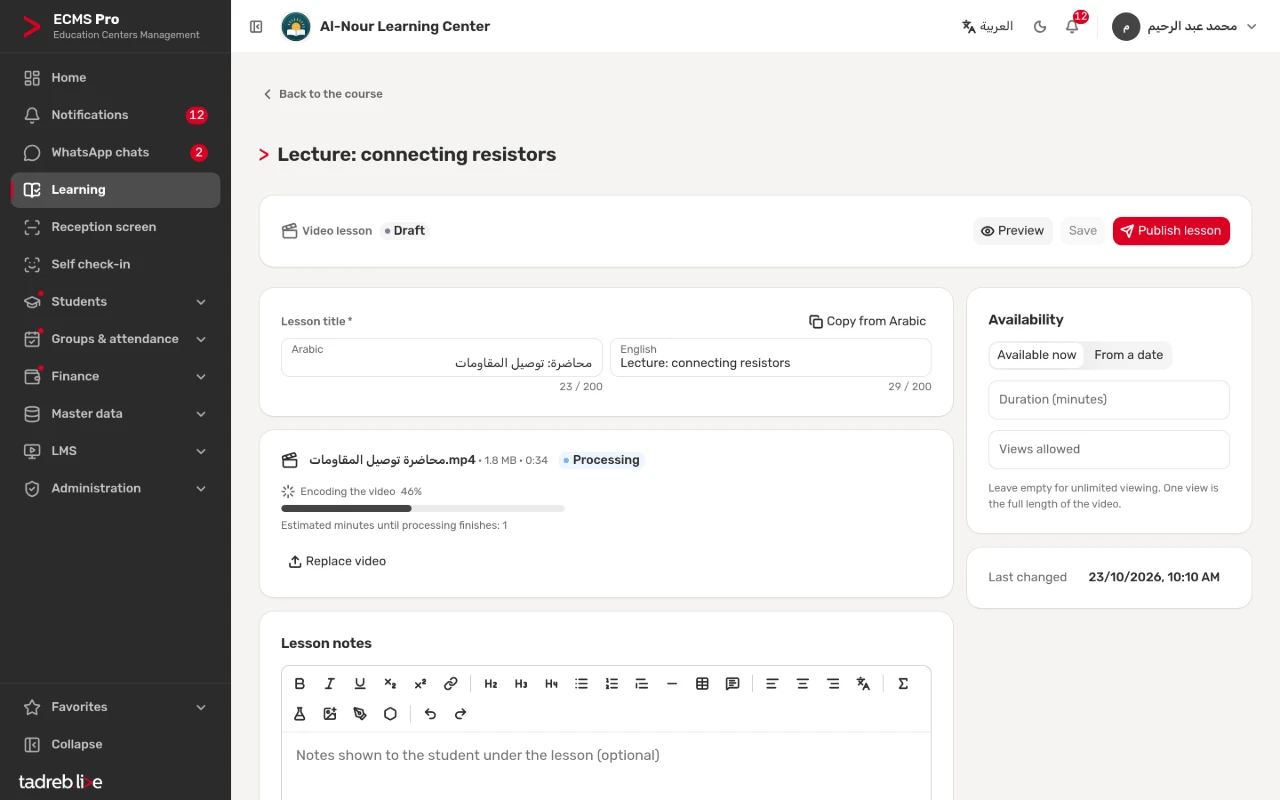
Once the upload is complete, the video is processed on its own, and you can close the page. Its state shows in the lesson and in “Learning files”:
- “Waiting in the processing queue”, with its “Place in the queue” and the estimated time until processing finishes.
- The processing stage and its progress, such as “Encoding the video”.
- “The video is ready to publish”.
A video may wait for a reason shown with it, such as the center reaching its video processing limit for this month, or the center’s processing queue being full. Processing starts on its own once the reason is gone.
3. If processing fails
“The video could not be processed” shows, with the reason.
- If the reason is the file itself, such as “The video format is not supported” or “The video is longer than allowed”, press “Replace video” and upload another file.
- Otherwise press “Retry”, and the video goes back to the queue. If the reason says it will be retried, there is no need to press it.
4. Check the video and publish the lesson
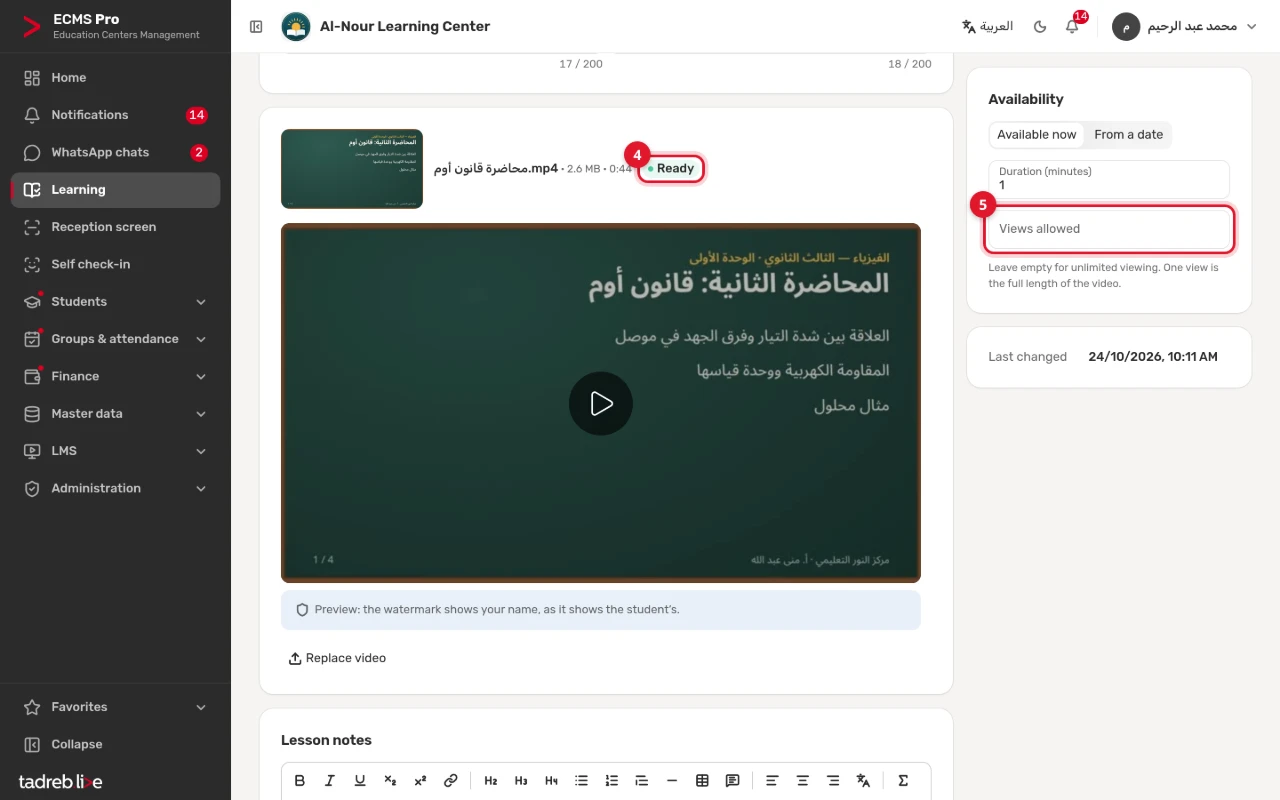
- Press “Preview video”. The video plays in the student’s own player, and the watermark shows your name.
- Set “Views allowed” if you like (step 5).
- Press “Publish lesson”. A lesson is not published before its video is ready.
To replace the video of a published lesson, press “Unpublish” first, upload the new video, and publish the lesson once it is ready: a published lesson cannot be saved with a video that is not ready.
A protected video lesson cannot be a “Free preview”.
5. Set the view limit
On the lesson’s page, enter “Views allowed” from 1 to 50, or leave it empty for unlimited viewing.
- One view is the video’s full length: watching half of it twice counts as one view.
- Views are counted on the platform’s servers from the video that actually reached the student.
- Under the player the student sees what they have used, such as “Views: 1 of 3”.
- When they are used up, playback stops and the student sees “You have used all the views allowed for this lesson”.
- To allow more views, raise the number in the lesson; it applies to all its students.
6. Set the protection settings
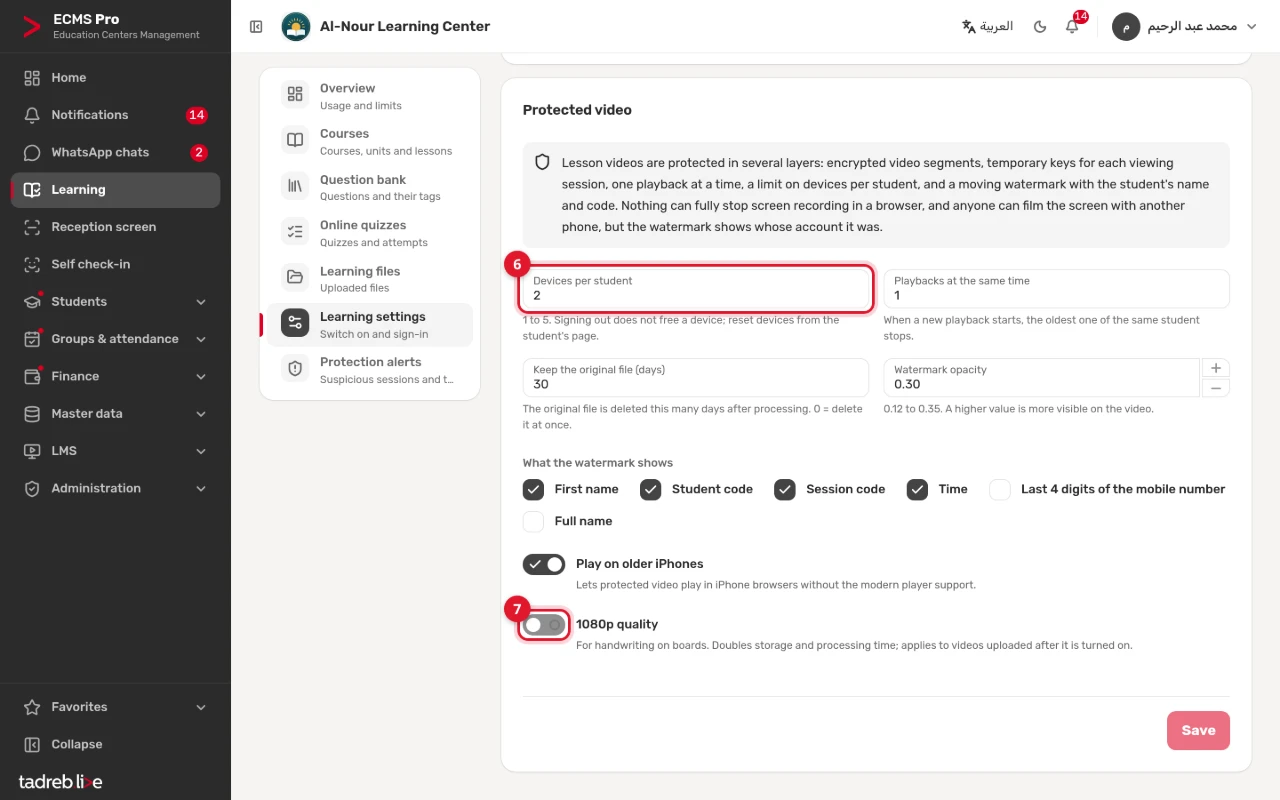
Open “Learning settings” → “Protected video”, then press “Save” after a change:
- “Devices per student”: 1 to 5; the default is 2.
- “Playbacks at the same time”: 1 or 2; the default is 1. When a new playback starts, the oldest one of the same student stops.
- “What the watermark shows”: by default “First name”, “Student code”, “Session code” and “Time”; you can add “Last 4 digits of the mobile number” or “Full name”. Keep “Session code” so that you can search by it (step 11).
- “Watermark opacity”: 0.12 to 0.35. A higher value is more visible on the video.
- “1080p quality”: see step 7.
- “Keep the original file (days)”: the file you uploaded is deleted this many days after processing; the default is 30 days, and 0 deletes it at once.
- “Play on older iPhones”: lets protected video play in iPhone browsers without the modern player support.
7. Video quality
- A video plays at 720p at most, and the student chooses “Auto” or a lower quality, such as 480p or 360p.
- To make handwriting on a board clearer, turn on “1080p quality”. It doubles storage and processing time, and applies to videos uploaded after it is turned on, when the original video has that quality.
- Each center has a monthly viewing limit. Past it, the quality drops to 480p; well past it, playback stops until the start of the next month. To raise the limit, contact us.
8. What the student sees
- Nothing of the video loads before the student presses “Play the video”.
- Under the player: “This video is protected and shows your account’s details. Sharing your account or recording the video breaks the center’s terms.”
- The watermark moves over the picture every few seconds, flashes in the middle every few minutes, and stays in full screen.
- If the watermark is hidden or changed by editing the page, the video stops and a protection alert is recorded.
- If the student starts watching on another device, playback stops on the first one, which shows a “Watch on this device” button.
- If the video is started too many times in a short while, playback is refused for a few minutes.
- Each student has a daily viewing limit; playback is back the next day.
- There is no download button, no picture-in-picture and no casting to another screen.
9. The student’s devices
- A device is registered the first time a video plays on it, and signing out does not free its place.
- A device unused for 60 days no longer counts.
- A student who reaches the limit sees “You have reached the device limit. Ask the center to reset your devices.”
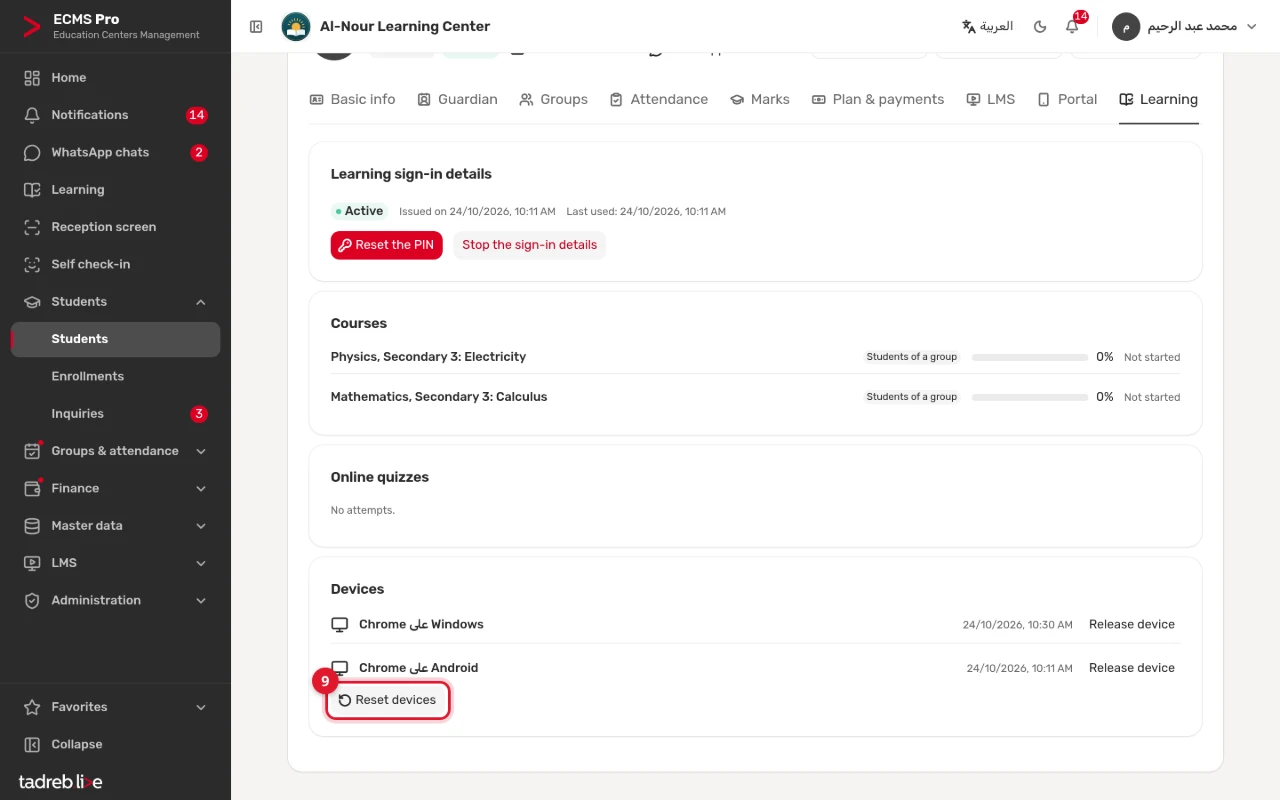
- To free places, open the student’s page → the “Learning” tab → “Devices”, then press “Release device” next to one device, or “Reset devices” for all of them.
10. Follow the “Protection alerts”
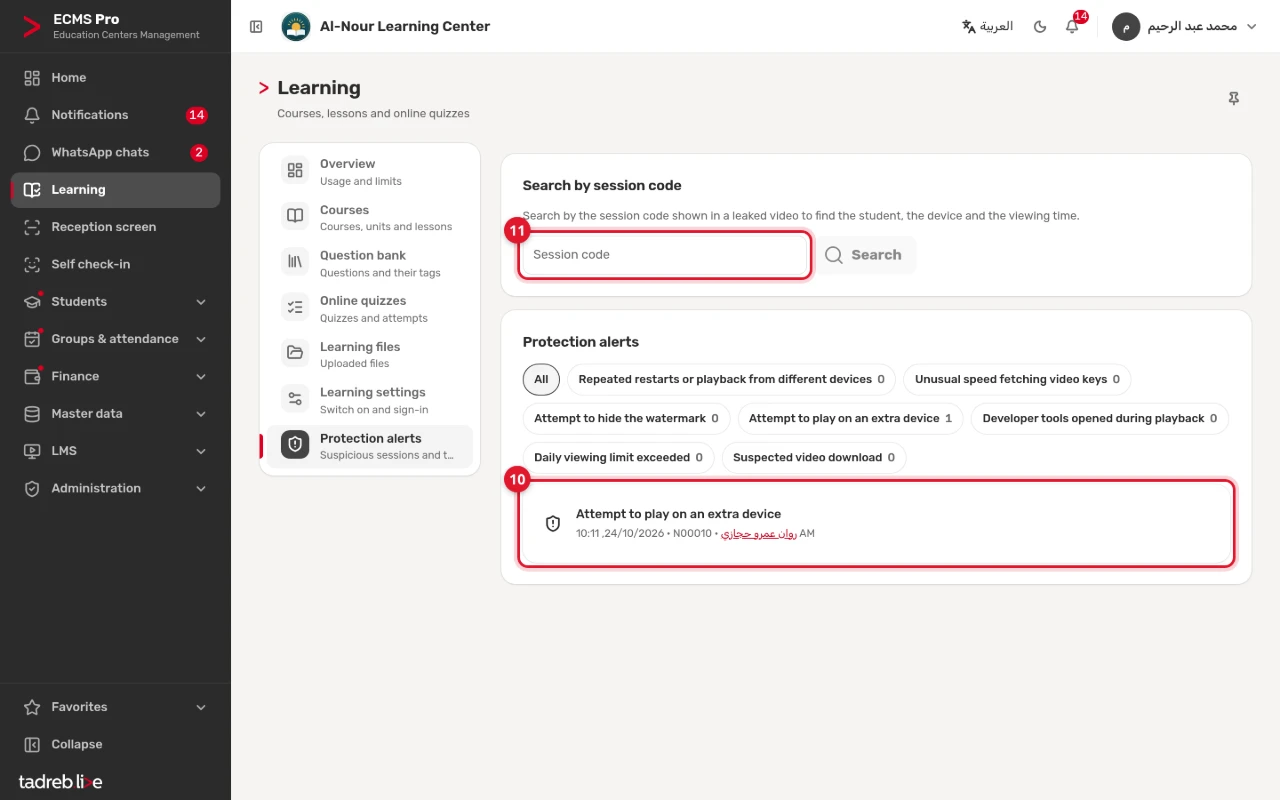
Open “Learning” → “Protection alerts”. The alerts are listed, and you can “Filter by type”. The kinds are:
- Restarting playback many times, or playing from different devices in turn.
- An attempt to play on a device past the limit.
- An attempt to hide the watermark; the session stops.
- Developer tools opened in the browser during playback.
- Unusual speed fetching the video’s parts, which stops the session, or a suspected video download.
- The daily viewing limit exceeded.
An alert is a sign worth following up, not a verdict on the student. Press “Show session” to see the student, the lesson, the device and the viewing time. You can “Stop session” while it is playing, and the video stops for the student at once, or “Reset devices” for its student.
11. If a recording of a video spreads
- Find the session code shown in the watermark of the recording.
- In “Protection alerts”, type it in “Session code”, then press “Search”.
- The session shows: the student, the lesson, the device and the viewing time. A staff preview shows the name of whoever opened it.
You can search up to 90 days after the viewing.
Protection limits
- Nothing can fully stop screen recording in a browser, and a screen can always be filmed with another phone, but the watermark reveals the account holder.
- A technical user can download a video with special tools from inside their account. The protection slows that to normal viewing speed, ties it to one session and one device, and records an alert, but it does not fully prevent it.
- One device at a time and the device limit make sharing an account hard, not impossible.
Privacy
- The watermark never shows the mobile number, except its last 4 digits if you choose them.
- Viewing records are deleted after 90 days, and protection records after 180 days.