Online quizzes: question types and grading
This article explains the question types of the “Question bank”, how each one is scored, and following up a quiz after it is taken. Creating a quiz and its settings are in Learning: online courses and quizzes.
Permissions: anyone with “Author courses and online quizzes” writes questions and builds quizzes. Anyone with “Grade online quizzes” grades attempts, regrades them and reads the “Item analysis”. A teacher works on their own quizzes only.
1. Choose the question type
Open “Question bank”, choose the bank, then press “New question” and choose the “Question type”:
- “Multiple choice (one answer)”: the student picks one answer, and gets full points if it is right.
- “Multiple choice (several answers)”: the student picks every correct answer. With “All or nothing” they get the points for picking all of them with no wrong one; with “Proportional” the score is the right answers minus the wrong ones.
- “True or false”: the student says whether the statement is true or false.
- “Numeric answer”: the student types a number, accepted within the tolerance you set (step 2).
- “Short answer”: the student types a word or a short phrase, compared with the accepted answers (step 3).
- “Fill in the blanks”: a text with blanks; the student types a word or a number in each (step 3).
- “Matching”: the student matches each item of the first column with the second column (step 4).
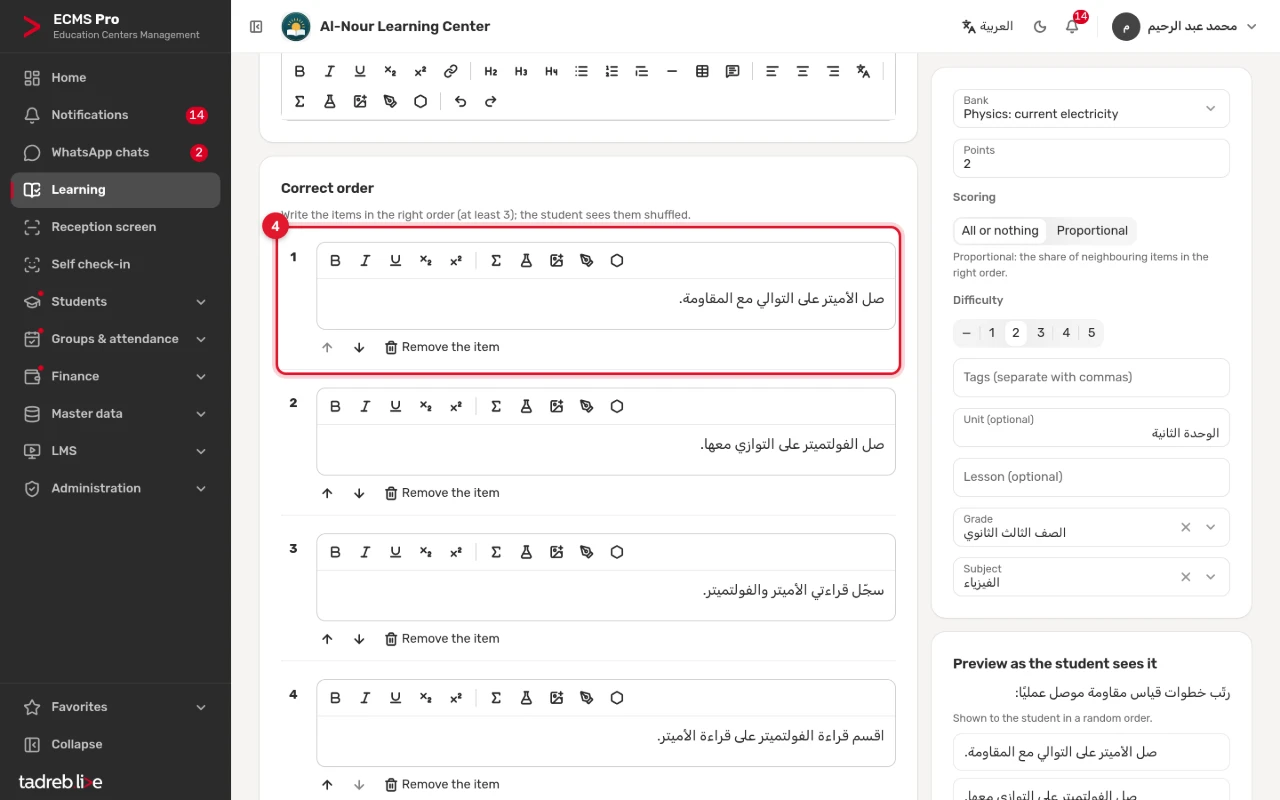
- “Ordering”: the student puts the items in the right order (step 4).
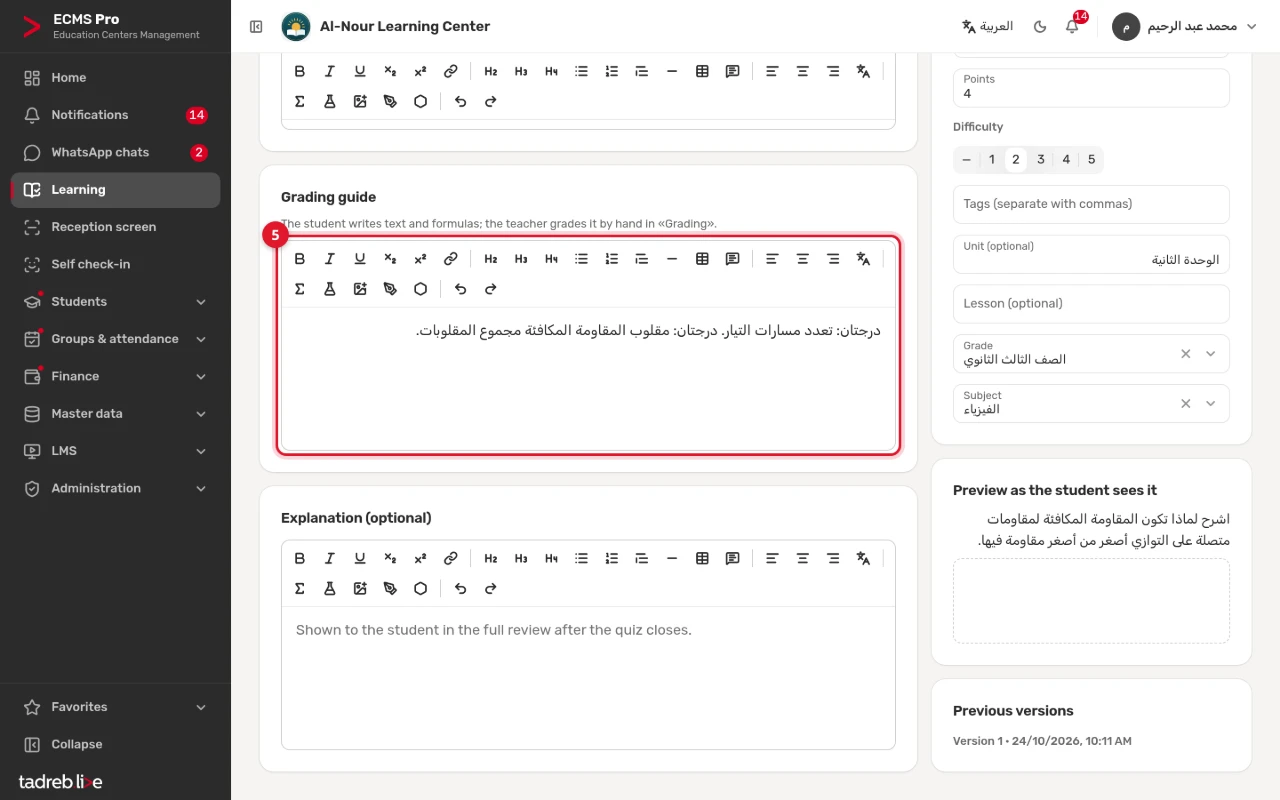
- “Essay”: the student writes an open answer, graded by the teacher by hand (step 5).
Every type is graded automatically on submission, except the essay.

2. Numeric answers
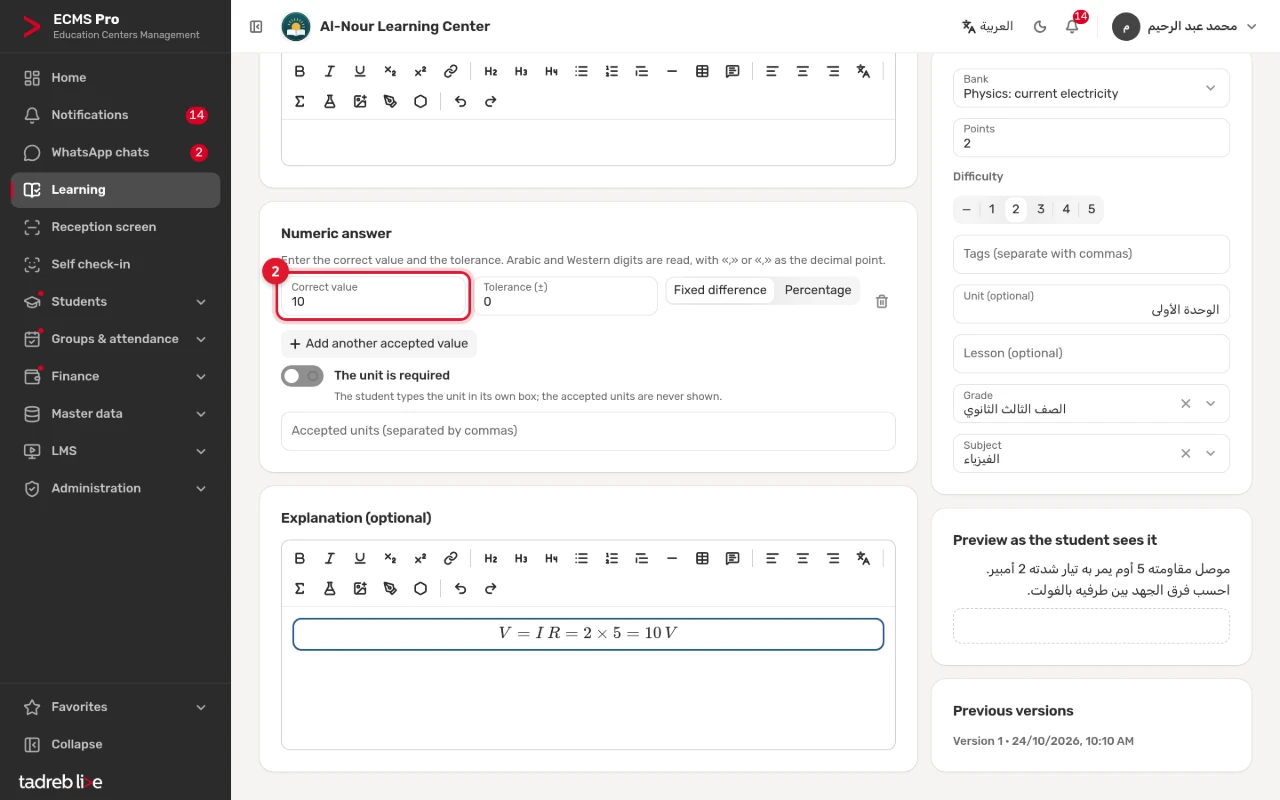
- Enter the “Correct value”.
- Choose the “Tolerance type”: “Fixed difference” with a “Tolerance (±)”, such as 9.8 ± 0.1, or “Percentage” with a “Tolerance (%)”.
- If the question has another correct value, press “Add another accepted value” (up to 5 values).
- If the unit is part of the answer, turn on “The unit is required” and enter the accepted units separated by commas, such as: م/ث, m/s.
The student types the number in Arabic or Western digits, with a point, «٫» or «,» as the decimal point; a simple fraction such as 1/4 is accepted. A single comma is a decimal point: 1,250 reads as 1.25, so if you mean 1250, add it as another accepted value. The student types the unit in its own box, and the accepted units are never shown. The score is full points or zero.
3. Short answers and fill in the blanks
- Write each accepted answer on its own line, up to 20 answers.
- With “Exact match” off, grading ignores diacritics, hamza forms, taa marbuta, letter case and extra spaces.
- In “Fill in the blanks”, place the cursor where the blank goes in the question’s text, then press “Blank” in the toolbar (up to 20 blanks). Then enter the accepted answers of each blank.
- With “Proportional” the score follows the number of blanks right; with “All or nothing” every blank must be right.
4. Matching and ordering
- Matching: write the items of the “First column” (2 to 10), then pick the match of each one from the “Second column”. You can “Add an option” as a distractor. The student picks the matching option’s letter for each item. With “Proportional” the score follows the number of pairs right.
- Ordering: write the items in the right order, 3 to 10 items. Each student sees them in a random order and moves them with the “Move up” and “Move down” buttons. The random order may happen to be right, and the student then presses “Use this order”. With “Proportional” the score follows the neighbouring items that came in the right order.
5. Essays
- Write a “Grading guide (optional)”: the points expected and how the marks are shared. It is shown to the grader, and to the student only in the full review.
- The student writes text in lines, with math and chemistry formulas between $ signs. Links, headings, tables and pictures are not accepted in an answer.
- The attempt stays “Waiting for grading” until the teacher grades its essays, and the student sees “Some questions are waiting to be graded.”
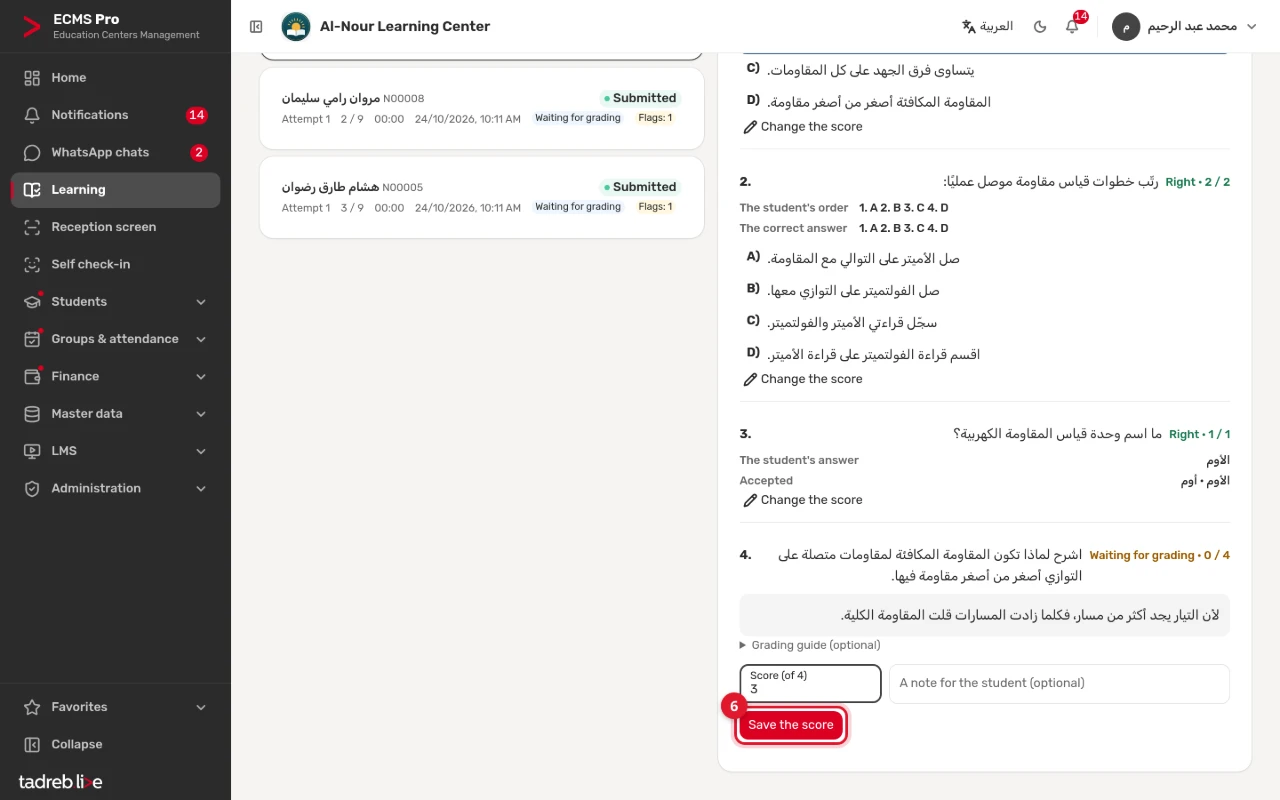
6. Grade the essays
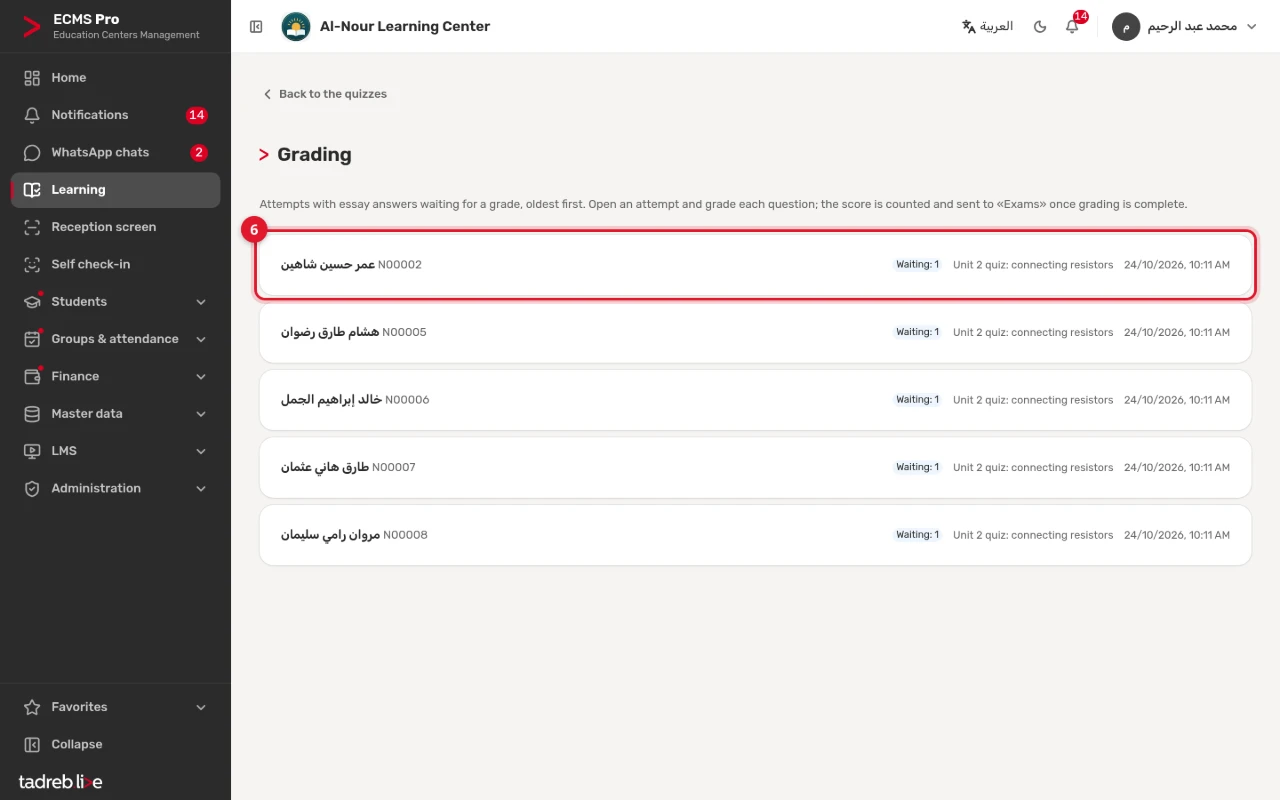
- Open “Online quizzes”, then press “Grading”. The attempts waiting for grading are listed, oldest first.
- Open an attempt. Each essay shows the student’s answer and the “Grading guide”.
- Enter the score and “A note for the student (optional)”, then press “Save the score”.
- Once all its essays are graded, the attempt’s score is counted and sent to “Exams” if the quiz is linked to them.
You can also change the score of any other question of the attempt with “Change the score”, and go back to the automatic score with “Remove the manual score”.
7. Regrade after fixing a question
- Fix the key in the “Question bank” and save the question; a new version of it is saved.
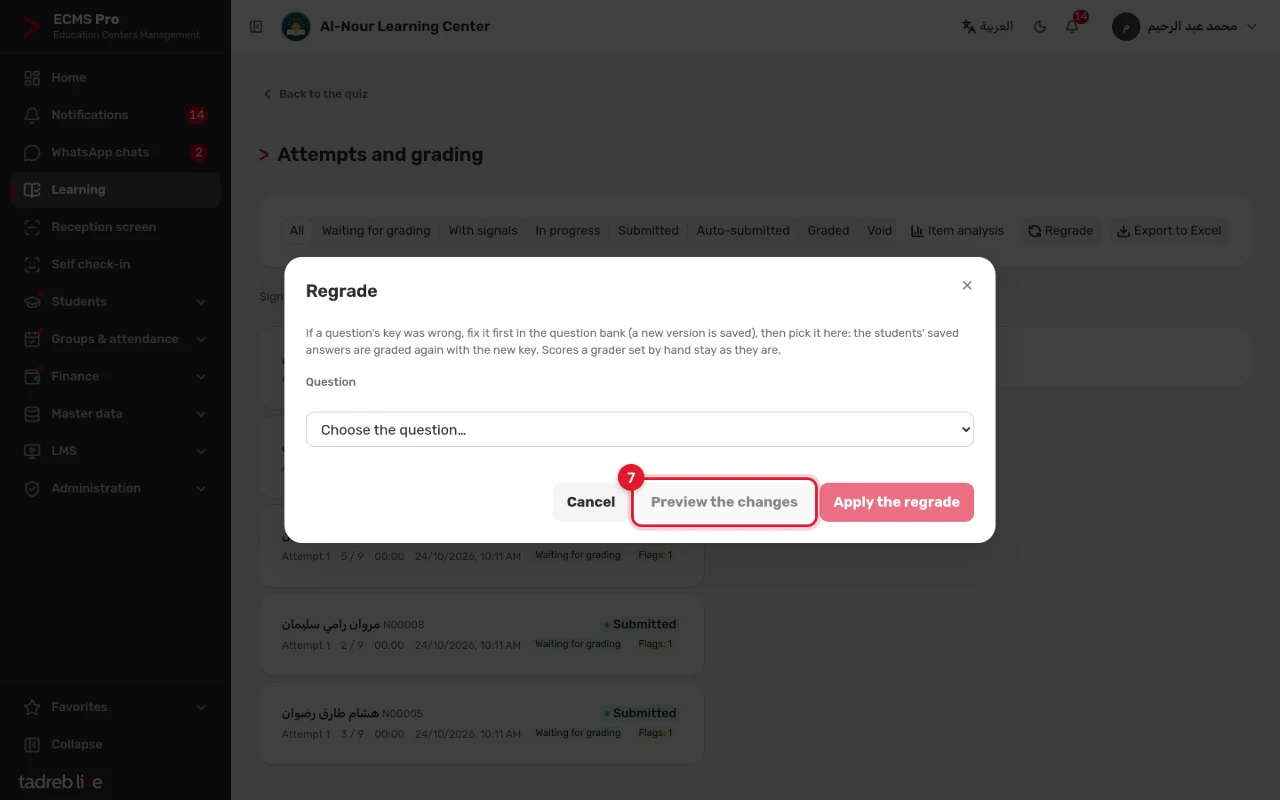
- Open “Online quizzes”, press “Attempts” next to the quiz, then “Regrade”.
- Choose the question, then press “Preview the changes”. The attempts whose scores would change are listed, each with its score before and after, and whether “Exams” is updated. Nothing changes at this step.
- Press “Apply the regrade”.
Scores a grader set by hand stay as they are.
8. Read the “Item analysis”
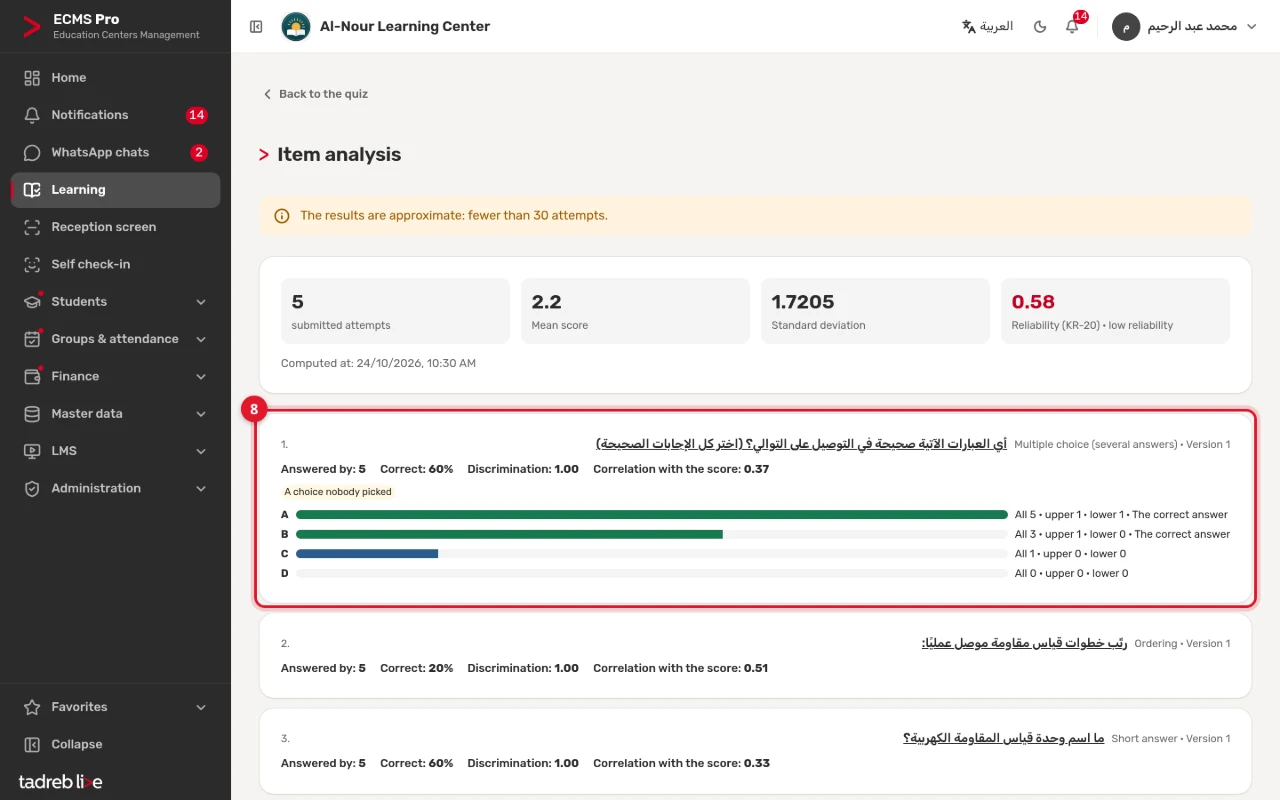
Open the quiz, then press “Item analysis”. For each question:
- “Correct”: the share of students who answered it with full credit. Below 20% is too hard, above 95% too easy.
- “Discrimination”: the share correct in the top 27% of students minus the bottom 27%. Below 0.20 the question does not tell them apart.
- “Correlation with the score”: do the students who score well on the rest of the quiz get this one right? Zero or below deserves a look; the key may be wrong.
- “How the choices were picked”: how often each choice was picked, by all students and by the top and bottom groups.
For the whole quiz, “Reliability (KR-20)”: how consistently its questions measure the same level. Below 0.6 means low reliability.
With fewer than 30 submitted attempts, “The results are approximate” shows: do not judge a question from its numbers alone.
9. Review the cheating signals
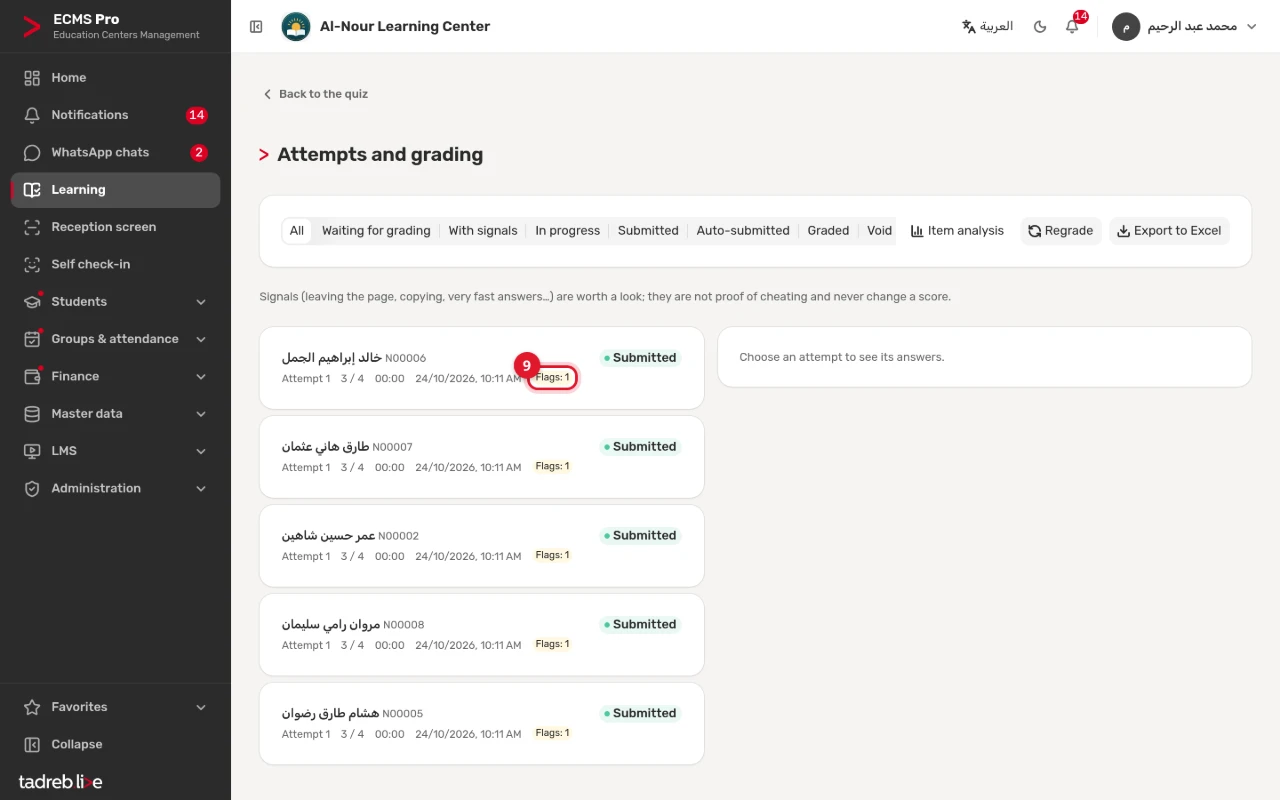
While a quiz is taken, signals worth a look are recorded, among them: leaving the quiz page, switching to another window, copy and paste attempts, opening the same attempt in another tab, a change of device, very fast answers, and an answer pattern identical to another student’s attempt. Copy and paste are not available to the student during the quiz.
- In “Attempts and grading” each attempt shows its number of signals; choose “With signals” to list those attempts only.
- Signals are not proof of cheating, never change a score, and never fail the student.
- After your review you can “Void attempt” with a written reason, or “Allow one more attempt”.
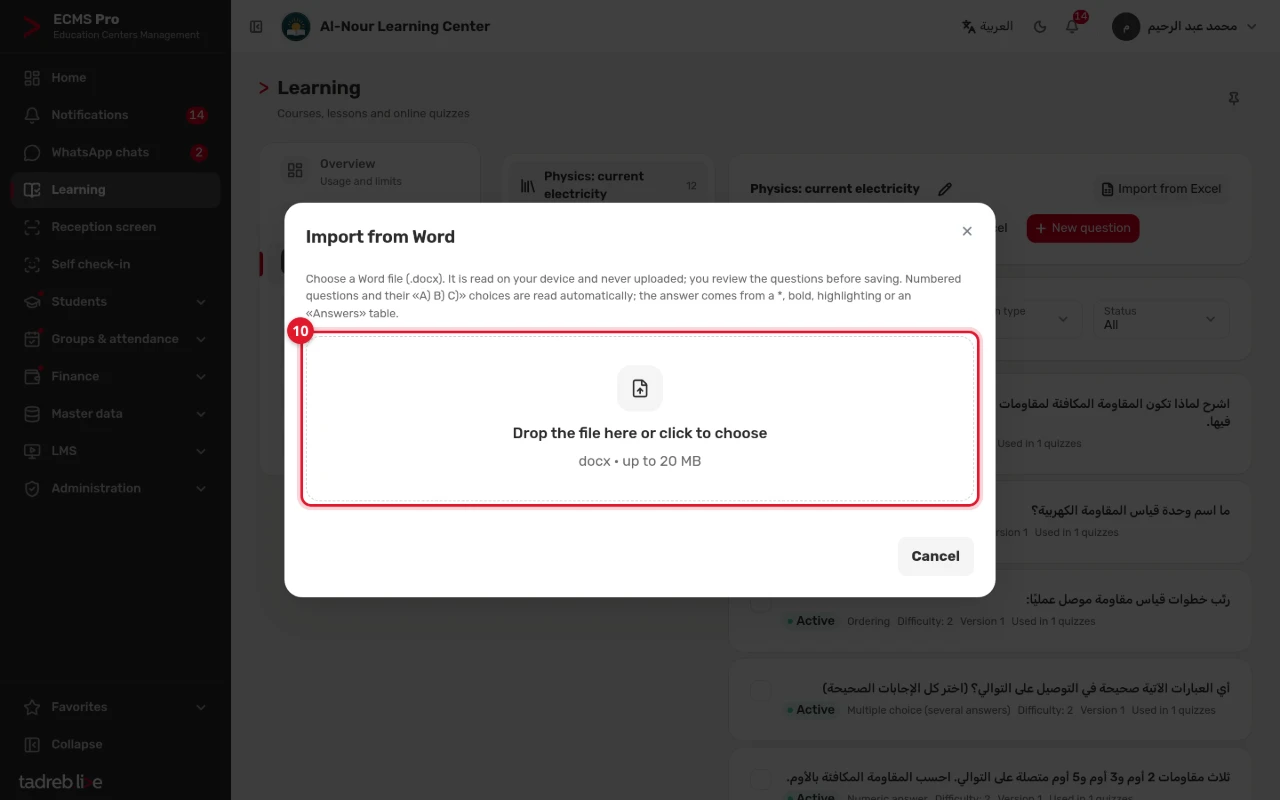
10. Import questions from Word
- In the “Question bank”, choose the bank, press “Import from Word”, and choose a Word (.docx) file.
- Review the questions and those that need a look, then save the valid questions.
The file is read on your device and never uploaded; only the questions’ pictures are uploaded when you save. So that the file can be read:
- Number the questions, and letter their choices «أ) ب) ج)» or “A) B) C)”.
- Mark the answer with a * before it, in bold, highlighted, with an «الإجابة: ب» (“Answer: B”) line, or in an «الإجابات» (“Answers”) table. If you mark more than one answer, the question becomes “Multiple choice (several answers)”.
- Start an explanation line with «الشرح:».
- Formulas written with Word’s equation editor are imported as formulas. Convert MathType equations to Office equations, then import again.
A Word file imports multiple choice and true or false questions.
11. Import and export with Excel
- “Import from Excel”: press “Download template” and fill it in, then upload the file to review the questions before importing them. The template takes multiple choice questions with up to 5 choices (A to E) and true or false questions, with formulas between $ signs.
- “Export to Excel” in the bank: the questions are exported in the template’s own layout, so you can edit them and import them again. Questions the template cannot hold go to a second sheet, “Other questions”, for reading only.
- “Export to Excel” in “Attempts and grading”: an “Attempts” sheet and an “Answers” sheet.
12. Print the quiz and the answer sheet
On the quiz’s page press “Print”, then choose:
- “Form A” or “Form B”: the same questions in a different order.
- “Answer key”: a last page with the correct answers.
- “Answer sheet”: circles where the student fills in their choice for each question, with their name and code. Written questions are answered on the question paper.
The answer sheet is graded by hand: the system does not read it.
Two warnings in the quiz settings
- “Whether each answer was right” with several attempts: after the first attempt the student knows which answers were right, so a true or false key is known after one attempt, and a multiple choice key after a few. Choose “The score only” or “The correct answers after the quiz closes”, or allow one attempt. This warning shows in the quiz settings.
- Publishing a closed quiz again: students can start new attempts, and those who saw the correct answers in the review after closing will know them. So the system asks “Publish a closed quiz again?” before publishing. To give one student another try, use “Allow one more attempt” in “Attempts and grading”, or make a new quiz with other questions.