Learning for students and guardians
This guide is for students and their guardians, and the center can send it to them. A student studies the center’s courses in “Learning” inside the student and guardian portal, on a phone or a computer, and guardians follow their progress and results. Setting “Learning” up at the center is in Learning: online courses and quizzes.
1. The sign-in slip
When the center allows signing in with a code, it hands the student or their guardian a slip with the student’s name, “Student code” and “PIN”, and a QR code to the sign-in page. Keep it and don’t give it to anyone else: the PIN is never shown in the system again after it is issued.
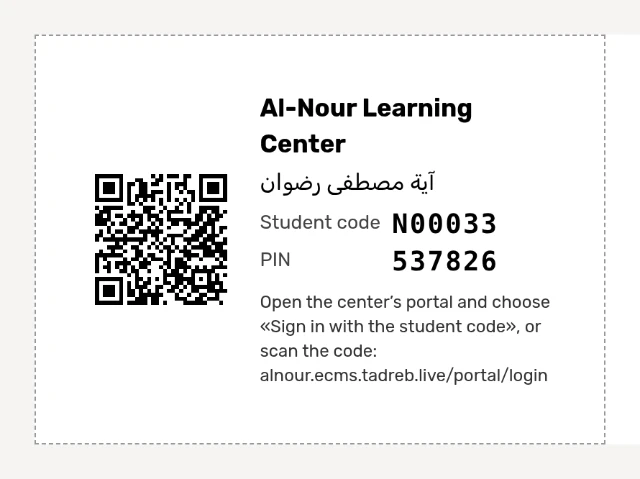
2. Open the sign-in page
Scan the slip’s QR code with your phone’s camera, or open the center’s portal (the center’s link followed by /portal/login), then press “Sign in with a student code”.
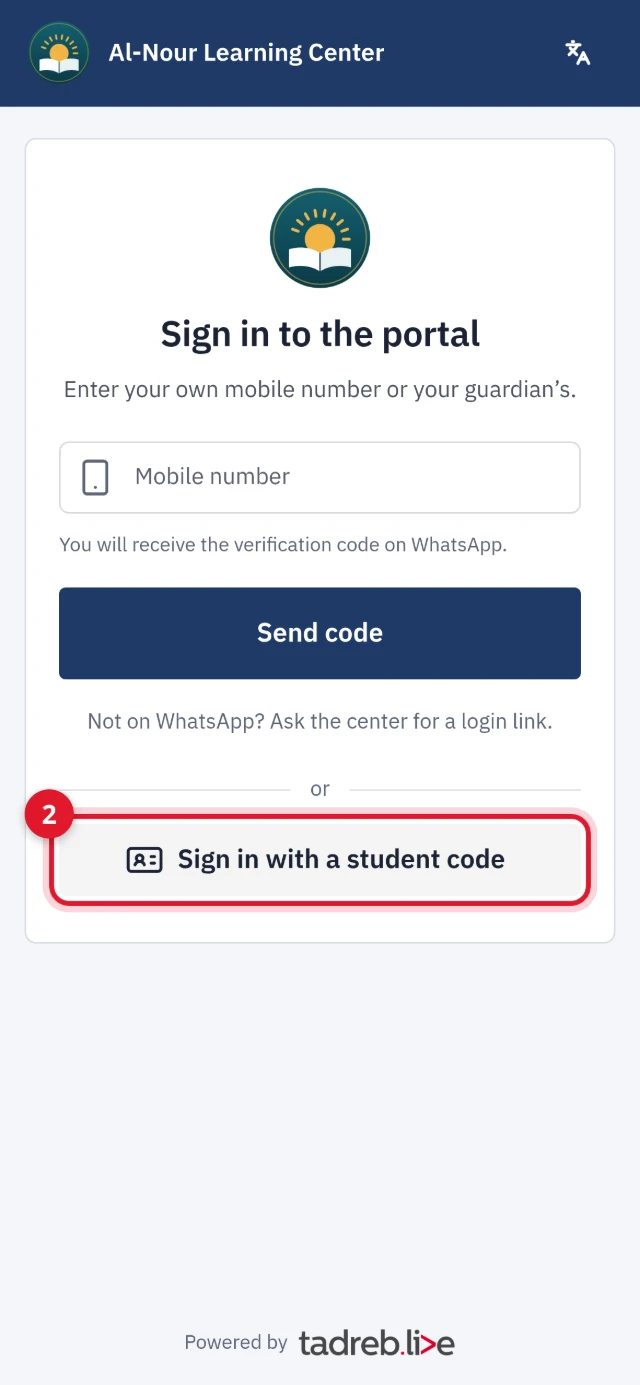
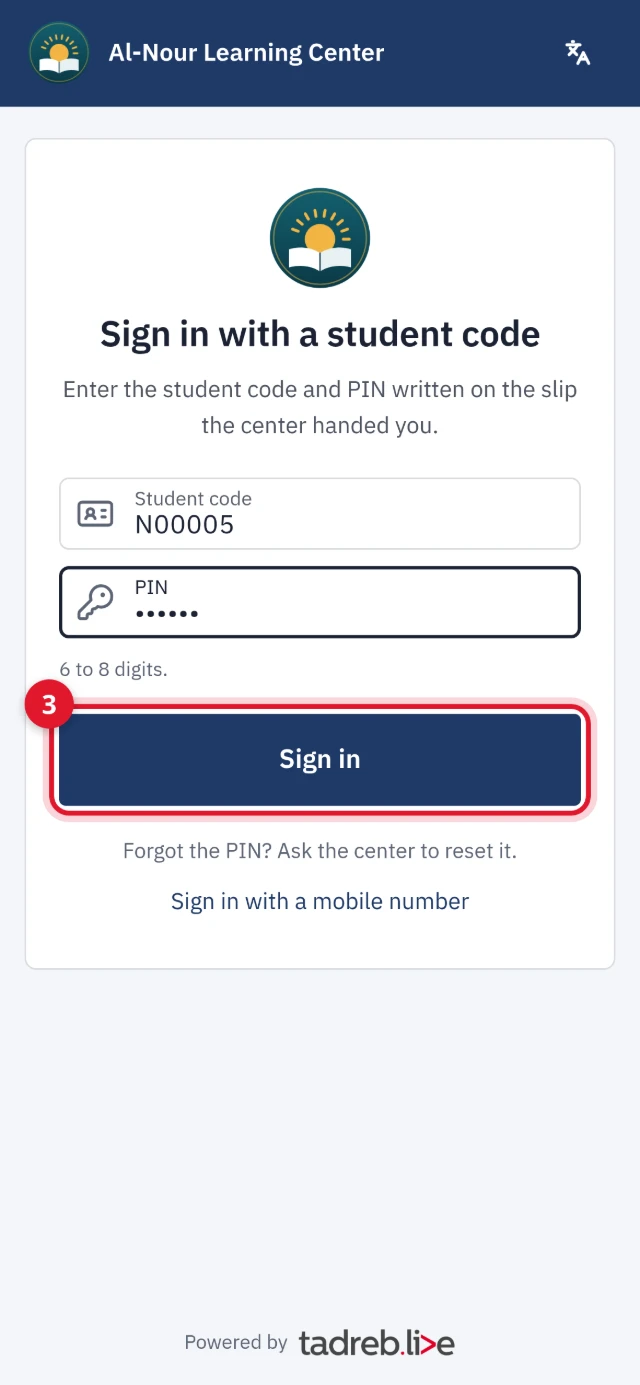
3. Sign in
Enter the “Student code” and the “PIN” written on the slip, then press “Sign in”. When you scan the QR code, the code is already filled in, so you type the PIN only.
- When the center lets students sign in with their own mobile number, enter the student’s mobile registered at the center on the same page, press “Send code”, then enter the verification code that arrives on WhatsApp.
- After many wrong tries, signing in with the code stops for a while: “Sign-in is paused after too many attempts. Try again in an hour.”
- If you forget the PIN, ask the center to reset it: you get a new slip.
At the first sign-in, the “Learning privacy notice” appears: read it, then press “I agree”. No data shows before that.
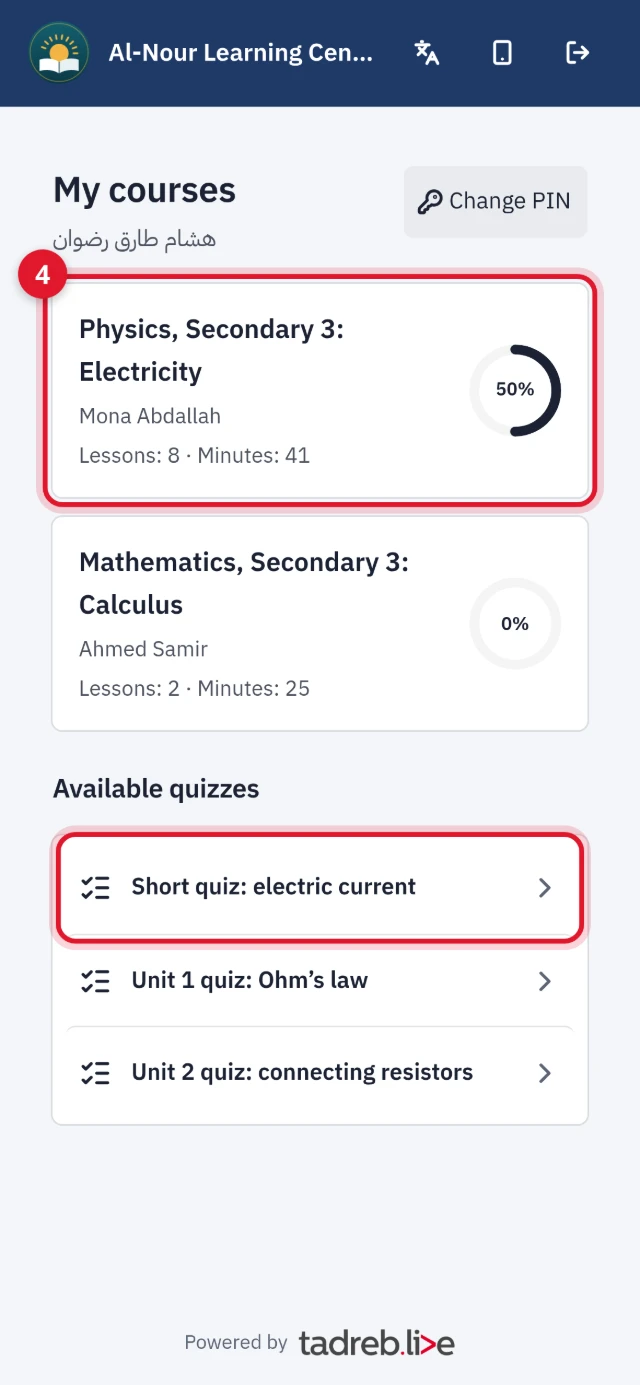
4. “My courses”
The student’s courses appear, each with its number of lessons, its length and how much is done, with “Available quizzes” under them. “Continue where you stopped” shows when a lesson is left unfinished. The same page has “Change PIN” when you signed in with a code.
5. Study a course
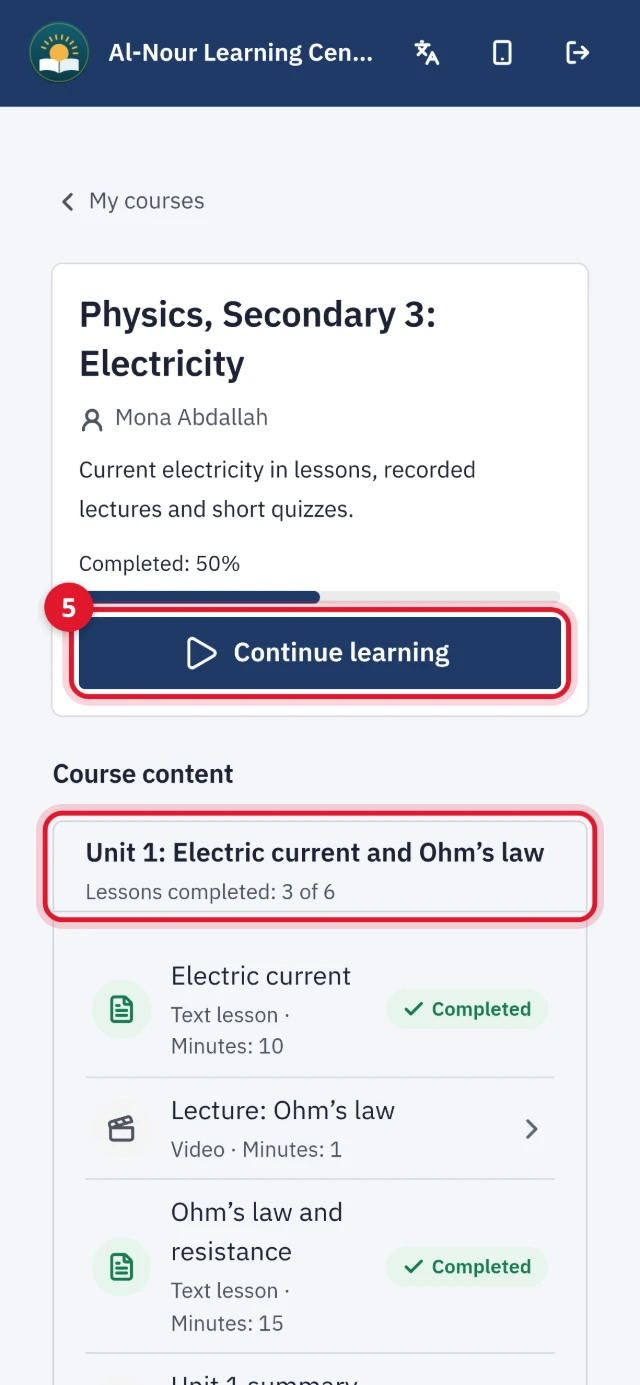
Open the course: “Completed” shows how much is done, with a “Start learning” or “Continue learning” button, and “Course content”: the units and their lessons, each unit with its “Lessons completed”.
- A text lesson, a PDF, or a video from another platform: press “Done” at the end of the lesson to record it as completed.
- A YouTube video and a video lesson: completion is recorded by itself once the video is watched.
- A lesson may show why it can’t be opened yet, such as finishing the previous lesson first, or the date it opens.
6. An online quiz
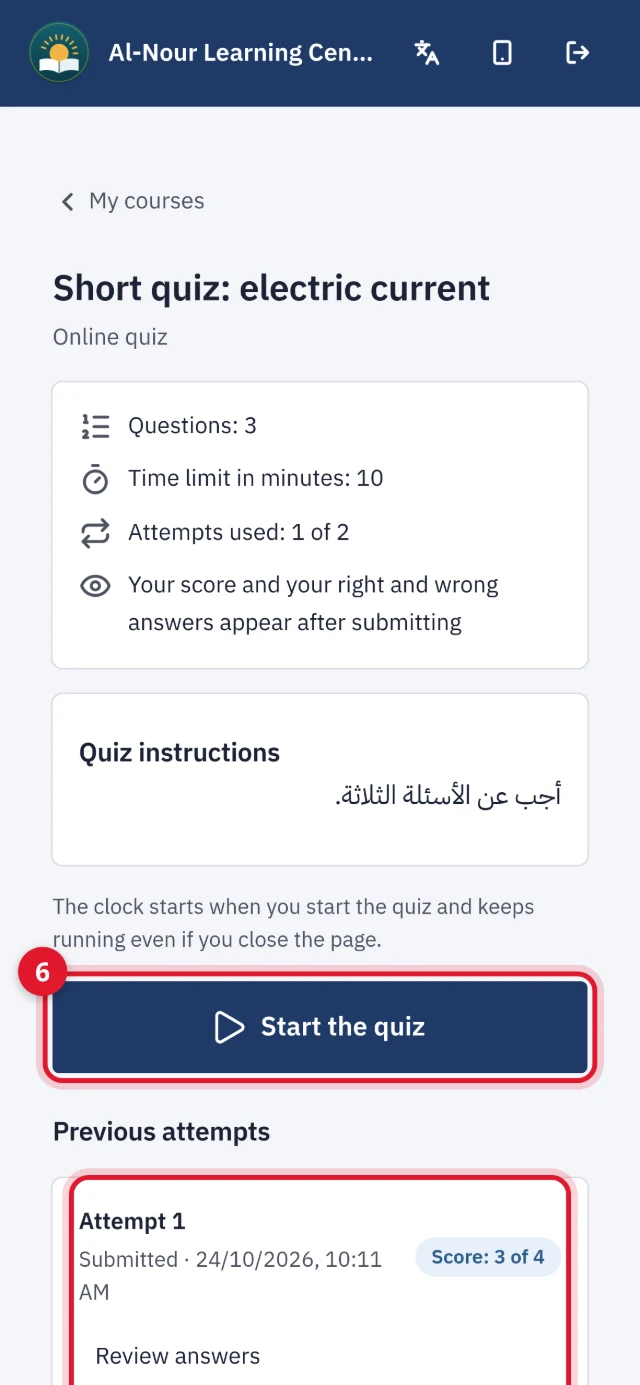
Open the quiz from the course or from “Available quizzes”. Before you start, the questions, the time limit in minutes and the attempts used show, with what you will see after submitting, and the “Quiz instructions”.
- Press “Start the quiz”. The clock starts and keeps running even if you close the page.
- Answer the questions. Your answers are saved by themselves, and “Saved” shows. If the connection drops, they are saved when it is back.
- Press “Submit”, then “Submit” again to confirm. Answers cannot be changed after submitting. When the time runs out, your saved answers are submitted by themselves.
After submitting, your score shows, or “Your answers were saved. The result is shown as the center decides.”, and your attempts are listed under “Previous attempts”, with “Review answers” when the center allows it. Copy and paste are not available during the quiz.
7. A video lesson
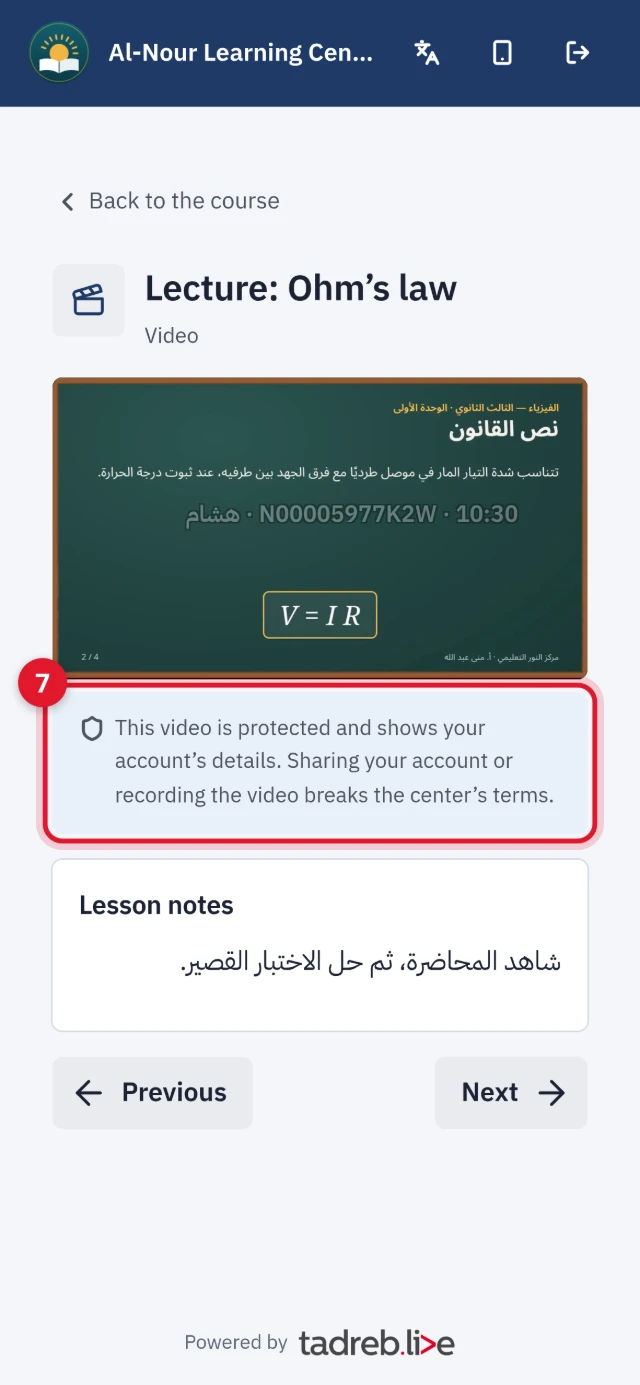
When the course has a protected video lesson, press the play button on the video. Under the player: “This video is protected and shows your account’s details. Sharing your account or recording the video breaks the center’s terms.”
- When the center limits the number of views, what you have used shows under the player, such as “Views: 1 of 3”.
- If you start watching on another device, playback stops on the first one, which shows “Watch on this device”.
- If “You have reached the device limit. Ask the center to reset your devices.” appears, ask the center to do so.
In a video lesson from YouTube or another platform, the platform’s name shows before playing, and its player loads only after you press “Play the video”.
8. What guardians see
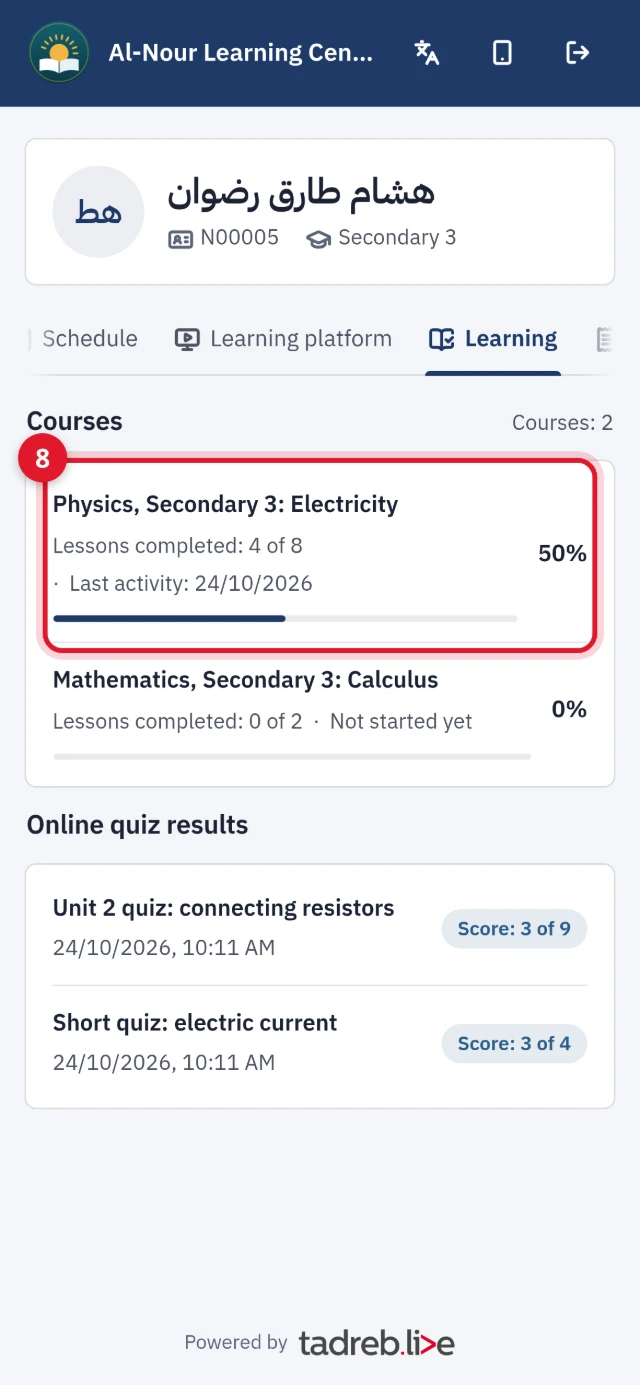
Guardians sign in to the portal with their mobile number registered at the center (see Turn on the student and guardian portal), open the student, and choose the “Learning” tab. It shows:
- “Courses”: each course’s “Lessons completed”, and its “Last activity” or “Not started yet”.
- “Online quiz results”: each quiz’s score, or “Submitted”.
Guardians open the lessons themselves when the center allows it; otherwise they see the progress and results only. At their first visit to “Learning”, they accept the “Learning privacy notice”.
Privacy
Students see their own progress and results, guardians see their children’s, and teachers see only the learners of their own courses. For requests about this data, contact the center: it is responsible for its students’ data in “Learning”.