The reception screen: attendance, marks and exams
After a student’s card is scanned on the reception screen, their card opens with four tabs under it: “Collect”, “Attendance”, “Recitation & homework” and “Exams”. This article explains the last three. Setting up the screen and collecting are in Set up the reception screen, thermal printer and scanner and Collecting payments, receipts and today’s summary.
Who sees each tab: “Attendance” and “Recitation & homework” show to users allowed to take attendance, “Exams” to those allowed to enter exam marks, and “Collect” to those allowed to collect. With the default roles, the owner, the center manager and the secretary see all four, the accountant “Collect” only, and teachers the other three, for their own groups only and without any amounts.
Open the student’s card
Scan the student’s card, or type their code, name or mobile in the search box, then press “Search”. When the search finds more than one student, such as two siblings with the same guardian’s number, choose the student under “Pick the student”. To look the student up by name, press “Search by name”.
Scanning another card opens that student on the first tab, and a mark you typed without pressing “Save” is not kept. A scan works even while the cursor is in a mark box.
1. “Attendance”
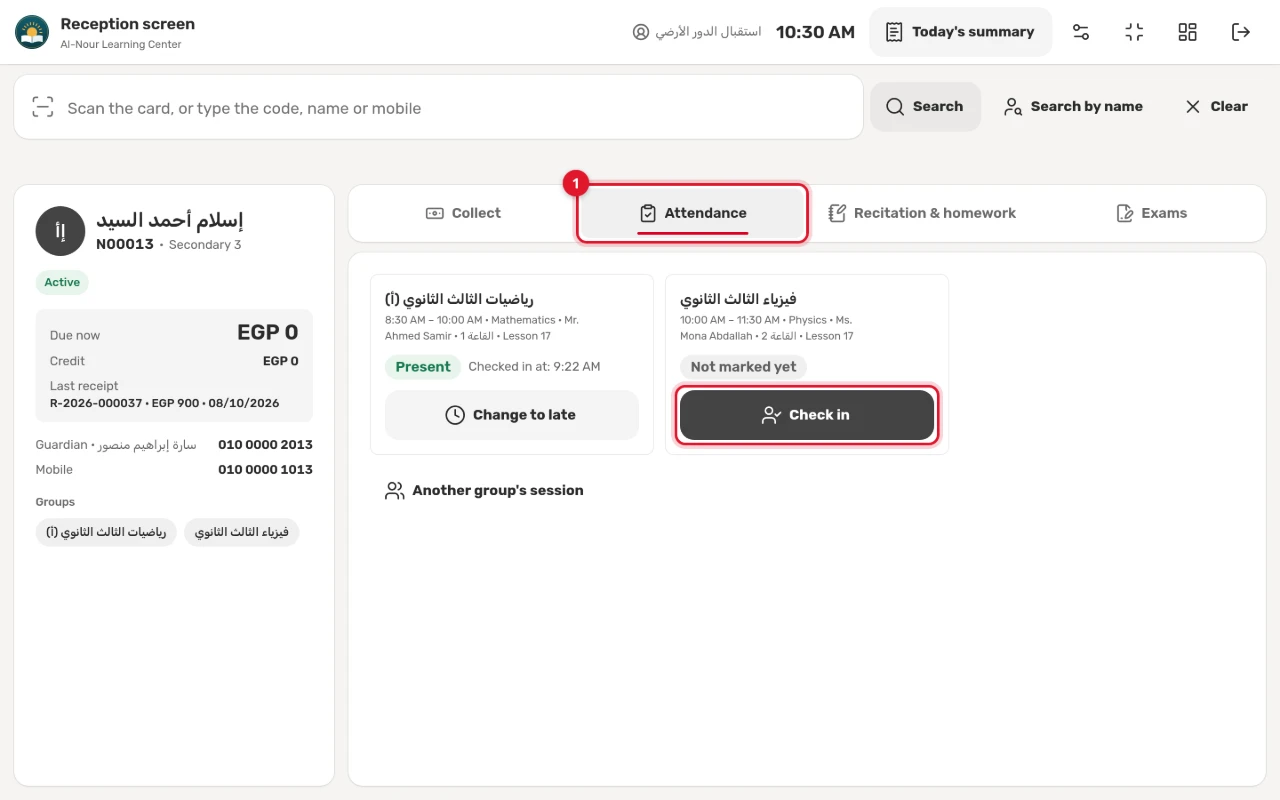
The tab lists the student’s sessions today, each with its group, time, subject, teacher, room and lesson number, its phase — “Upcoming”, “In progress”, “Ended” or “Cancelled” — and the student’s attendance, such as “Not marked yet”.
Press “Check in”. The system marks the student “Present”, or “Late” when they arrive later after the session’s start than “Student is late after” in “Center settings” → “Academic”. To correct it, press “Change to late” or “Change to present”.
- The reception screen checks students in to today’s sessions only.
- Scanning again never changes a mark already taken; the screen says attendance was already recorded.
- Checking one student in does not mark the others absent or close the session: that stays on the session register (see Take attendance on the session register).
2. A student at another group’s session
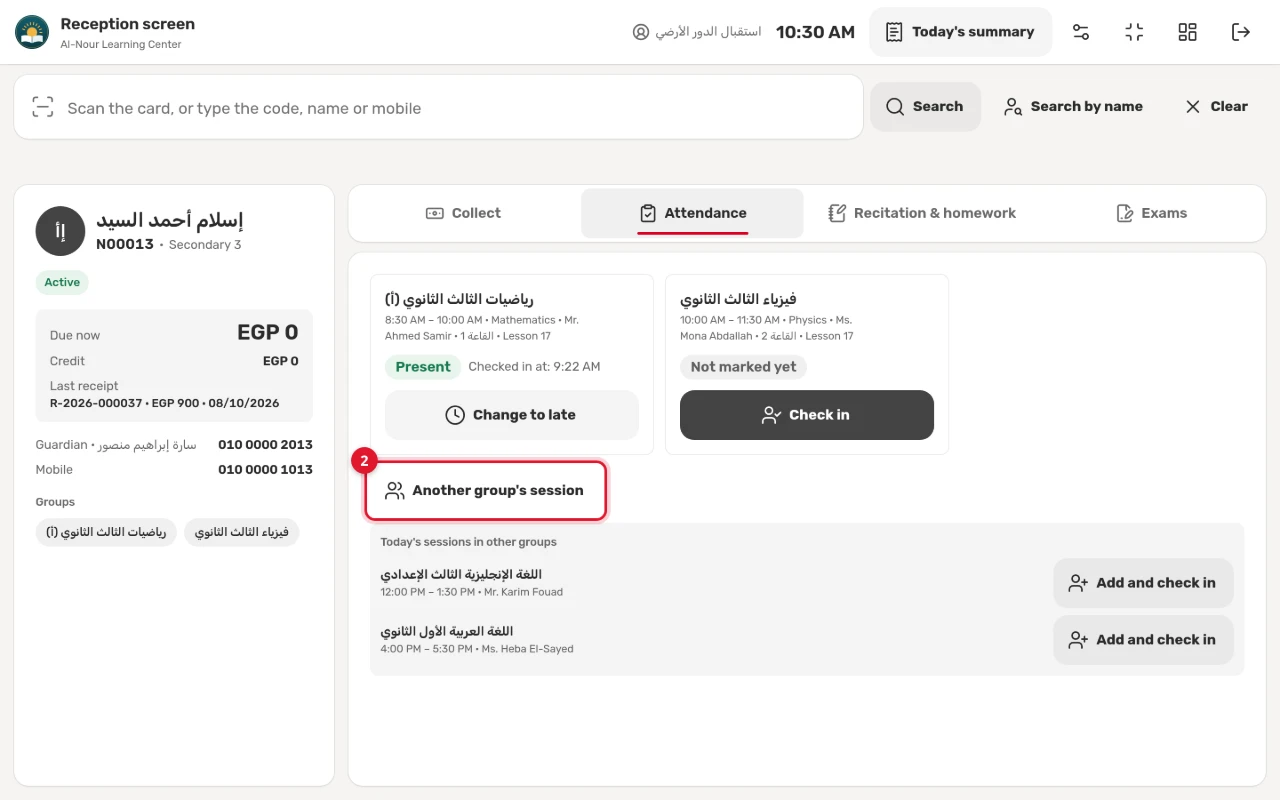
When the student comes to a session that is not their group’s, press “Another group’s session”. “Today’s sessions in other groups” appear: press “Add and check in” next to the session. Then read the “Add a student from another group” window, such as “not enrolled in this group” or “another grade”, and press “Add as guest”. A guest visit is free: the session is not charged to the student.
3. “Recitation & homework”
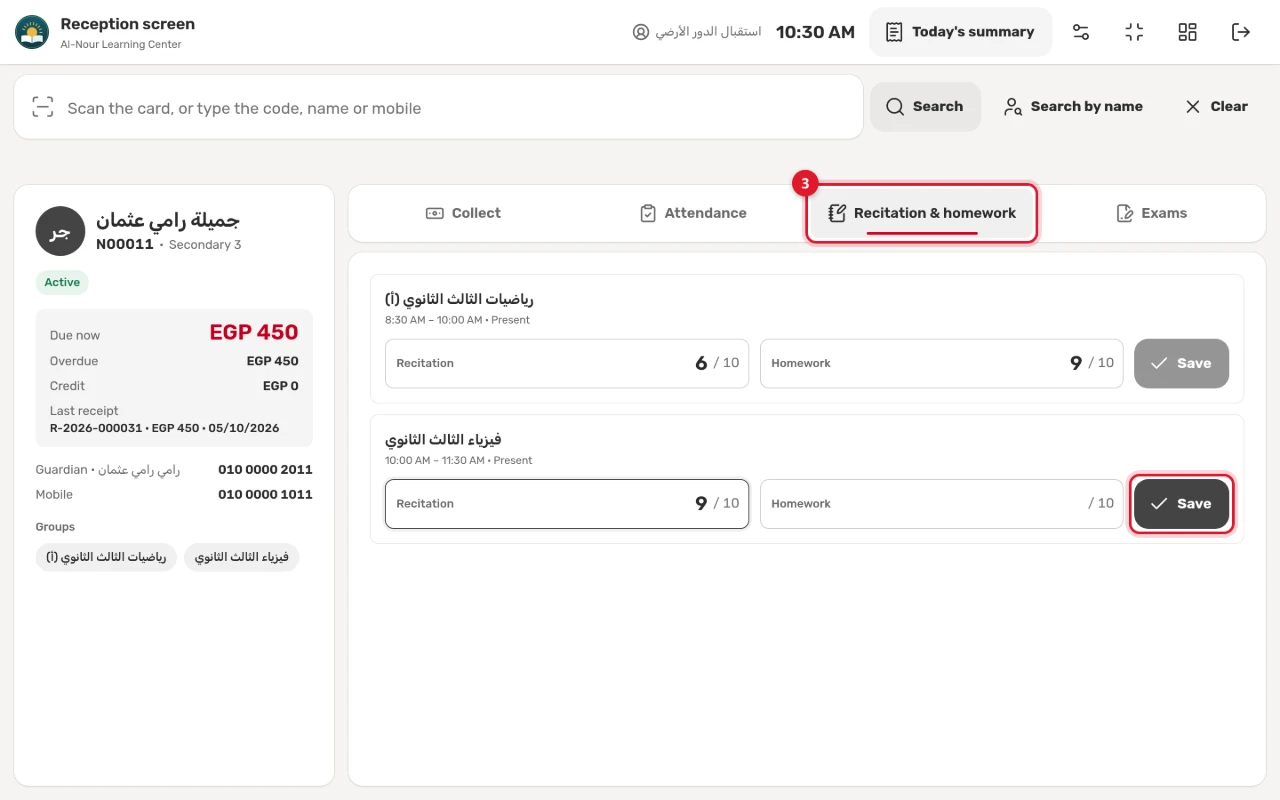
This tab shows when the “Recitation mark” or the “Homework mark” is on under “Center settings” → “Marks”. Each of the student’s sessions today has a “Recitation” box and a “Homework” box, each with its maximum mark.
- Check the student in first: the boxes show only for a student who is present or late.
- Type the mark in Arabic or Western digits. The box turns red when the mark is above the maximum or below zero.
- Press “Save”, or Enter in the box. To clear a mark, empty the box, then press “Save”.
The mark is saved on the session register itself, and shows in the student’s results and results link.
4. “Exams”
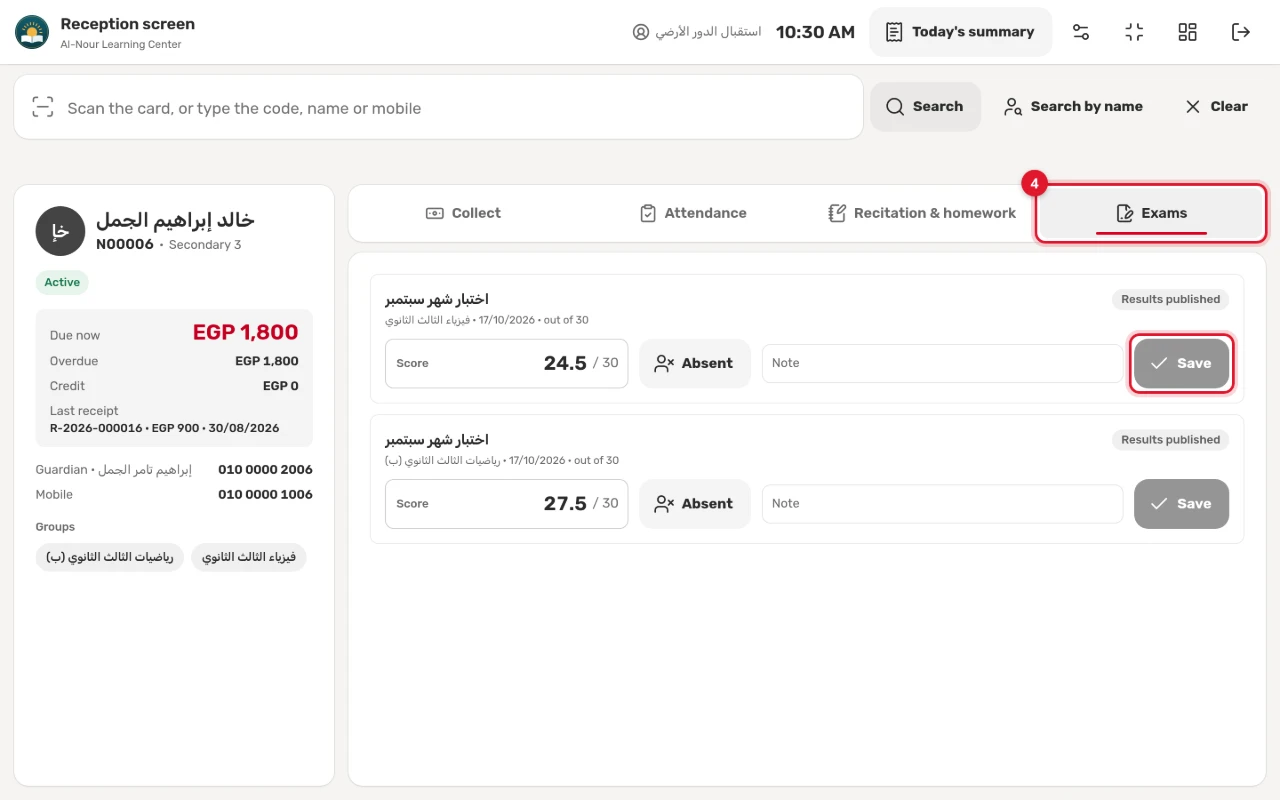
The tab lists the exams of the student’s groups from the last 21 days, each with its title, group, date and maximum mark, and “Results published” when its results are published.
- Type the “Score”, or press “Absent”.
- Add a “Note” if you like.
- Press “Save”, or Enter in the score box.
If you clear the score, turn “Absent” and the note off, then press “Save”, the student’s result in the exam is deleted. To create exams and publish their results, see Recitation, homework, exams and the results link.