The center link and your own domain
Every center has a link on ecms.tadreb.live, such as alnour.ecms.tadreb.live, where its website, its student and guardian portal and its staff sign-in live. You can add your own domain to it, such as center.example.com, and the center opens there too.
Before you start: you need a domain registered in your name and access to its DNS panel at the company you registered it with. Domains are set up by users with the “Center settings” permission.
1. The center link
Open “Center settings” → “Domain”. “Center link” shows your center’s link, with a copy button. This link is always available and cannot be changed.
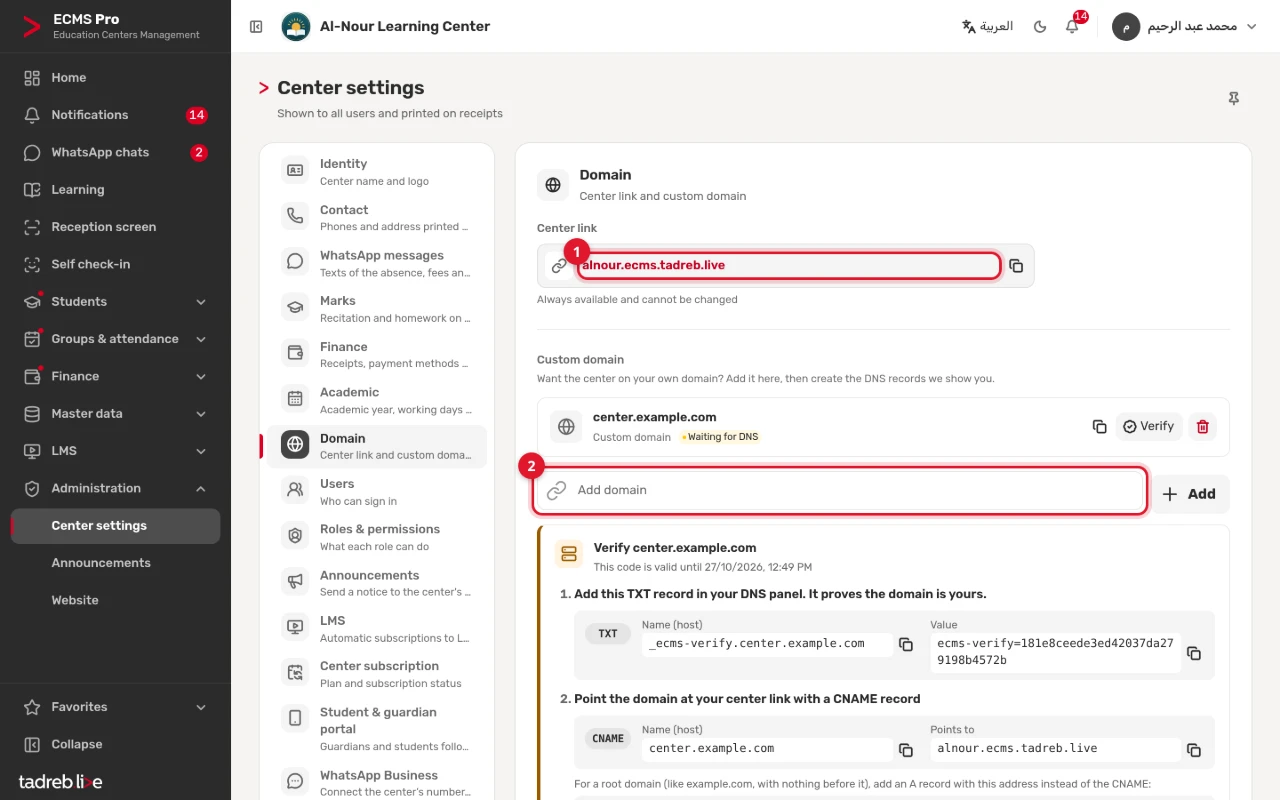
2. Add your domain
Under “Custom domain”, type the domain in “Add domain”, such as center.example.com, then press “Add”. The domain shows “Waiting for DNS”, with “Verify” under it listing the records to create.
- Each domain works exactly as you typed it:
example.comandwww.example.comare two domains, so add both if you want both. - You can’t add a domain another center has verified, nor the platform’s own domains.
3. Create a TXT record to verify it
In your DNS panel, create a TXT record:
- “Name (host)”:
_ecms-verify.followed by your domain, such as_ecms-verify.center.example.com. - “Value”:
ecms-verify=followed by the code shown to you.
This record proves the domain is yours. The code is valid for 72 hours after you add the domain, and “This code is valid until” shows when it ends. If it ends before the domain is verified, add the domain again to get a new code.
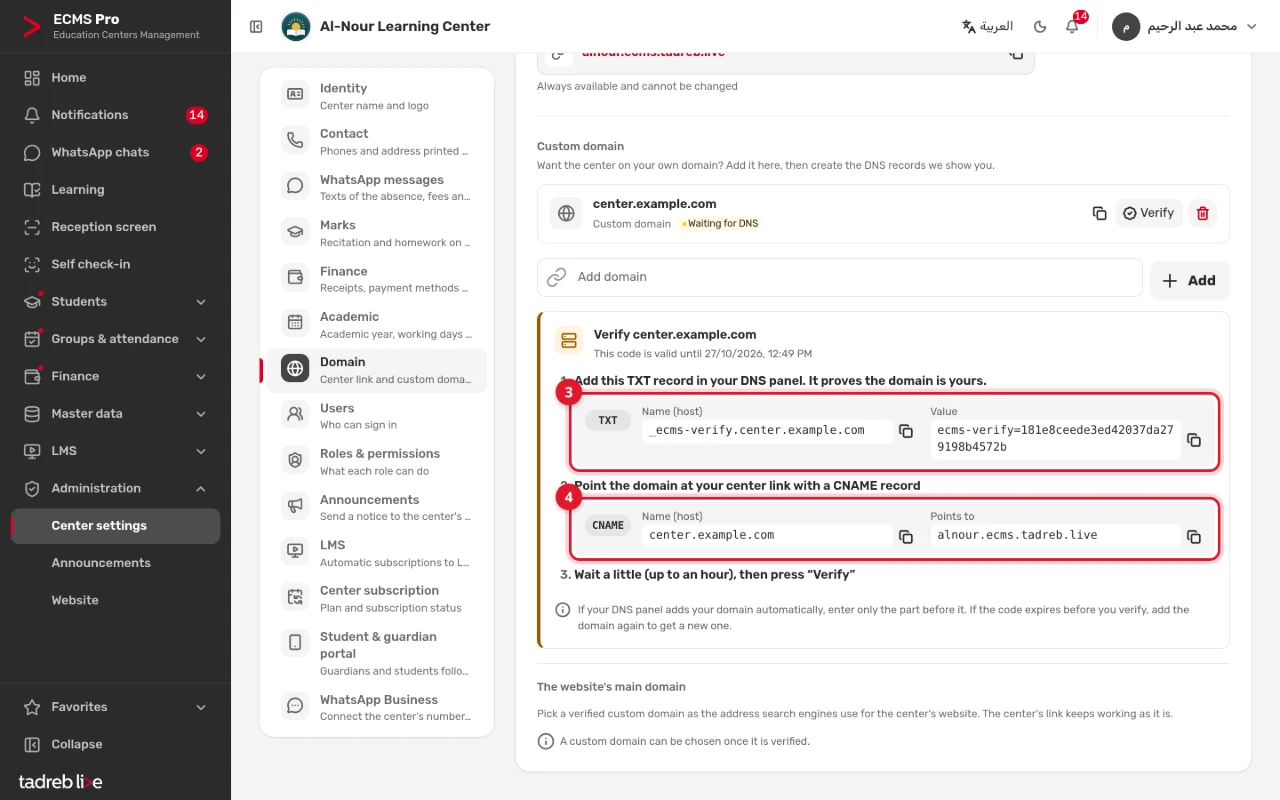
4. Point the domain at the center link
Create a CNAME record:
- “Name (host)”: your domain itself, such as
center.example.com. - “Points to”: your center link, such as
alnour.ecms.tadreb.live.
For a root domain with nothing before it, such as example.com, create an A record with the address shown on the page instead of the CNAME.
If your DNS panel adds your domain automatically, enter only the part before it in “Name (host)”, such as
_ecms-verify.center. Copy each value with the copy button next to it to avoid typing mistakes.
5. Press “Verify”
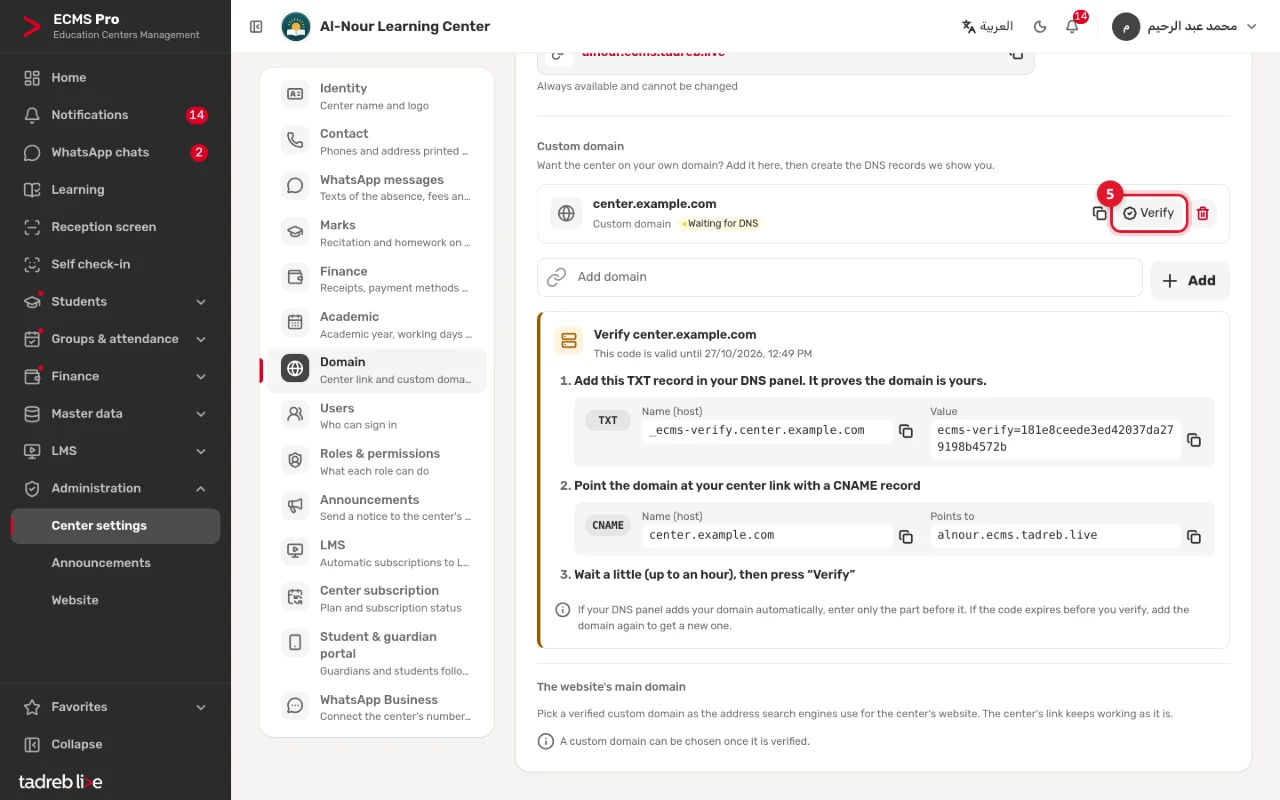
Wait a little after saving the two records, up to an hour, then press “Verify” next to the domain.
- When both records are found, “Domain is live ✓” shows, the domain’s status becomes “Live”, and the center opens on it over https by itself.
- When the TXT record is not found yet, or the domain does not point to the platform yet, a message says which. Check the record, wait a little, then press “Verify” again.
The whole center opens on the live domain: its website, its student and guardian portal, and its staff sign-in. The center link keeps working as it is. Each address has its own sign-in: someone signed in on one signs in again on the other.
6. Make it the website’s main domain
Once the domain is verified, press “Make it the website’s main domain” under “The website’s main domain” at the bottom of the page, then “Publish the site”. That domain becomes the address search engines use for the center’s website; visitors are not redirected from one address to the other. To go back to the center link, press “Remove” next to the domain. See Build and publish your center’s website.
Removing a domain
Press the “Remove domain” icon next to it, then confirm. The center no longer opens on that domain, and the center link stays as it is.