Automatic WhatsApp messages to parents: what goes out by itself, and what stays in your hands
After the last session of the day, many centers start another job: going through the registers, messaging the parent of every absent student, then sending the marks. A message that arrives a day late has lost its point.
With ECMS Pro you can let these messages go out by themselves from your center’s number, without losing control of them.
First: the messages are always ready
The system prepares each student’s messages from their data: absence, fees, marks and exam results, and sends them to the parent’s mobile number. You edit their text under “Center settings” → “WhatsApp messages”.
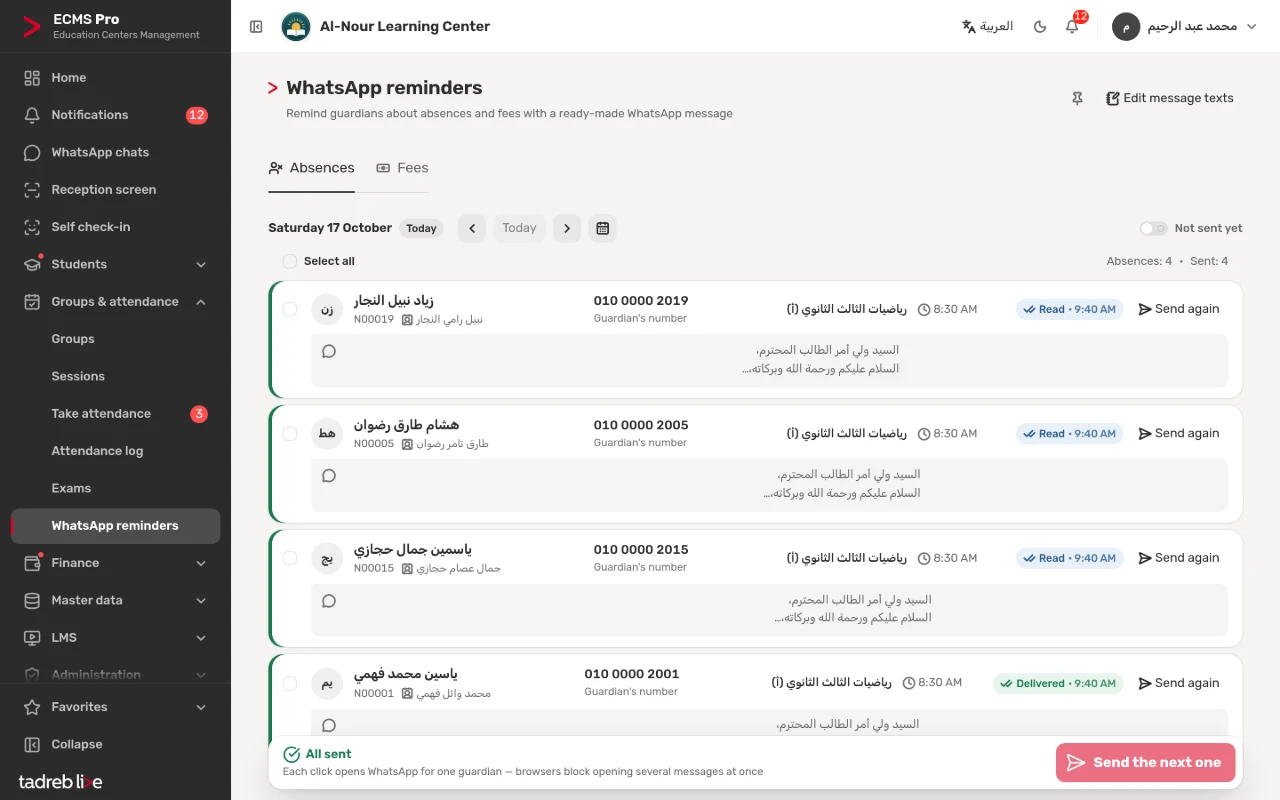
With nothing connected, “Send on WhatsApp” opens the parent’s chat on the staff member’s device with the message written, and “Send the next one” goes through everyone in order. Every message is logged with who sent it, so nothing goes twice by mistake.
Second: from the center’s number in one tap
Once your center connects its WhatsApp Business number, the same tap sends the message straight from the center’s number, without opening WhatsApp, and its status shows next to it: “Sent”, then “Delivered”, then “Read”.
Third: automatic messages
Once connected, “Center settings” → “WhatsApp Business” → “Automatic messages” lets you switch on each kind:
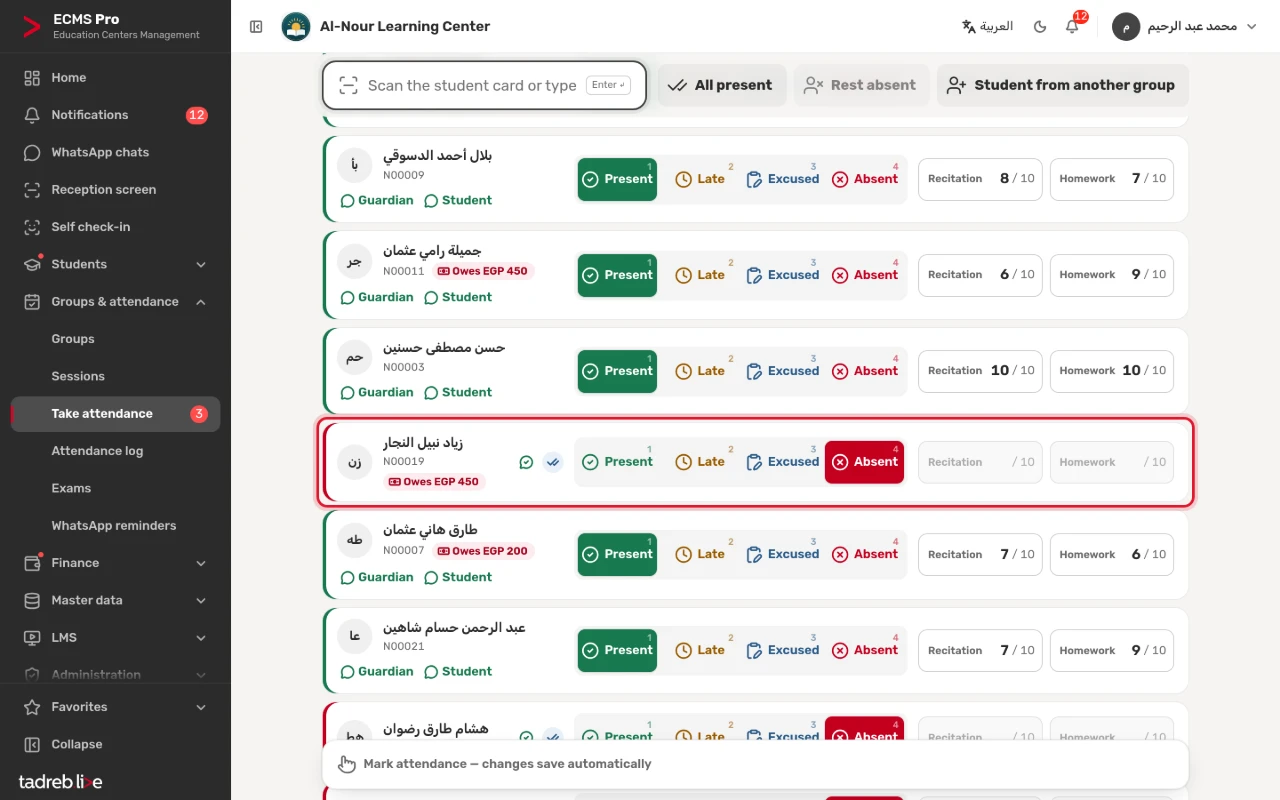
- Absence messages when the attendance sheet is saved: for every absent student in a session of today or yesterday, after 15 minutes by default. None go out for an old register you complete later, or for a student who attended the same lesson with another group.
- Marks messages when marks are saved: for every present student with a mark, after 30 minutes by default. If you edit the mark before it goes, one message goes with the latest mark.
- Exam results when an exam is published: for every student with a score, a few minutes after publishing.
You choose the “Delay in minutes” for absences and marks, from 0 to 240 minutes. It gives you time to fix any mistake on the register before the message reaches a parent.

Before every automatic message: a last check
Before sending, the system checks the message again against the data at that moment:
- Is the student still absent? Was the session not cancelled? Is the mark or result still there and published?
- Has someone sent it by hand in the meantime?
- Has the number’s owner asked to stop messages?
If anything changed, the message is not sent. Otherwise it is written from the current data and sent.
What stays in your hands: fees messages
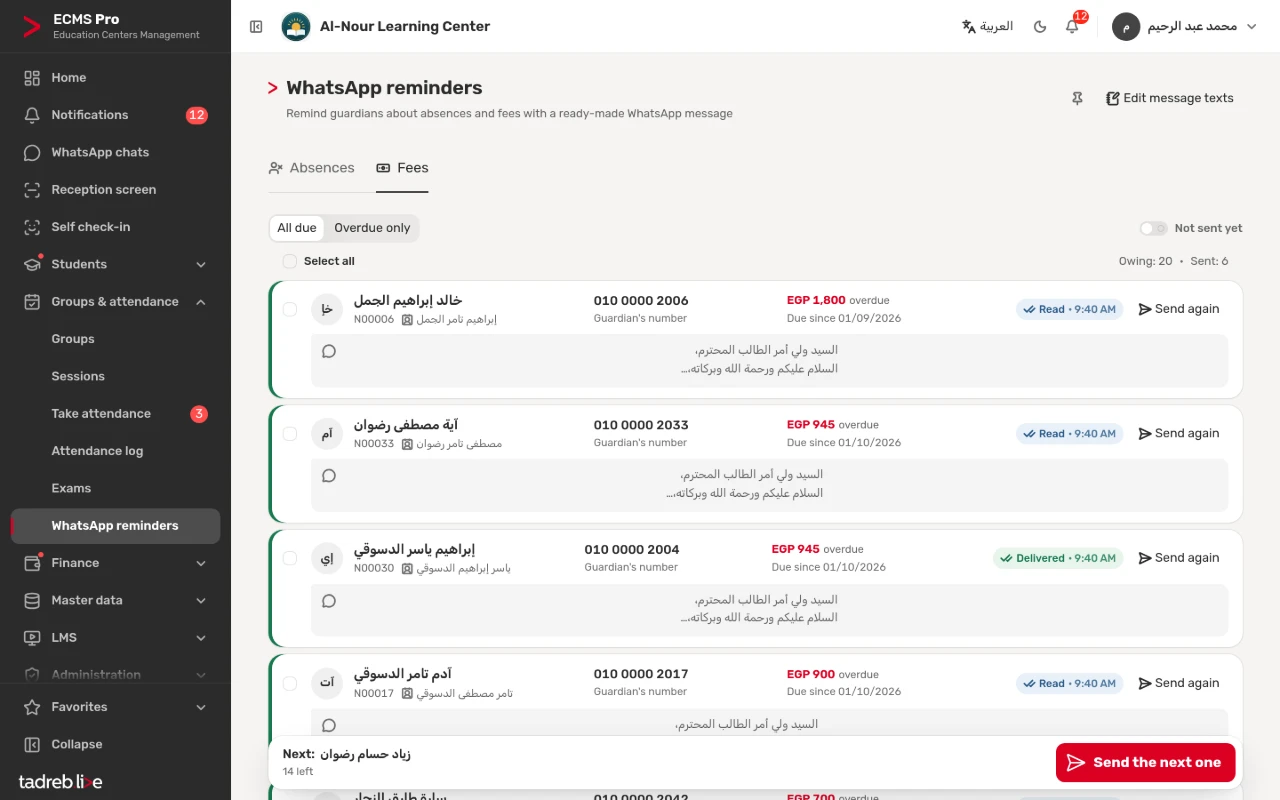
Fees messages are never sent automatically. Money needs a staff member’s judgement: did the parent pay yesterday? Did they agree on a date with the center? So you find them on the “Fees” tab of the “WhatsApp reminders” page, a formal message with the amount for each student, sent one tap per message.
Who gets the automatic messages
Parents only, unless you choose to send automatic messages to students too. No message reaches a number whose owner sent “إيقاف” (stop). You set the “Daily limit of direct messages”; once it is reached, direct sending stops for the day, and the other messages wait on the “WhatsApp reminders” page, one tap each through WhatsApp as they do now.
When a parent replies
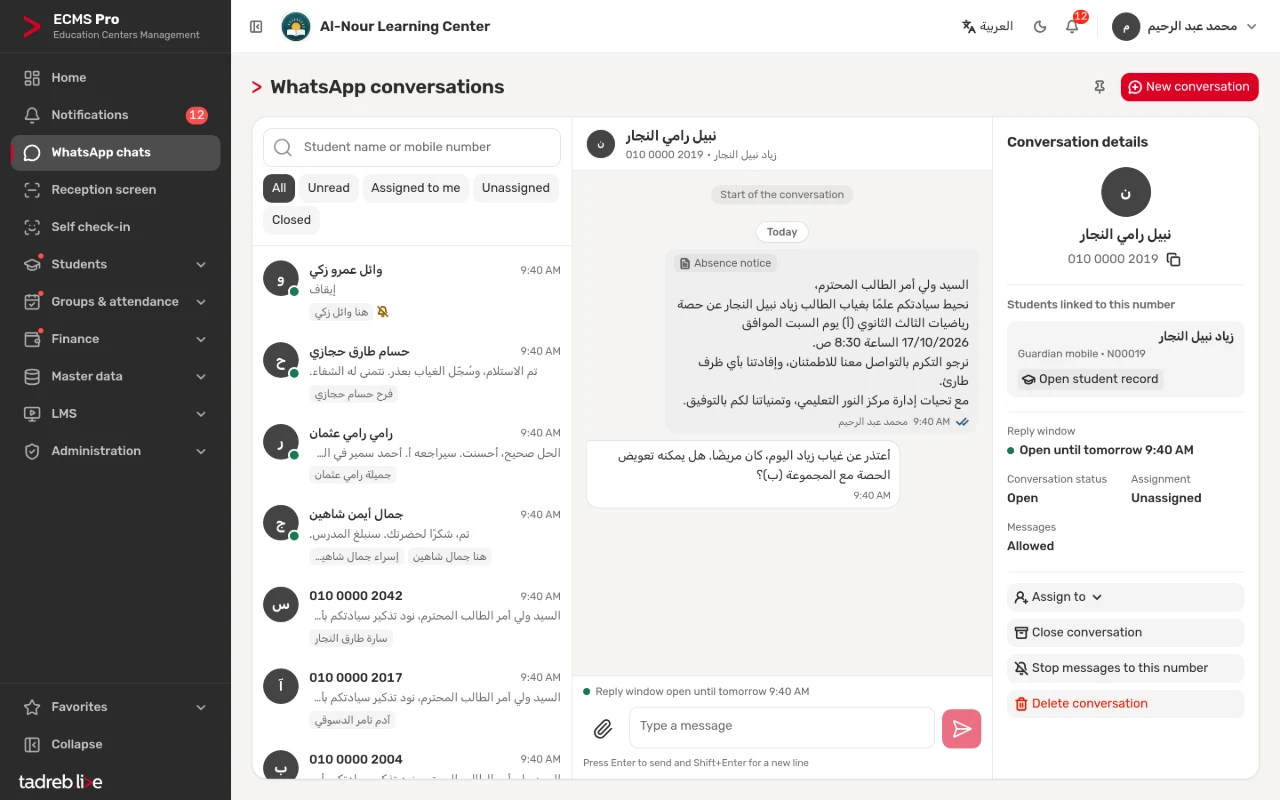
The reply lands in “WhatsApp chats” inside the system, with the student linked to the number, and the front desk answers from the center’s number. Teachers never see the chats.
How to start
- Check the message texts under “Center settings” → “WhatsApp messages”.
- Connect the center’s WhatsApp Business number and send the templates for Meta’s review: Connect your center’s WhatsApp Business number.
- Switch on the automatic messages you want, and choose the delay.
The sending and the texts in detail: WhatsApp messages to parents.